Thank you for your swift replyt
I followed the instructions and DHCP is malfunctioning - here is a summary:
Static IP on client works immediately (full connectivity confirmed)
This proves bridge, routing and firewall are correct
Issue seems specific to DHCP/broadcast traffic
when client tries to connect with DHCP it stays for 2 mintues on connecting and then returns error that it cannot obtain ip adress, meanwhile log for dhcp is empty.
Relevant log:
"Ignore set station for ap vlan ath01"
Conclusion:
It appears that the secondary SSID (ath01 on 2.4GHz radio) is not forwarding broadcast traffic properly, which breaks DHCP.
Questions:
Is this a known limitation/bug on GL firmware (Qualcomm driver)?
Is there an official way to create a fully functional additional SSID (non-guest) on 2.4GHz?
Are there required settings (AX mode, VLAN, driver flags, etc.) to make DHCP work on additional SSIDs?
edit:
I have confirmed that DHCP broadcast traffic does not reach br-iot from ath01.
Evidence:
WPA handshake completes
Client connects successfully
Static IP works immediately
No DHCPDISCOVER appears in logs for br-iot
This indicates broadcast forwarding is broken on secondary SSID (2.4GHz).
Can you confirm if this is a known limitation of the current firmware/driver?
Did you enable the DHCP server on the corresponding IoT interface as described in step 4 of the guide?
We’ve tested this locally, and by simply following the tutorial steps, a new SSID can be created successfully, with other devices able to connect and function normally—no additional steps are required.
If possible, please follow the guide and share your device with us via GoodCloud so we can check it remotely?
Kindly note to send us the MAC address and the router password via private message so we can access it
It seems, that Ihave a similar problem on a Flint3e GL-BE6500. Firmware: v4.8.7 (Based on OpenWrt 23.05-SNAPSHOT). Since the above mentioned guide explicitly mentions Flint3 only I did not try it.
Any attempt to create a third isolated network fails. While devices can successfully authenticate to the third WiFi SSID (e.g., ETM_Guest), they never receive an IP address and eventually disconnect. The system log shows a critical error from the wireless driver: kern.err kernel: ... wlan_cfg80211_change_station: Ignore set station for ap vlan
Summary of Troubleshooting Steps:
Standard VLAN Tagging (Failed): Using the standard OpenWrt method of creating VLAN-tagged sub-interfaces (e.g., br-lan.20, br-lan.30). This failed with the Ignore set station for ap vlan error.
Separate Software Bridges (Partially Successful): creating fully separate software bridges.
IP issue: Changing the default lan IP address from 192.168.8.1e.g. to 192.168.10.1 breaks DHCP functionality for the primary 2.4GHz radio (wlan0). Reverting to 192.168.8.1 fixes this.
Successful Two-Network Workaround: By keeping the lan at 192.168.8.1, the router's built-in guest network can be repurposed by renaming from guest interface to iot, changing its IP to 192.168.20.1, and assigning a wireless SSID to it. Works perfectly.
Creating a Third Network (Failed): Manuall creating a new, third network with a new guest interface (192.168.30.1) with its own bridge, DHCP pool, and firewall zone, precisely duplicating the configuration of the now-working iot network failed with the same Ignore set station for ap vlan kernel error.
It appears the firmware on the GL-BE6500 only the default lan interface and the default guest interface can be attached to a wireless radio.
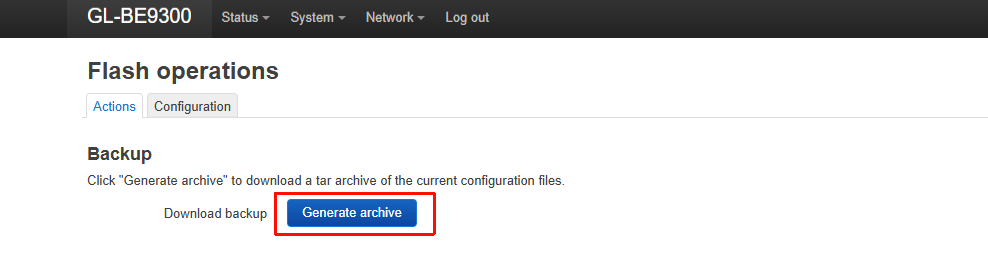
If GoodCloud access cannot be provided, could you export the LuCI backup file and send it to us via private message so we can import your configuration for testing?
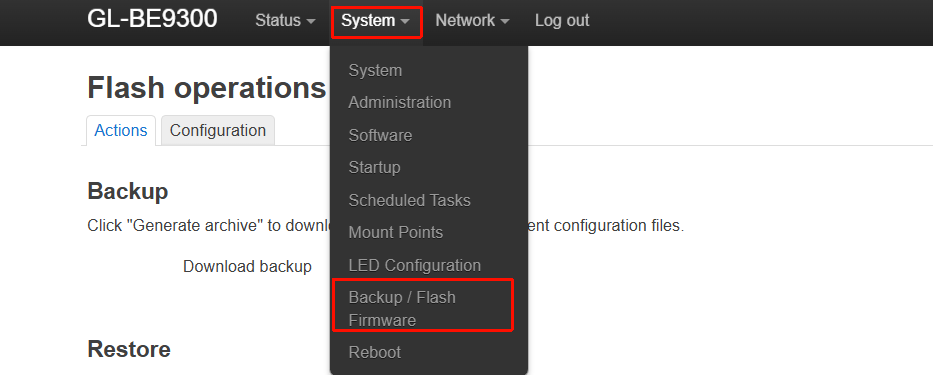
The backup file can be exported from LuCI → System → Backup / Flash Firmware:
Thank you for providing the backup configuration file.
After reviewing it, we found that a required step appears to have been missed, which caused DHCP requests from devices to the IoT network to be blocked by the firewall.
After importing your backup to our local router and adding this step, devices connected to the IoT SSID were able to obtain IP addresses via DHCP.
Please try again and let us know if this resolves the issue.
Note that after re-excute these commands, we will need to save the configuration again and restart the system .