I want to block the access to my default gateway (192.168.8.1) so any client connected to the router and trying to access the admin panel can be blocked to this website.
I still want to be able to access the admin panel of this router but only through goodcloud.
How is this possible?
I tried creating a rule on Luci by following theses stesps:
In the GLiNet Panel, went to MORE SETTINGSAdvanced
From there opened Luci.
In Luci I went to NetworkFirewallCustom Rules
Here I put:
To restrict unauthorized access to the router while maintaining network functionality, please follow these steps:
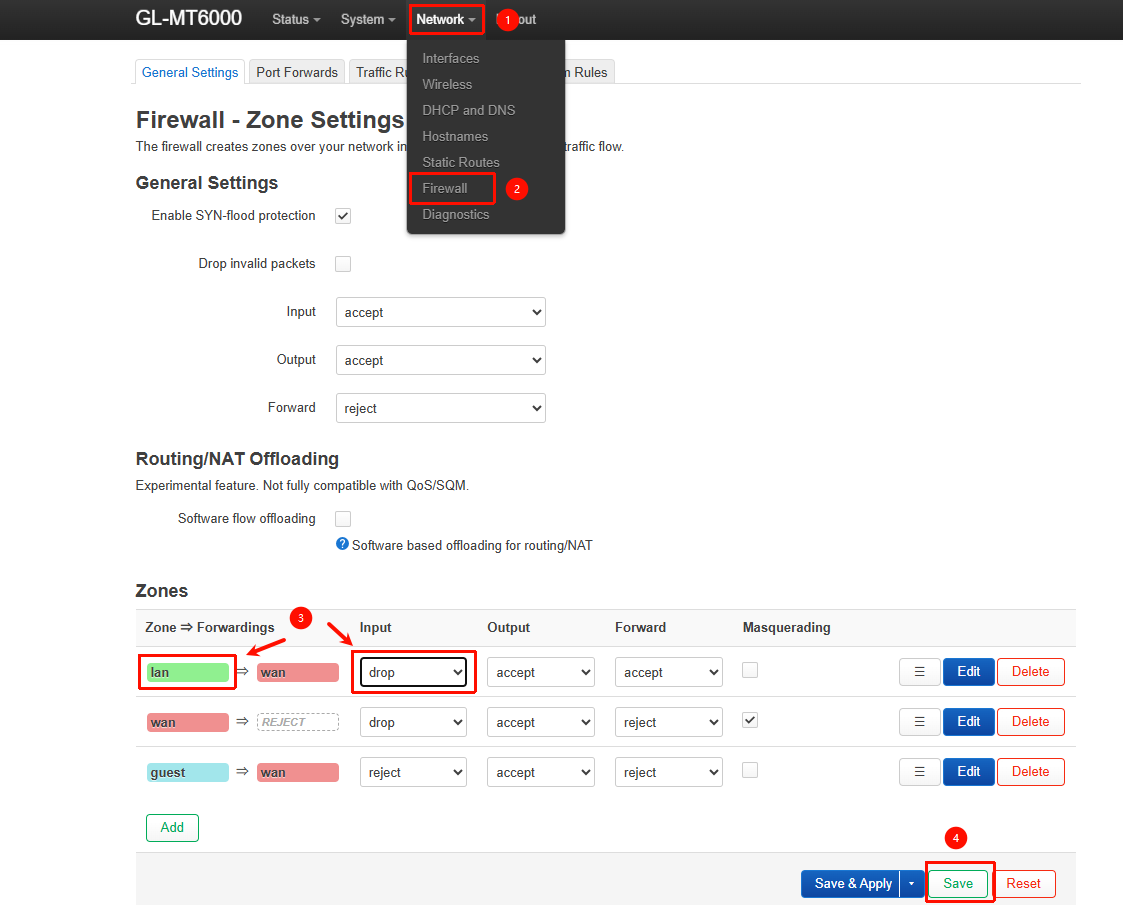
Modify Firewall Defaults: Navigate to LuCI > Network > Firewall. Under the General Settings tab, find the LAN zone and change the Input default setting from Accept to Drop or Reject.
Save and apply the configuration, then restart the router for the changes to take effect.
Note: These changes will not affect your ability to manage the device via GoodCloud. However, if a configuration error occurs and you lose local access, you will need to perform a factory reset to restore the default settings.
@will.qiu Thank yo for the steps provided.
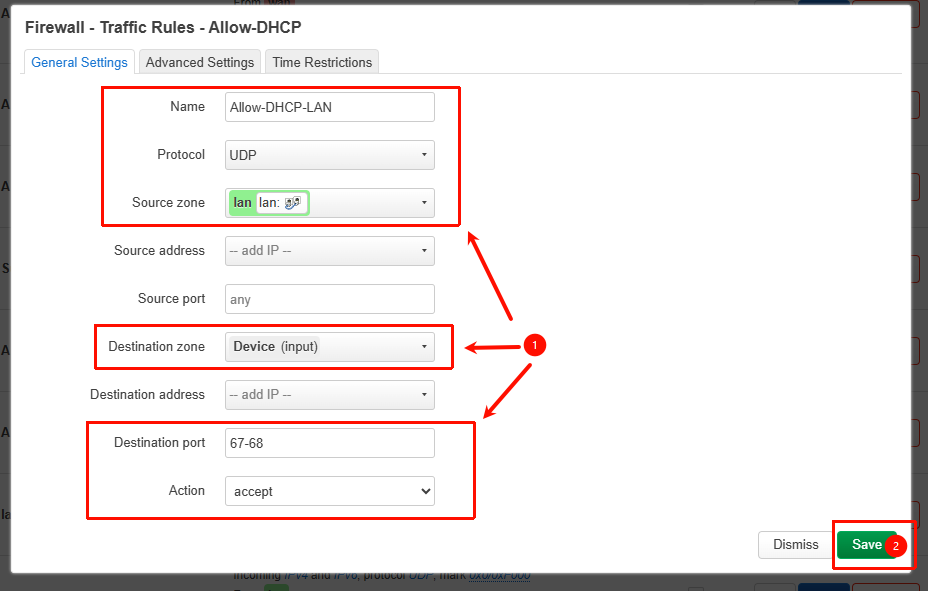
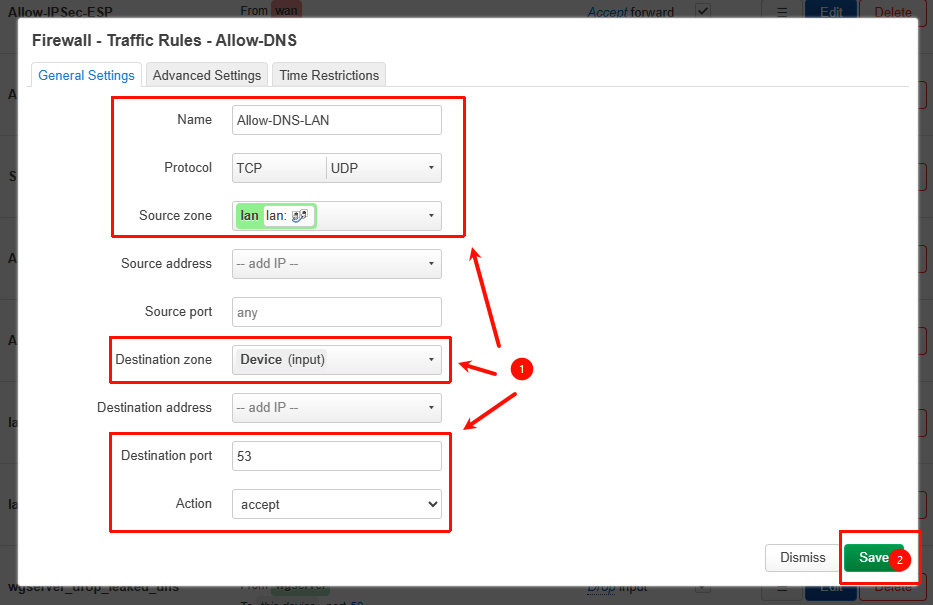
Could you please describe the steps for “Add those traffic rules” as you did on part 1 (Modify Firewall Defaults)? I tried by my own but it does not look like the image you put and I want to make sure the configuration is correct.
Sorry for the delayed reply.
I have added more specific operating steps to the original post.
Since you did not specify the device model or firmware version, I use the Flint 2 v4.8.3 as an example.
The LuCI interface on other device models may differ, but they should all include similar configuration fields.
You also can refer to the built-in DNS/DHCP rules created for Guest to configure the corresponding settings for LAN.
 Advanced