Regarding Opal GL-SFT1200. A few days ago I updated the firmware to 4.3.25. Now today the Admin page will not load in my phone browser. I looked in WiFi settings and see the Gateway and DNS are still the same as the IP address originally I set a long time ago. But the Admin page does not load. I tried the incognito browser solution from this but it did not work: GL-SFT1200 Cannot login advance after firmware update
Hi
Please refer to the following tutorial to see if it helps:
Cannot access web Admin Panel - GL.iNet Router Docs 4
I connected a PC to this Wifi router LAN port and I can reach the admin GUI using the IP address of the router WAN side (which is connected to an Ethernet switch), and also reach the admin GUI from the IP address which worked before when I connected with a mobile over Wifi (set to a different subnet address). I just cannot connect to the admin GUI over Wifi with the mobile device anymore. Otherwise the internet on the mobile device fine.
Device using incognito window and in airplane mode.
Next I started adb and opened a shell on the mobile device. I was able to ping my IP address but pings to the gateway address had no response.
Twice in the past I have factory reset and reconfigured the Wifi router for this problem but this time I am trying to find a faster solution, or at least understand it to eliminate a security concern.
ChatGPT says “GUI access from Wi-Fi clients fails because of AP isolation or internal Wi-Fi router firewall.”
I cannot find any setting regarding that.
Please make sure your Wi-Fi client is connected to the main Wi-Fi network (default SSID: GL-SFT1200-xxx-5G or GL-SFT1200-xxx), not the guest network (GL-SFT1200-xxx-5G-Guest or GL-SFT1200-xxx-Guest).
AP isolation typically does not prevent Wi-Fi clients from accessing the router’s Admin Panel, but you can double-check this in LuCI under:
Network > Wireless > Edit the relevant SSID > Interface Configuration > Advanced Settings.
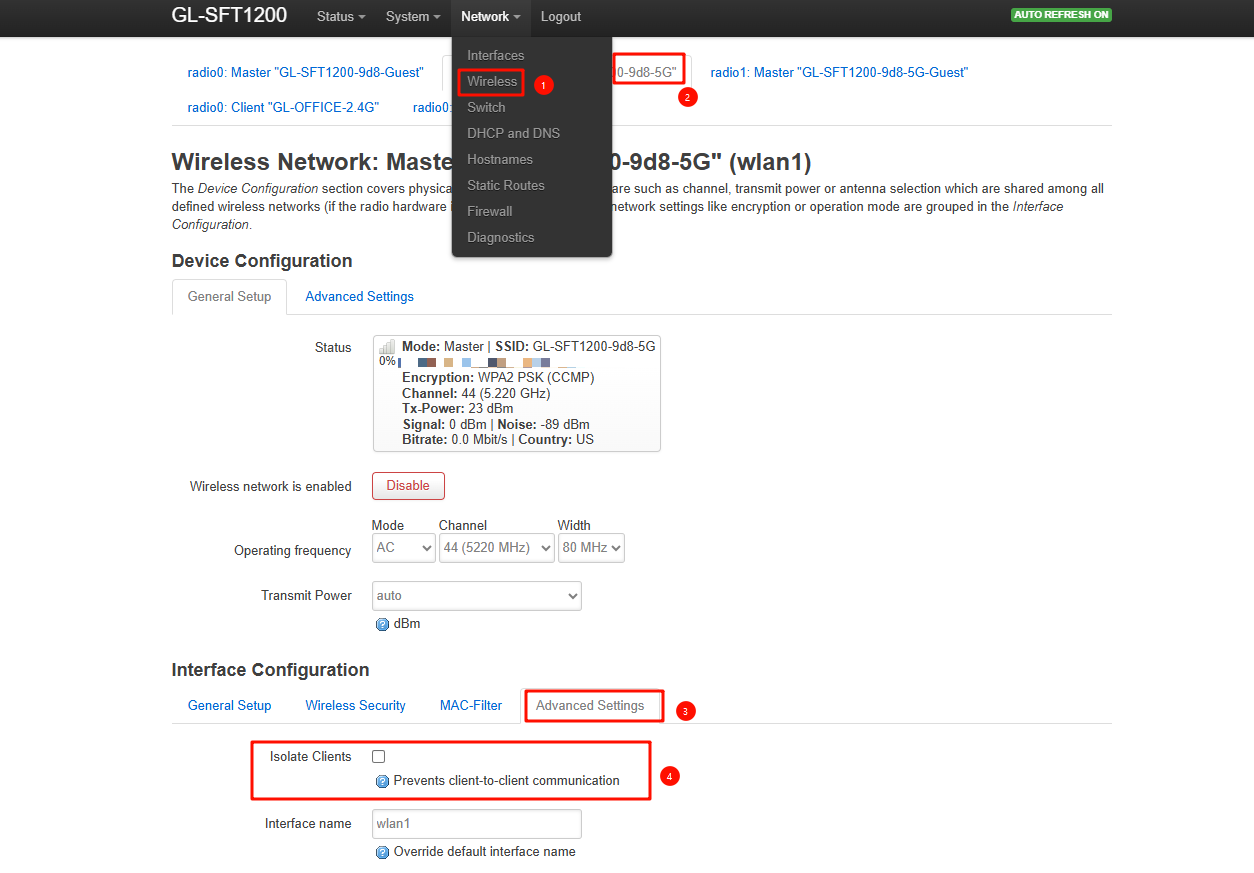
If the issue persists, we recommend performing a firmware reset using the official tutorial to see whether it resolves the problem.
Repair network or reset - GL.iNet Router Docs 4
Thank you for the info how to find LuCI. As you guessed the Isolate Clients is not ticked. Then I backed up my configuration and did a factory reset. I have the freshly installed glinet app on my phone. I Wifi connected to the router and everything shows the default settings. The glinet app scans the network but never finds the router. However I can open a web browser and load web pages.
I tried a different phone with Android 7.1 and the app worked immediately. It seems to be the phone. Permissions are set to allow network.
Perhaps you could try adding the devices to the app manually.
The steps are as follows:
- Tap the menu button in the top left corner.
- Click 'Add new devices'.
- Instead of selecting another option, click the 'Initialised devices' button at the bottom.
- Enter your router's LAN IP address, port number (if changed) and password.
I tried that after a factory reset (IP = 192.168.8.1), and again after restoring my configuration file. No luck.
Solution. I had experimented with a VPN but I had access to the admin GUI because the VPN switch "Block connections without VPN" was off. I don’t generally use a VPN so I forgot about it. Both the VPN and that switch was on.
1 Like
This topic was automatically closed 90 days after the last reply. New replies are no longer allowed.