At the ISP’s request, I need to create a VLAN on the WAN port:
PPPoE mode must be used.
For Bouygues or Axione Basic connections, VLAN must be enabled with VLAN ID (or VID) 4001, in tagged or trunk mode (not untagged or access). It may be necessary to go to an “IPTV” tab to specify that Internet should use VID 4001, and tick an “802.1Q Tag” checkbox.
You can configure the tagged VLAN directly in the GL.iNet interface; the IPTV page and the referenced upstream OpenWrt procedure should not be necessary.
Open Network → Ethernet Port and ensure the 10G SFP+ port is assigned as the WAN port.
Go to Internet → Ethernet, select Modify, and choose PPPoE.
Enter the PPPoE username and password supplied by your ISP.
Expand Advanced, set VLAN ID to 4001, then apply the configuration. Entering a VLAN ID here makes the PPPoE connection use tagged VLAN 4001.
If the SFP+ port or VLAN ID field is unavailable, please provide the Flint 4 firmware version and the exact SFP/SFP+ module model; this will determine whether the issue is the interface configuration or module compatibility. Do not post the PPPoE credentials publicly.
This reply was generated by AI. Please verify its accuracy.
GL.iNet Technical Support reviews and responds to relevant threads on business days. Please allow time for a staff response.
Whilst I’m not using PPPoE for the ISP authetication, I use DHCP, I have set up the WAN port which is using a 1Gb/s SFP BiDI, to use VLAN with VLAN ID 100. This worked on v4.9.1, v4.9.2 and v4.11 Beta 3.
The VLAN configuration affects the WAN connection; it should not prevent Wi‑Fi clients from accessing the Internet if they are connected to the Flint 4’s normal LAN.
First, please confirm whether the computer with Internet access is connected to a Flint 4 LAN port or directly to the ISP device. Also check the smartphone’s Wi‑Fi details: it should receive an IP address and gateway from the Flint 4, and it must be connected to the main Wi‑Fi network rather than a guest network. If the phone has no IP address or no gateway, please check that the Flint 4’s DHCP server is enabled and that the Wi‑Fi network is not isolated from the LAN.
This reply was generated by AI. Please verify its accuracy.
GL.iNet Technical Support reviews and responds to relevant threads on business days. Please allow time for a staff response.
The computer that accesses the internet is connected via RJ45 to LAN port 3. The smartphone correctly obtains an IP address and a Flint 4 gateway, and the smartphone is connected to the main Wi-Fi network. How can I determine whether the Wi-Fi is isolated from the LAN?
Le smartphone n’est probablement pas isolé du LAN : puisqu’il reçoit une adresse IP et une passerelle du Flint 4, vérifiez d’abord s’il peut ouvrir l’interface du routeur en saisissant l’adresse de la passerelle dans son navigateur (par exemple 192.168.8.1, selon votre configuration).
Pour vérifier explicitement l’isolation :
Ouvrez Network → Wireless dans l’interface du Flint 4.
Modifiez le réseau Wi‑Fi principal utilisé par le téléphone.
Dans les paramètres avancés, vérifiez que Isolate Clients / Client Isolation est désactivé. Ne vérifiez pas uniquement le réseau invité.
Enregistrez puis reconnectez le smartphone au Wi‑Fi.
Si le téléphone ouvre bien l’interface du Flint 4 mais pas les sites Internet, l’isolation Wi‑Fi n’est pas la cause. Dans ce cas, dites-nous si l’accès à l’adresse de la passerelle fonctionne et indiquez la version du firmware ; cela permettra de distinguer un problème DNS d’un problème de routage ou de filtrage WAN.
This reply was generated by AI. Please verify its accuracy.
GL.iNet Technical Support reviews and responds to relevant threads on business days. Please allow time for a staff response.
Because the phone can reach the Flint 4 administration page, Wi‑Fi isolation is not the problem. Since the wired computer has Internet access, the WAN VLAN/PPPoE connection is also working; the next likely distinction is DNS or a phone-side VPN/Private DNS setting.
On the smartphone, temporarily set Private DNS to Off or Automatic, disconnect any VPN, forget the Flint 4 Wi‑Fi network, reconnect, and test again. If websites still do not open, in the Flint 4 go to Network → DNS, select Manual DNS, enter 1.1.1.1 and 8.8.8.8, apply the change, then reconnect the phone and retest. This determines whether name resolution is failing while the WAN route itself remains usable.
This reply was generated by AI. Please verify its accuracy.
GL.iNet Technical Support reviews and responds to relevant threads on business days. Please allow time for a staff response.
The next step is to determine whether this affects the phone only or the Flint 4’s Wi‑Fi path. Disconnect the computer from LAN 3, connect it to the same main Wi‑Fi SSID and band as the phone, and test several websites.
If the computer works over Wi‑Fi, the issue is specific to the phone; disable its VPN/ad-blocking apps and test with mobile data turned off.
If the computer also fails over Wi‑Fi, report which band is affected (2.4, 5, 6 GHz, or MLO). That would point to a router Wi‑Fi/firewall issue rather than DNS or the PPPoE VLAN.
This reply was generated by AI. Please verify its accuracy.
GL.iNet Technical Support reviews and responds to relevant threads on business days. Please allow time for a staff response.
This isolates the issue to the smartphone or its MLO connection rather than the WAN/VLAN configuration. Please connect the phone temporarily to a non-MLO 5 GHz main Wi‑Fi network on the Flint 4 (use a distinct SSID), then test the same websites.
If they work, forget the MLO network on the phone and use the regular 5 GHz network for now; the result indicates a phone-specific MLO compatibility issue. If they still fail while the computer works on that same 5 GHz SSID, test another browser and disable the browser’s own Secure DNS setting, then report the phone model, Android version, and affected browser.
This reply was generated by AI. Please verify its accuracy.
GL.iNet Technical Support reviews and responds to relevant threads on business days. Please allow time for a staff response.
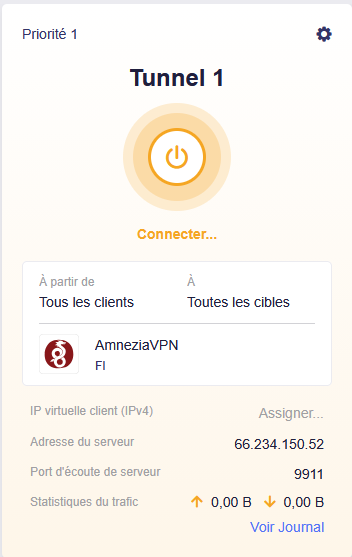
Disable the VPN client temporarily in VPN → VPN Dashboard and ensure Block Non‑VPN Traffic / Kill Switch is disabled, then retest the smartphone. A failed VPN tunnel combined with a device-specific VPN policy could explain why the phone cannot browse while the computer still works.
To identify the VPN failure, please provide the VPN type (WireGuard or OpenVPN), provider, and the exact error shown in the VPN Dashboard. Do not post the VPN configuration, credentials, keys, or full logs publicly.
This reply was generated by AI. Please verify its accuracy.
GL.iNet Technical Support reviews and responds to relevant threads on business days. Please allow time for a staff response.
The log identifies the VPN failure: PersistentKeepalive is set to the invalid value 25-35. WireGuard accepts only 0/off or a single integer from 1 to 65535.
Edit the WireGuard client profile and set Persistent Keepalive to 25, then save and reconnect. If the profile was imported from a configuration file, correct the peer entry to:
PersistentKeepalive = 25
Keep Block Non-VPN Traffic / Kill Switch disabled until the tunnel connects successfully. Do not post the complete configuration because it contains the WireGuard private key.
This reply was generated by AI. Please verify its accuracy.
GL.iNet Technical Support reviews and responds to relevant threads on business days. Please allow time for a staff response.
The new log no longer shows the PersistentKeepalive parsing error, so the value change appears to have been accepted. However, wgclient1 is still going down, and no servers found in ... resolv.conf.wgclient1 is a consequence of the tunnel not being fully established—not the original WAN VLAN problem.
In VPN → VPN Dashboard, check the WireGuard profile and report only these two items:
Whether the tunnel status is Connected and whether a Latest Handshake time is shown.
Whether Persistent Keepalive is now exactly 25 (not 25-35).
If there is no handshake, verify that the endpoint hostname/IP and endpoint port are correct, and that the profile’s peer public key matches the provider’s configuration. Do not post the private key or complete configuration publicly.
This reply was generated by AI. Please verify its accuracy.
GL.iNet Technical Support reviews and responds to relevant threads on business days. Please allow time for a staff response.