Can you please outline the steps that can be used to enable noip ddns on the glmt3000 router. Also I want to disable the glinet ddns while having noip working
Hi
The following steps are based on the MT3000 running firmware version 4.8.1:
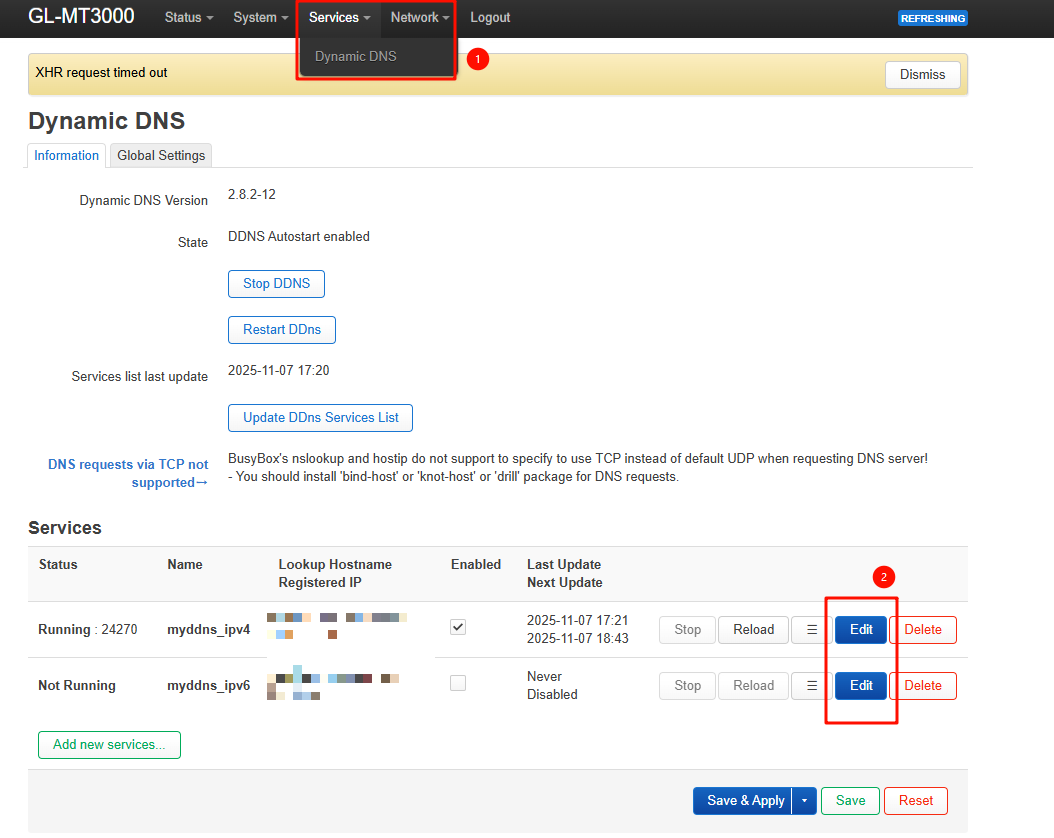
- SSH into the router and run the below commands for installing the third-party plugins
luci-app-ddnsandddns-scripts-noip.
opkg update && opkg install luci-app-ddns ddns-scripts-noip
reboot
-
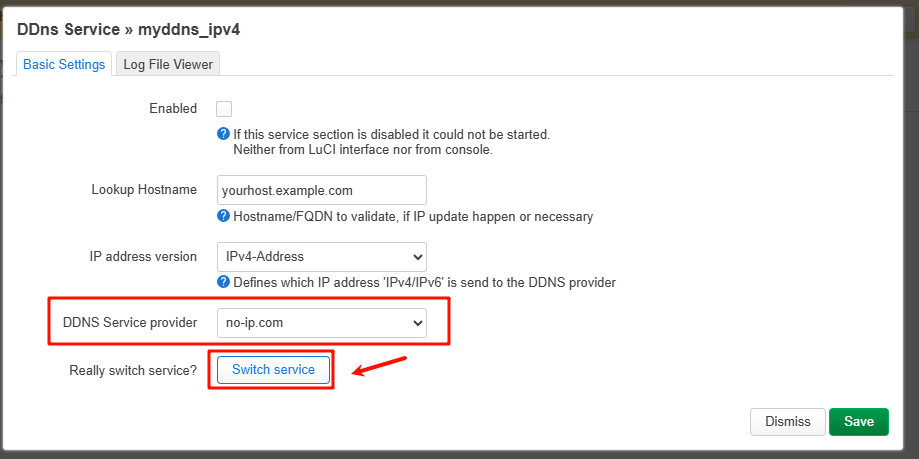
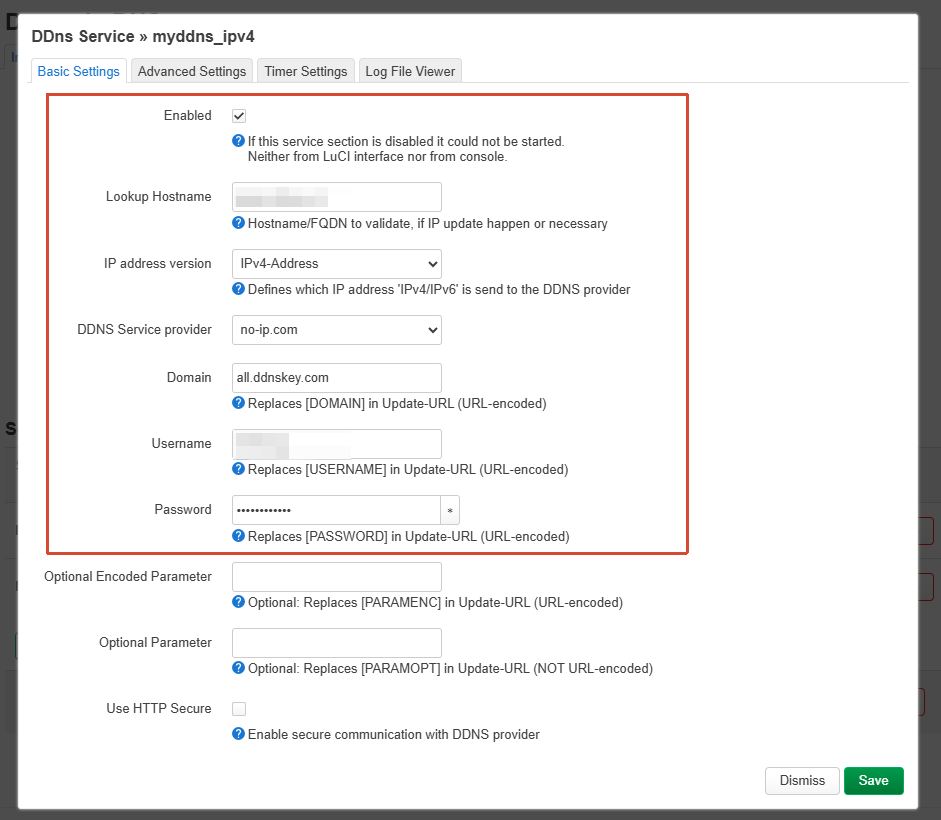
After rebooting, go to the Luci - Services - Dynamic DNS to configure NoIP-related settings.
-
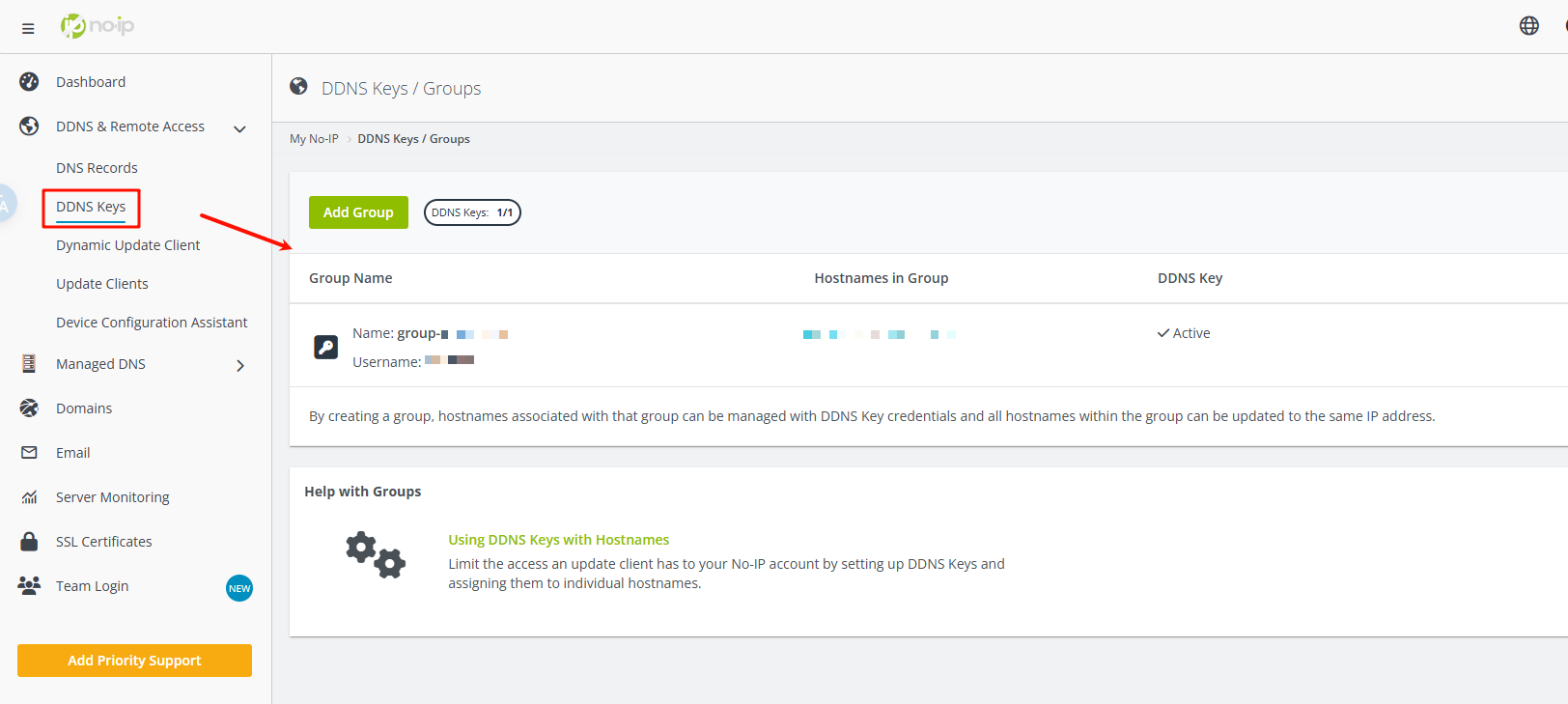
The domain, username and password should be obtained from the NoIP official website.
-
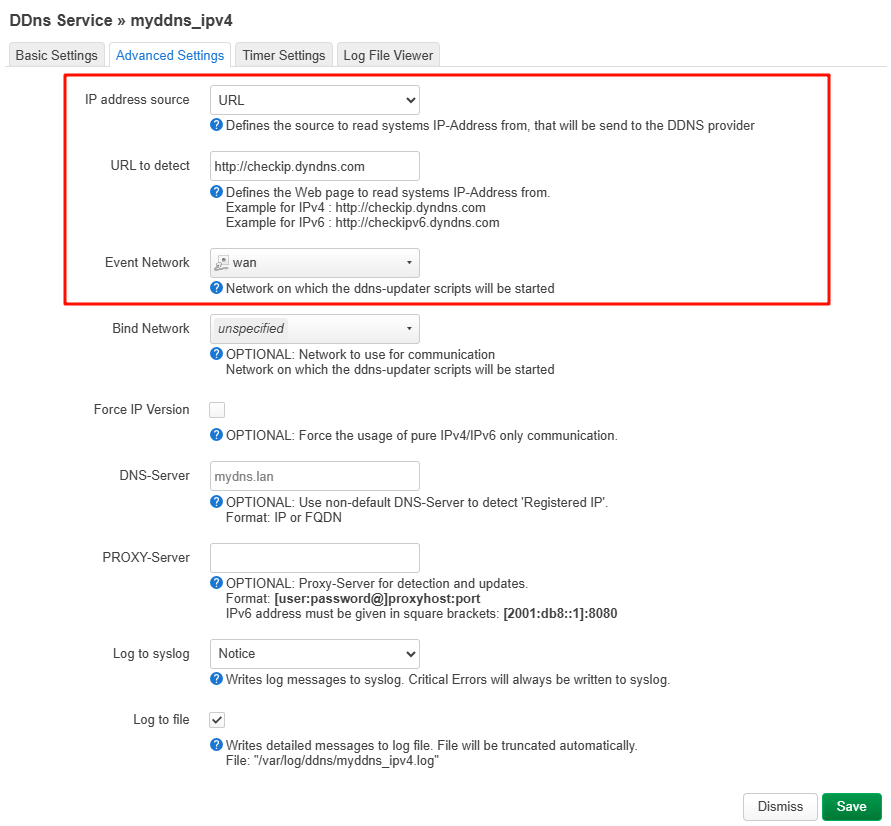
In Advanced Settings, you can select the interface and method used to detect the public IP address.
-
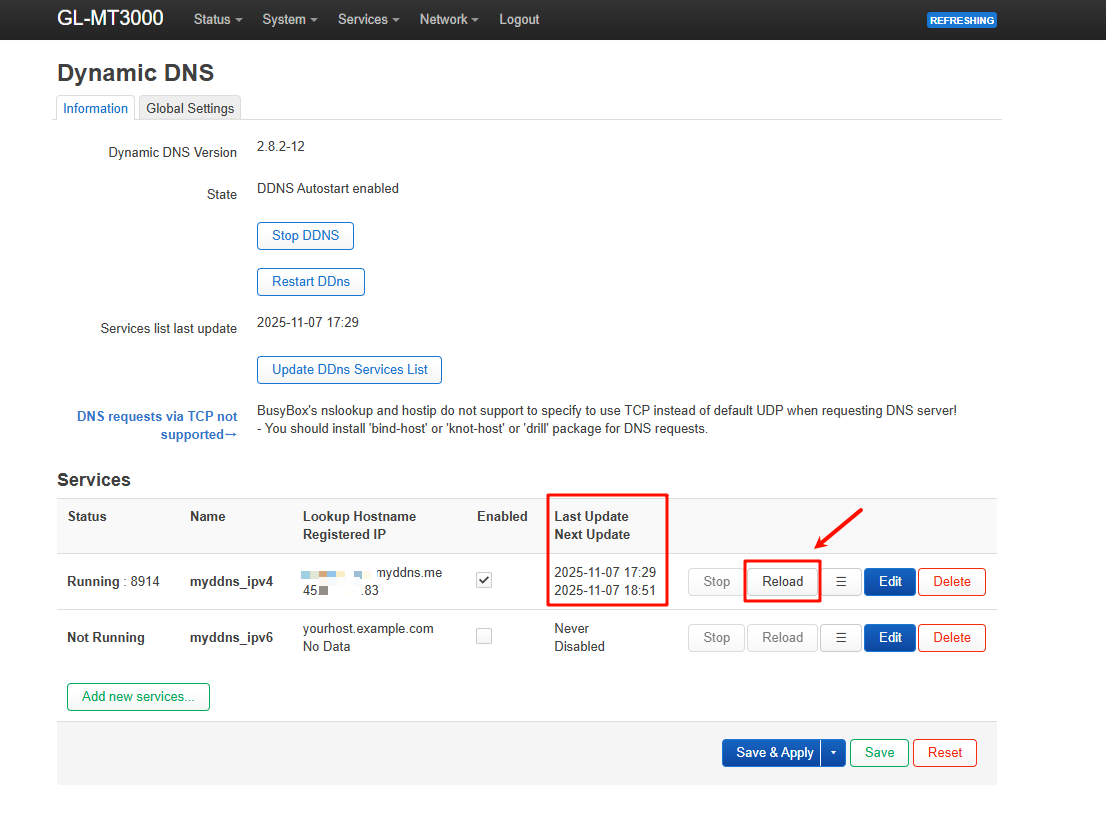
Then you should be able to see that it is running. Alternatively, you can click the 'Reload' button to trigger an update immediately.
3 Likes
Sorry, sort of stealing the thread…Have a Flint2, connected to an NBN modem in Aus…
Have followed your info, and unable to get it to work. Seems OK, as in is running, but Last Update = Never, and Next Update = Verify.
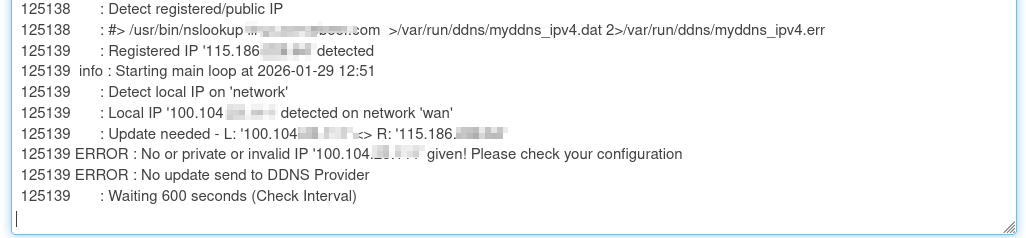
Yes, getting errors in the log file:
After doing some reading, have discovered that, with FTTP in Aus (or with my ISP?), the IP address is not absolute...? ie, they are also using NAT, to enable sufficient IP addresses.
Is it then possible (not sure if you will know?) to use DDNS on the router, or do I need to install a util (eg NOIP has a Dynamic Update Client - Sign In - No-IP ) on the network?
Thanks.
Hi
Have you already configured the NBN modem in IP passthrough mode or bridge mode?
If so, judging from the address obtained by the Flint 2, it appears to be a CGNAT IP, which means your ISP has not provided you with a public IP address (whether static or dynamic).
In this case, DDNS doesn’t make sense.
Looking back at the luci-app-ddns logs, it seems the address is being obtained directly from the WAN interface, and it’s getting a private IP, so the domain name won’t be updated.
You can follow the previously provided Step 4 and, in Advanced Settings, change the method the application uses to detect the public IP address.
Configure it as shown in the screenshot, fetching public IP address via an IP detection website should work fine.
Users have no access to configure the NBN modem - controlled by the ISP, and the ISP has full control over the “upstream NAT”.
But, yes, then changed the Step4 info (and fixed up my login info  ), and now appears to be working!!
Thank you!
1 Like
But because of the NAT, still not working…
Have contacted ISP and been changed to a Dynamic IP - all good!
1 Like
This topic was automatically closed 90 days after the last reply. New replies are no longer allowed.