I’ve found an annoying bug in both mt6000-4.9.0_release1-1015-0605-1780626850 and mt6000-4.9.1_release1-1079-0804-1785826264 stable firmware.
Every time I reboot my router through the web interface or by power-cycling it, Windows creates a new inactive LAN network profile leaving a mess.
The bug seems to occur only when the router is connected via Ethernet cable; I haven’t observed it when connected over Wi-Fi.
To see the mess of inactive profiles, go to Setup→Network→Network Connections in ESET Endpoint Antivirus v13.0.2044 for example.
Question, any of those build are op24 or op25?
Just asking 
1 Like
Maybe someone could test Op24/Op25 to see if they have the same issue. The bug mentioned above was found in the latest stable releases.
Still believe you on the wrong thread but alright mate..... 
Hi,
Since this issue does not appear to be strongly related to the OP firmware, we have split it into a separate thread for further investigation.
We tested locally with MT6000 v4.9.0/v4.9.1, but were unable to reproduce the issue.
Whether rebooting the router through the Web interface or by power cycling it, Windows did not create any new inactive network profiles.
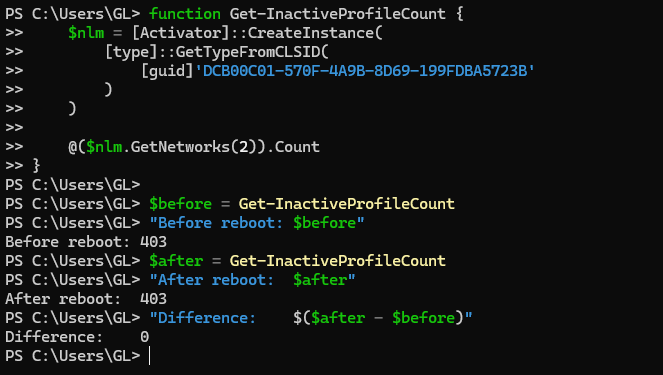
function Get-InactiveProfileCount {
    $nlm = [Activator]::CreateInstance(
        [type]::GetTypeFromCLSID(
            [guid]'DCB00C01-570F-4A9B-8D69-199FDBA5723B'
        )
    )

    @($nlm.GetNetworks(2)).Count
}

$before = Get-InactiveProfileCount
"Before reboot: $before"
# Reboot the Router
$after = Get-InactiveProfileCount
"After reboot:  $after"
"Difference:    $($after - $before)"
Could you please clarify:
-
Does this issue only affect a specific Windows device, or does it happen on all Windows devices?
-
Normally, Windows creates a new network profile based on the router's MAC address of the connected network. Therefore, please check whether the MT6000's LAN MAC address changes before and after reboot.
You can SSH into the router and run the following command to check:
ip -br link show br-lan
If you confirm that the MT6000 LAN MAC address changes after reboot, please note that we should do not have any feature to randomize the LAN MAC address. In this case, please check whether any third-party plugins are installed that may cause this behavior.
You can also try resetting the device to factory defaults and only configuring the settings required for internet access, then check whether the issue still occurs.
1 Like
flint2_bug1.zip (2.5 MB)
Thank you Will for your answer.
“Does this issue only affect a specific Windows device, or does it happen on all Windows devices?”
It affects all Windows devices connected to the Flint 2 via UTP cable.
”ip -br link show br-lan”
I haven’t seen any MAC address changes before or after rebooting. I also don’t use any third-party plugins.
”You can also try resetting the device to factory defaults and only configuring the settings required for internet access, then check whether the issue still occurs.”
I’m using a clean installation of mt6000-4.9.1_release1-1079-0804-1785826264 with a factory reset.
I’d also like to provide you with a real-time video showing how to reproduce the bug. I’ve attached the video to this message.
I hope this will help fix the issue in the next release.
Best regards.
Hi,
Thank you for providing the video showing the issue.
Have you had a chance to use the PowerShell command and steps we provided earlier to check whether the Windows network profile itself is also changing in a similar way?
Additionally, does the issue still occur if ESET is completely disabled, including its kernel-level components?
I used ESET Endpoint Antivirus only to visually demonstrate, in real time, how inactive network profiles are created and stored in the registry key:
HKEY_LOCAL_MACHINE\SOFTWARE\Microsoft\Windows NT\CurrentVersion\NetworkList\Profiles
The antivirus is not related to this issue. With my previous router, the TP-Link TD-W8968 v5, this problem does not occur when connecting via a UTP cable. The problem occurs only when connecting the Flint 2 via a UTP cable. Could U-Boot be creating inactive profiles before loading the main firmware?
I assume your developers should be able to reproduce the bug using the reproduction steps I provided and investigate the issue themselves, since it can be reproduced consistently. Moreover, my friend has a Flint 2 router with exactly the same problem, so this is not an isolated case.
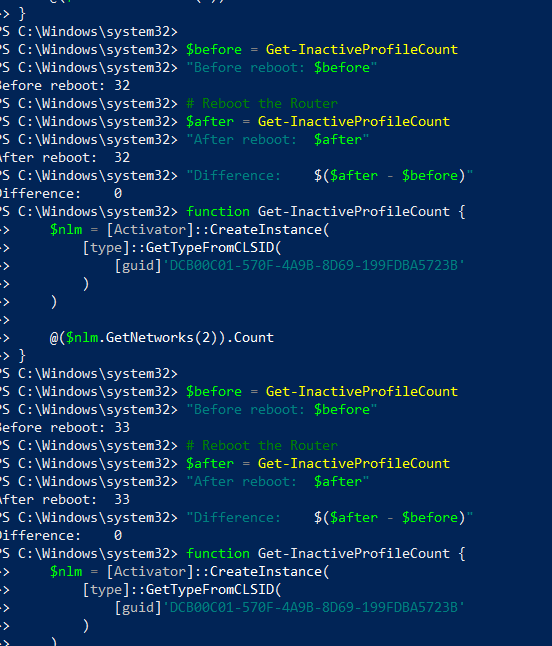
I have same situation. It was 32 before reboot and 33 after.
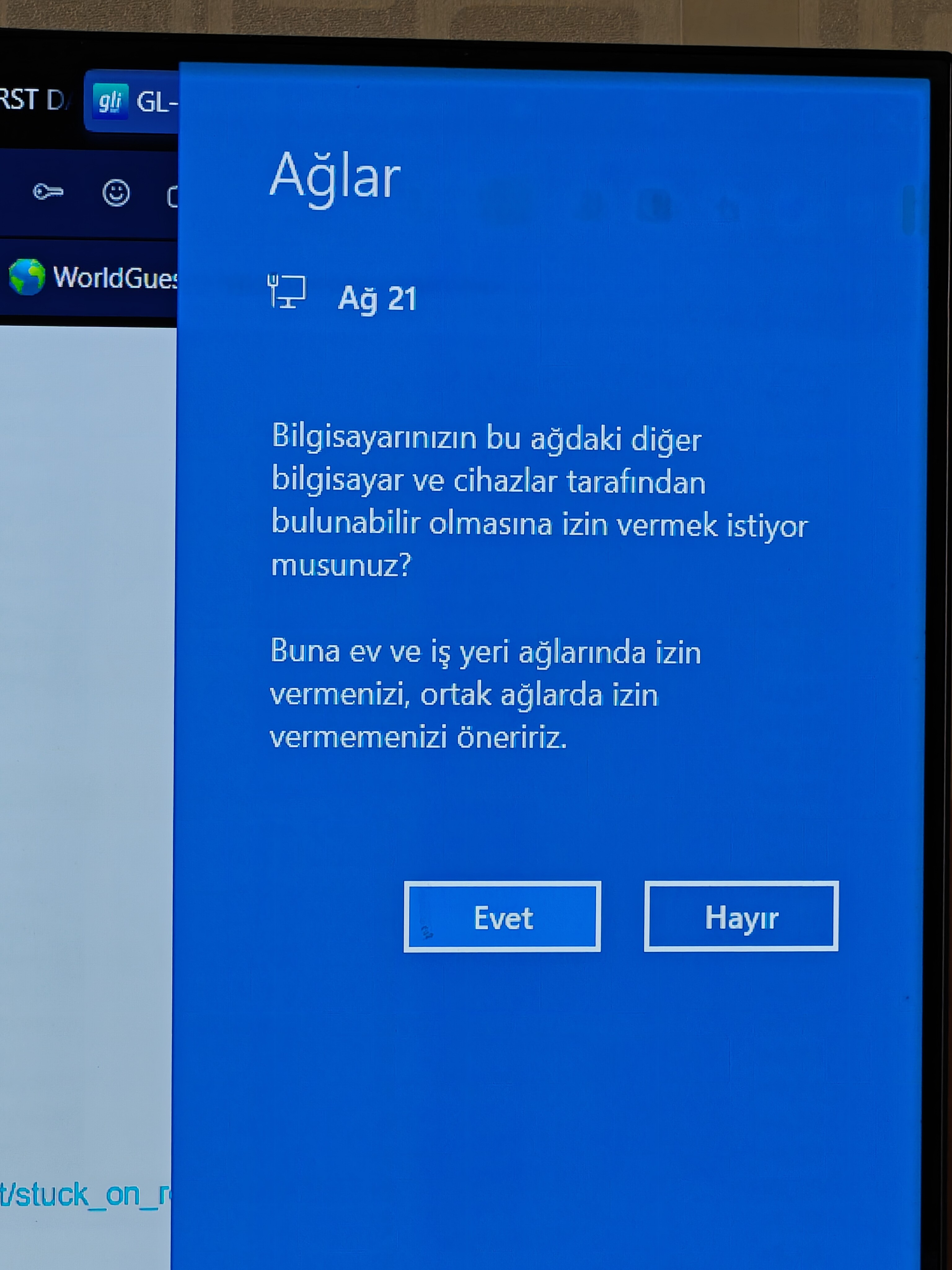
And I see this popup during reboot. It increase with every reboot. (It ask something about Pc can be found on this network)
1 Like
Hi,
Thank you for the updates and for providing the PowerShell test results.
Since we have been unable to reproduce the issue locally, could you please help run the following PowerShell script? This will allow us to compare the Network Profiles created by Windows before and after the router reboot and identify what changed — for example, GatewayMac, DNS suffix, FirstNetwork, or whether all fields remain the same but Windows still generates a new GUID.
(Please note that administrator privileges are required to access the relevant registry entries.)
function Get-NetworkSignatureSnapshot {
    $sigRoot = 'HKLM:\SOFTWARE\Microsoft\Windows NT\CurrentVersion\NetworkList\Signatures\Unmanaged'
    $profileRoot = 'HKLM:\SOFTWARE\Microsoft\Windows NT\CurrentVersion\NetworkList\Profiles'

    Get-ChildItem $sigRoot | ForEach-Object {
        $sig = Get-ItemProperty $_.PSPath
        $profile = if ($sig.ProfileGuid) {
            Get-ItemProperty (Join-Path $profileRoot $sig.ProfileGuid) -ErrorAction SilentlyContinue
        }

        [pscustomobject]@{
            Signature         = $_.PSChildName
            ProfileGuid       = $sig.ProfileGuid
            ProfileName       = $profile.ProfileName
            DefaultGatewayMac = if ($sig.DefaultGatewayMac) {
                [BitConverter]::ToString([byte[]]$sig.DefaultGatewayMac)
            } else { '' }
            DnsSuffix         = $sig.DnsSuffix
            FirstNetwork      = $sig.FirstNetwork
            Description       = $sig.Description
        }
    }
}

$before = @(Get-NetworkSignatureSnapshot)
Read-Host 'Reboot the router, wait for Internet access to return, then press Enter'
$after = @(Get-NetworkSignatureSnapshot)

Compare-Object $before $after `
    -Property Signature,ProfileGuid,ProfileName,DefaultGatewayMac,DnsSuffix,FirstNetwork,Description `
    -PassThru |
    Where-Object SideIndicator -eq '=>' |
    Format-List *
Alternatively, you can directly compare the differences in the Network Profiles under the following two registry locations before and after the router reboot:
HKEY_LOCAL_MACHINE\SOFTWARE\Microsoft\Windows NT\CurrentVersion\NetworkList\Signatures\Unmanaged
HKEY_LOCAL_MACHINE\SOFTWARE\Microsoft\Windows NT\CurrentVersion\NetworkList\Profiles
Additionally, if possible, please install Wireshark on the Windows device and capture traffic starting before the router reboot until the network connection has fully recovered. You can then send the capture file to us via private message for further investigation.