Background
Many GL.iNet routers come with a built-in Tailscale application, bringing the power of this P2P mesh VPN to your fingertips. However, the current official implementation is in the preliminary stages and does not yet expose a UI option to toggle "Exit Node" functionality.
Many users want their router to act as an Exit Node (routing all internet traffic from their phone or laptop through their home router). This tutorial demonstrates how to enable this function via SSH, how to preserve the setting during firmware upgrades, and how to revert the changes.
Important Note / Disclaimer:
The configuration outlined in this tutorial involves manual modification of system files via SSH and utilizes features that are currently in a preliminary stage of development.
- No Official Support: This functionality is not officially supported by GL.iNet at this time. Our customer service and technical support teams are unable to assist with troubleshooting issues related to these specific modifications.
- Advanced Users Only: This guide is intended for users familiar with command-line interfaces (CLI) and SSH. Incorrect changes to system files may cause network instability or require a firmware reset.
- Future Updates: As this is an experimental implementation, future firmware upgrades may overwrite these settings or change how Tailscale functions.
Verified Devices & Firmware Compatibility
This method has been specifically tested and verified on the devices listed below. However, generally speaking, any GL.iNet router running firmware version 4.8.x should be compatible with this method.
- Flint 3 (GL-BE9300): v4.8.3
- Flint 2 (GL-MT6000): v4.8.3
- Slate 7 (GL-BE3600): v4.8.1
- Beryl AX (GL-MT3000): v4.8.1
Prerequisites
Before proceeding, please ensure you meet the following requirements:
- SSH Access: You know how to SSH into your router (using PuTTY, Terminal, or PowerShell).
- CLI Familiarity: You are comfortable with basic command-line operations and text editors in a UNIX-like environment.
- Tailscale Account: You have an active Tailscale account and at least one other device connected to your Tailscale network.
Part 1: Setting up the Exit Node
Step 1: Modify the Router Configuration via SSH
- SSH into your GL.iNet router.
- Run the following command. This modifies the startup script to enable Tailscale to advertise itself as an Exit Node whenever it starts.
sed -i 's/tailscale up/tailscale up --advertise-exit-node/' /usr/bin/gl_tailscale
Step 2: Enable Tailscale in the Admin Panel
- Open your web browser and go to the GL.iNet Admin Panel.
- Navigate to Applications -> Tailscale.
- Enable Tailscale and bind/login your Tailscale account if you haven't already.
- Crucial Step: Ensure that "Allow Remote Access WAN" is enabled.
- Why? This ensures the firewall zone automatically allows traffic to flow from the Tailscale Zone to the WAN Zone. Without this, the internet on your other devices will not work when connected to the exit node.
- This will also advertise the WAN subnet as a route, but if you don't need it, you can simply not to approve it in the Tailscale Admin Console.
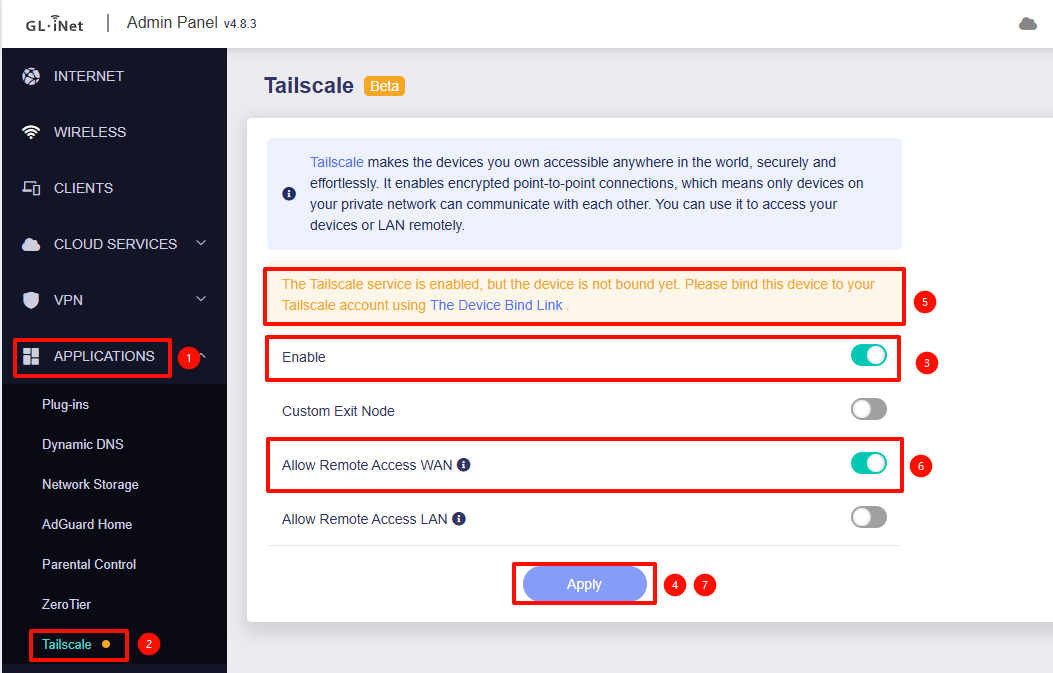
Reference Steps: Screenshot from Flint 3 (BE9300) v4.8.3
Step 3: Approve the Exit Node in Tailscale Console
- Go to the Tailscale Admin Console on your computer.
- Find your GL.iNet Router in the machines list.
- Click the menu icon (three dots) on the right side of the router's entry.
- Select Edit route settings.
- Check the box labeled "Use as exit node".
Step 4: Connect from Client Devices
On your client device (phone, laptop, etc.):
- Open the Tailscale app.
- Locate the "Exit Node" option.
- Select your GL.iNet router from the list. Your traffic is now securely routed through your router!
Part 2: Persisting Changes (Firmware Upgrades)
By default, the /usr/bin/ directory is overwritten during a firmware upgrade. To ensure your Exit Node modification survives an upgrade, you can add the file to the system upgrade backup list.
Run the following command via SSH:
echo "/usr/bin/gl_tailscale" >> /etc/sysupgrade.conf
To remove this persistence setting later:
sed -i '/\/usr\/bin\/gl_tailscale/d' /etc/sysupgrade.conf
Part 3: How to Revert Changes
If you want to stop using the router as an exit node or return the router to its default state, use one of the options below.
Option 1: Reverse the modification
SSH into the router and run:
sed -i 's/--advertise-exit-node//' /usr/bin/gl_tailscale
Option 2: Restore from ROM (Recommended if Option 1 fails)
If the file is corrupted or Option 1 doesn't work, you can copy the original file back from the read-only memory (ROM):
cp -p /rom/usr/bin/gl_tailscale /usr/bin/gl_tailscale
Reference Documentation
For further research and official guidance, please refer to the following resources:
-
GL.iNet Official Tailscale Guide: A comprehensive guide on how to configure Tailscale on GL.iNet routers, including a list of supported device models.
Tailscale - GL.iNet Router Docs 4 -
Tailscale Official: The official documentation from Tailscale explaining what Exit Nodes are, use cases, and detailed configuration steps for various platforms.
Exit nodes (route all traffic) · Tailscale Docs


