Introduction
When using a GL.iNet router, you may need to back up your current system configurations or restore previous settings after a reset or firmware upgrade. This guide will walk you through how to export and import your router's backup configuration files via LuCI.
Part 1: How to Export Backup Configuration Files via LuCI
Step 1: Access the LuCI Advanced Settings
Log into your GL.iNet router's web Admin Panel (the default IP address is usually 192.168.8.1). On the left-hand menu, navigate to System -> Advanced Settings. Click the link provided on the page to redirect and log into the LuCI interface.
For more details about Luci, please refer to: What is LuCI - GL.iNet Router Docs 4
Step 2: Navigate to the Backup / Flash Firmware Page
Once you are in the LuCI interface, click on System in the top menu bar, and then select Backup / Flash Firmware from the dropdown menu.
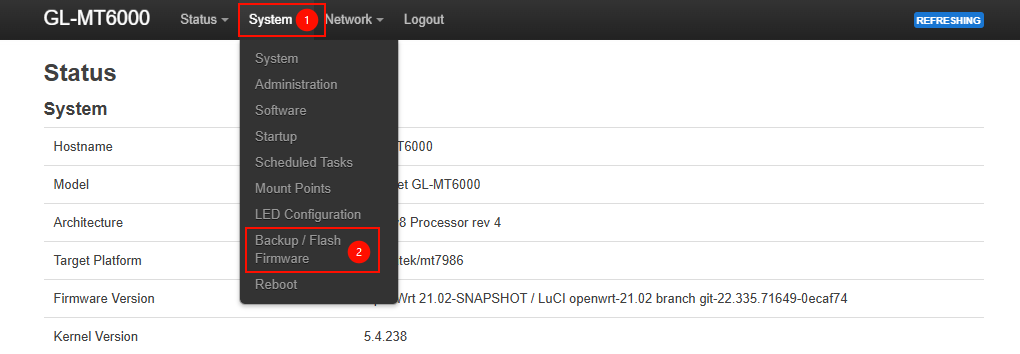
Reference Steps: Screenshot from Flint 2 (MT6000) v4.8.4
Step 3: Generate and Download the Backup File
Under the "Backup / Restore" tab, locate the "Backup" section. Click the Generate archive button.
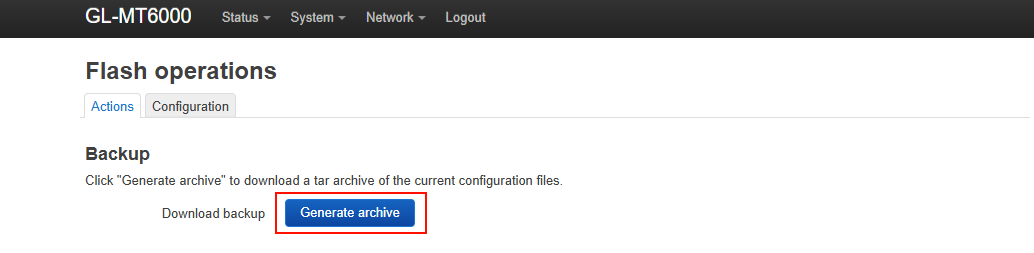
Reference Steps: Screenshot from Flint 2 (MT6000) v4.8.4
Your web browser will automatically download a compressed archive (usually in .tar.gz format) containing all your current configuration files to your local computer. Please keep this file safe and we also recommend to rename it with the current firmware version.
Part 2: How to Import Backup Configuration Files via LuCI
Step 1: Prepare for Restoration
If you have just reset your router or need to restore previous settings, log into the LuCI interface using the same method described above, and navigate to the System -> Backup / Flash Firmware page.
Step 2: Upload the Backup File and Restore
In the "Restore backup" section of the page, click the Choose File (or Browse) button and select the .tar.gz backup file you previously exported to your computer.
Once selected, click the Upload archive... button next to it. The system will automatically parse the file and apply your configurations. After the restoration is complete, the router will usually need to reboot for all settings to take effect.
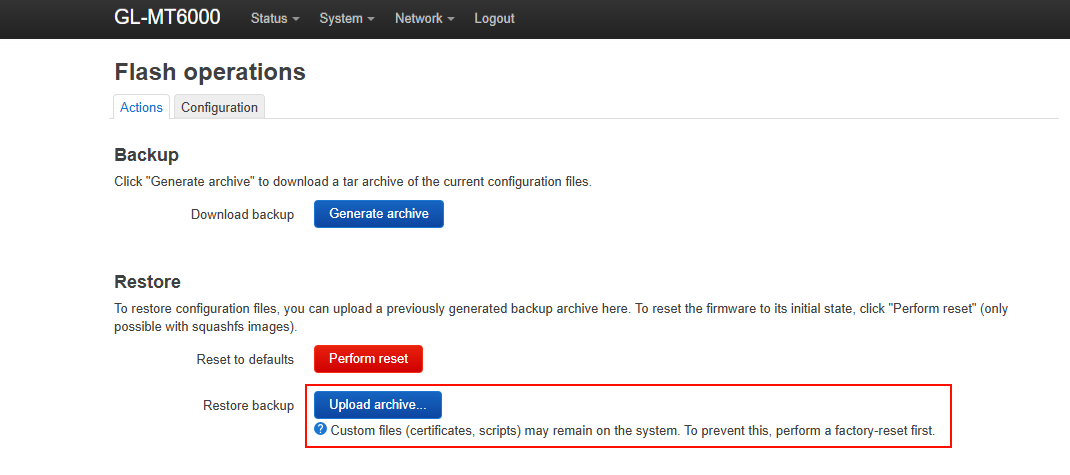
Reference Steps: Screenshot from Flint 2 (MT6000) v4.8.4
Part 3: Optional Items
Check the Backup List:
Before generating the backup, you can check exactly which files will be included. Click on the Configuration tab on the same page and then click the Open list... button.
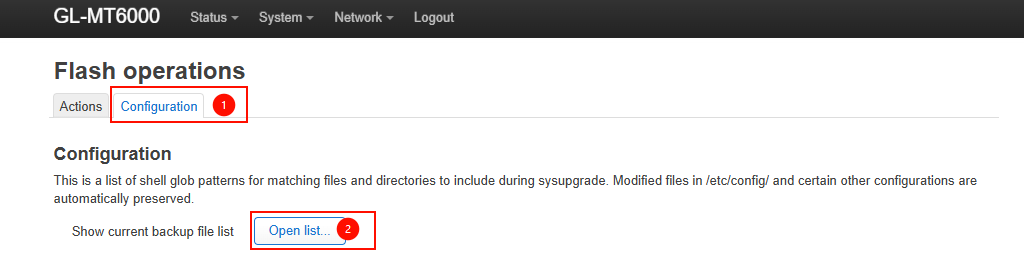
Reference Steps: Screenshot from Flint 2 (MT6000) v4.8.4
Here, you will see the list of all file paths slated for backup.
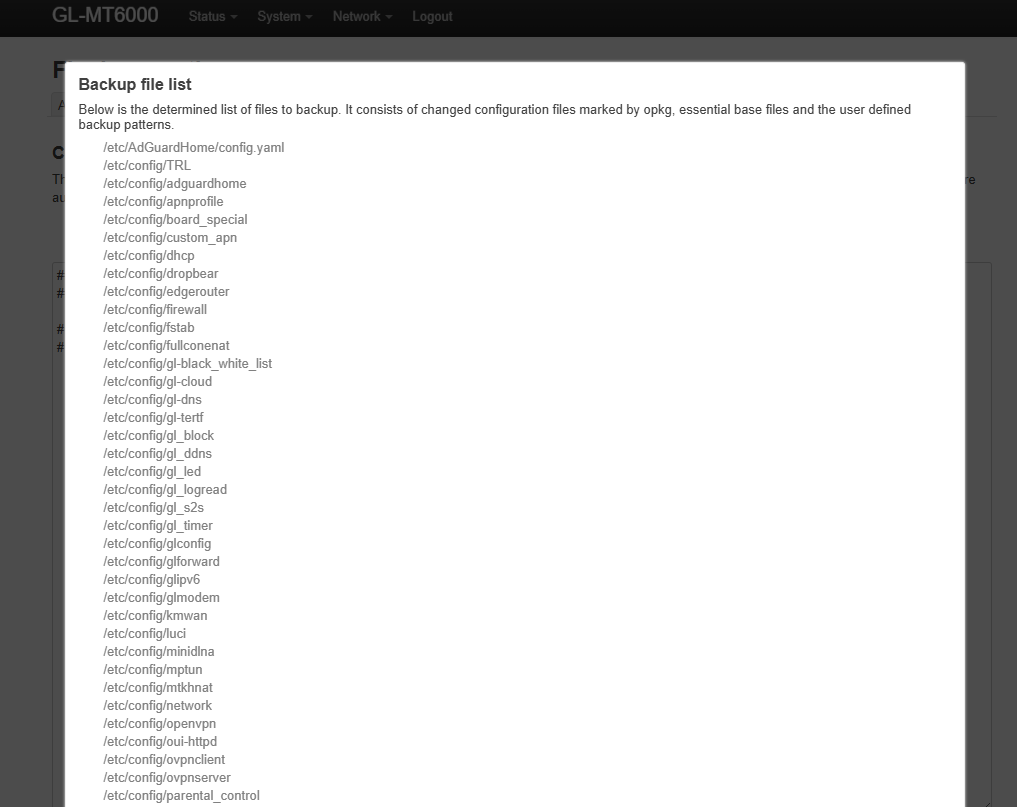
Reference Steps: Screenshot from Flint 2 (MT6000) v4.8.4
Customize the Backup List:
If you have custom scripts or specific files that need to be included, you can manually add their full file paths to this list.
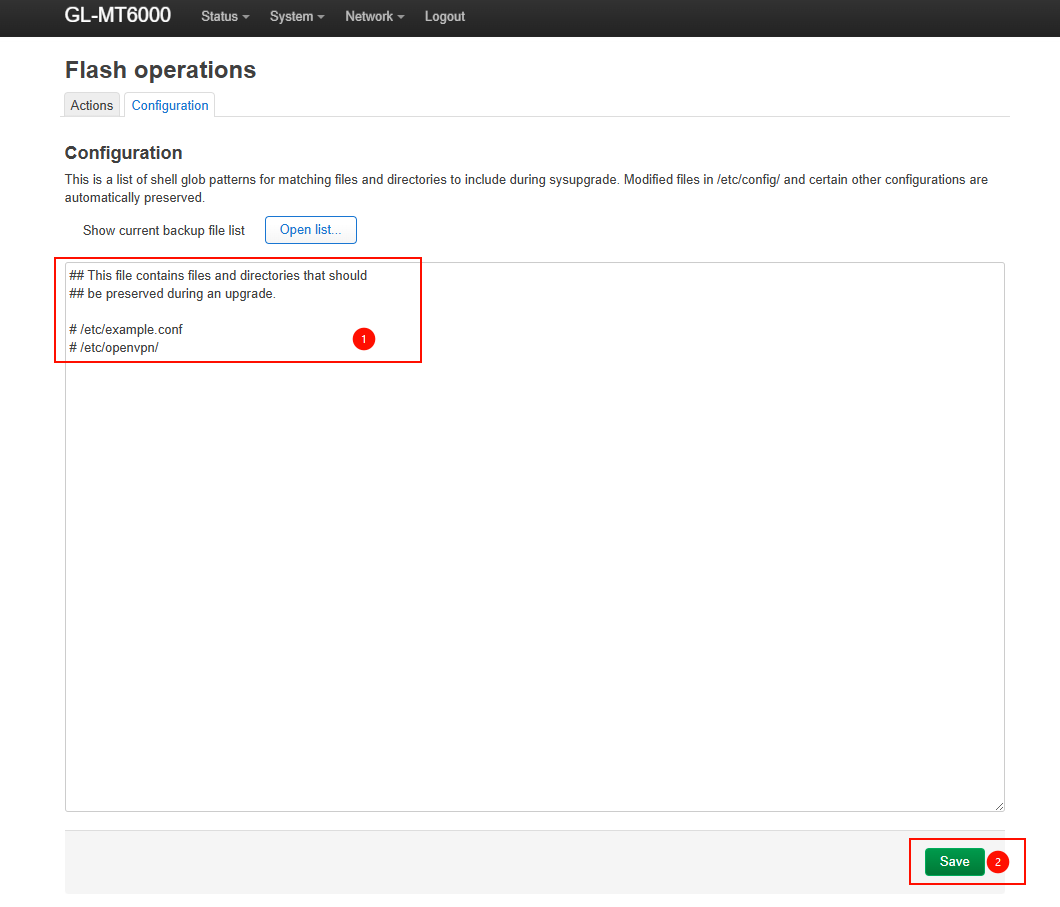
Reference Steps: Screenshot from Flint 2 (MT6000) v4.8.4
Important Notes
To ensure your device runs stably and to avoid potential network issues, please keep the following in mind when performing these operations:
-
DO NOT Import Backup Files Across Different Firmware Versions
Because the underlying configuration structure may change between different firmware versions (especially major updates), importing a backup across different versions can easily lead to system conflicts, network disconnections, or broken features. It is highly recommended to only backup and restore between the same firmware versions. -
Plugins Are Not Retained
This backup function only targets the router's "configuration files" (such as network settings, firewall rules, etc.). It does not back up the actual installation files for any third-party plugins or software packages you have manually installed (such as themes or special utility plugins). However, their configuration files are retained (provided they follow standard OpenWrt directory paths). After restoring the backup, you simply need to reinstall the plugins manually. Once installed, the plugins will automatically detect and apply your previous configurations. (Note: If a plugin uses non-standard paths, its config might still be lost unless you manually added it to the Backup List). -
Check the Exported Backup File Size
After exporting, please make sure to check the file size of the backup archive on your computer. If the file size is unusually large (for example, if it accidentally included non-configuration cache files or logs), it may fail to work properly during the import process due to memory limits, or even cause the router to crash. A normal configuration file is typically only a few tens to a few hundreds of KB in size.