I decided to compile what I found on Internet in this single document. Hope it helps.
INSTALL TAILSCALE ON THE BERYL GL-MT3000 MANUALLY
When the router’s default OpenWRT firmware package does not include the latest version of Tailscale and you cannot wait.
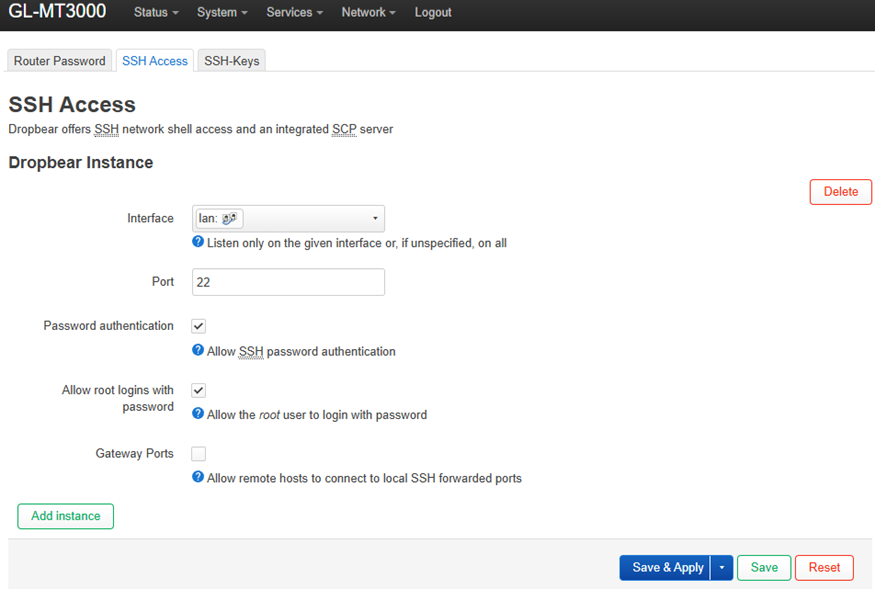
Enable SSH and SCP access in the GL.iNet Panel
-
Access the router’s web interface (usually 192.168.8.1).
-
Go to System -> Advanced Settings (this will open the LuCI interface).
-
Log in using the same router password, but with the username root.
-
Go to System -> Administration.
-
Enable SSH access on port 22.
-
Make sure the LAN interface is selected under SSH Access.
Download the correct Tailscale binary
Go to the official Tailscale website and download the appropriate file for the router under “Static binaries (other distros)”:
https://pkgs.tailscale.com/stable/#static
The correct file is for ARM64.
For GL.iNet Beryl AX (GL-MT3000), the correct file currently is:
tailscale_1.96.4_arm64.tgz
Compress binaries to save space
To save the router’s limited storage space, compress the two executables and upload them in a smaller size using the UPX compressor:
https://github.com/upx/upx/releases/tag/v5.1.1
Run the following commands:
upx --best tailscale
upx --best tailscaled
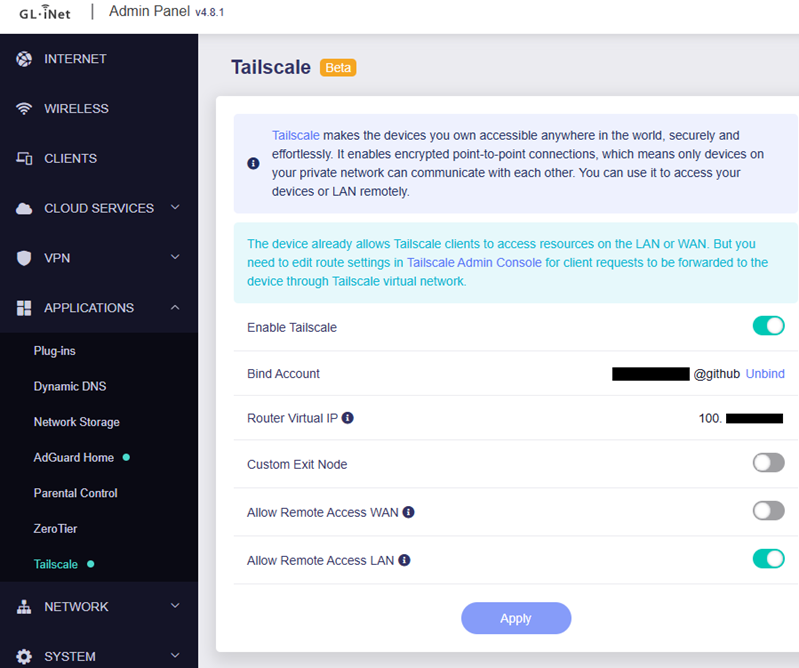
Disable the Tailscale service on the router
Download PuTTY and PSCP
https://www.chiark.greenend.org.uk/~sgtatham/putty/latest.html
Connect to the router via SSH using PuTTY.
Copy files to the router with PSCP
In the Windows command line, copy the Tailscale files to the correct location:
pscp -scp C:\path\tailscale root@192.168.8.1:/usr/sbin
pscp -scp C:\path\tailscaled root@192.168.8.1:/usr/sbin
Set execution permissions
chmod +x tailscale
chmod +x tailscaled
Enable the Tailscale service on the router
And that’s it!