Jitter in games with SQM for first 2-3 minutes, then perfect

Hello! First post here, new owner of a GL-MT6000 Flint 2 device. I’m having a bit of a weird issue.

I’m on an ATT fiber 1gig up/down line, and I configured IP passthrough on my BGW210-700 to my Flint 2. I was able to setup the router, update the firmware to 4.8.3, get wifi networks configured, verified I’m not double NAT’d, turned off network accel, downloaded/setup LuCi for SQM / set my ingress and egress to .85 of my 1 gig line. I’m hardwired into the router with a Monoprice CAT6 cable on my desktop. I am running cake and piece_of_cake_qos.

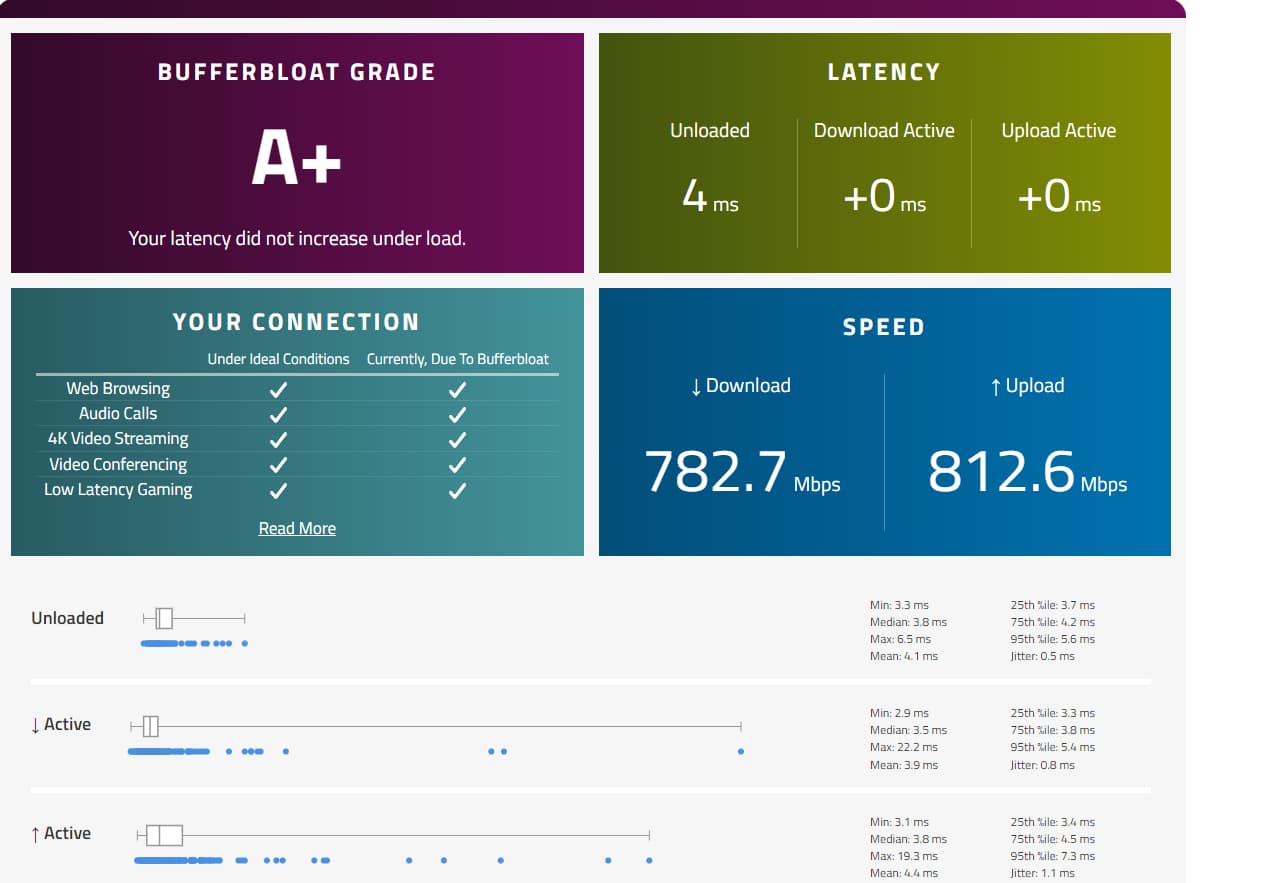
My weird issue: I am getting perfect bufferbloat scores now! However, when I load into games, I suffer from severe jitter/ping fluctuation for the first 2-3 minutes. After this time, my jitter goes to a stable zero, and I have no issues. This is best observed in CS2, where the game offer options to monitor your jitter in real time.

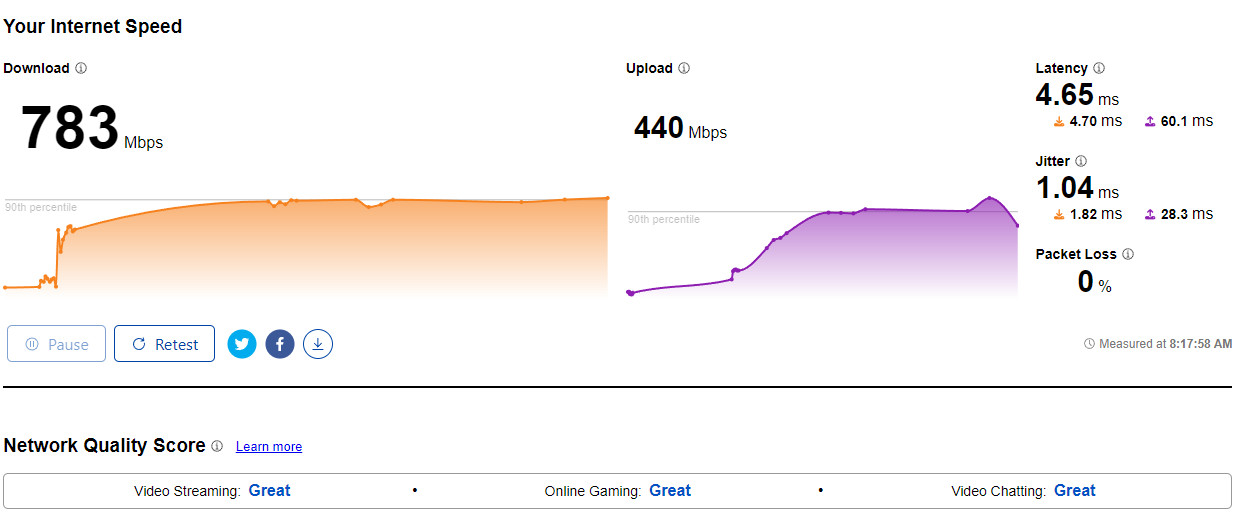
Bufferbloat scores with cake/piece of cake.qos SQM enabled:
First 20 seconds on a game server:
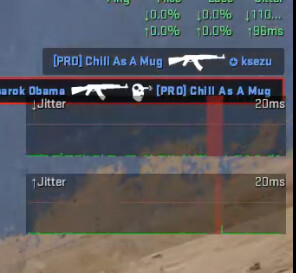
After ~90 seconds on the server:
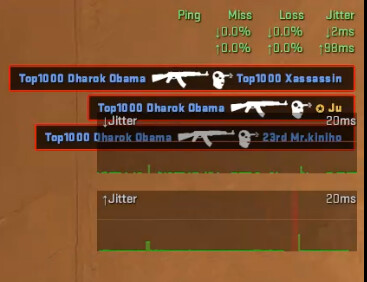
After ~3 minutes on the server:
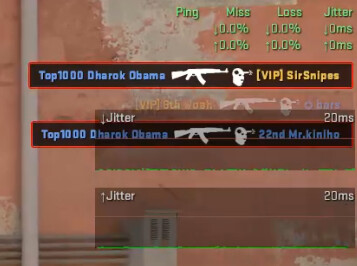
As you can see, in the first 2-ish minutes, I get these insanely big jitter spikes randomly, which I’ve never experienced before on my old ATT router. Afterwards though, I get a rock-solid 0ms jitter for up/down. This happens each time I hop into a server, and I’d like to see if there’s just a setting or something I need to tweak to fix it? Like everything feels great, but I’d obviously like to not have random spikes of 100ms+ jitter (highest I’ve seen was 500ms) when starting a match.

This issue is also not specific to just CS, I’ve experienced the same problems in Apex (however there are no options to monitor your jitter in real time for that game.)
Hi,

Have you tested the connection on other websites, such as Libreqos or Cloudflare?

If those tests are also stable, the issue is likely not related to the router.

Please try the following steps:

  1. If you are using Wi-Fi, switch to a wired connection and check whether the behavior changes.
  2. If you are already on a wired connection, try pinging:
  • the game server,
  • router’s LAN IP (default: 192.168.8.1), and
  • a public IP address (e.g. 8.8.8.8 or 1.1.1.1).

This should help identify where the latency fluctuations are occurring.

Hello! Thanks for the reply.

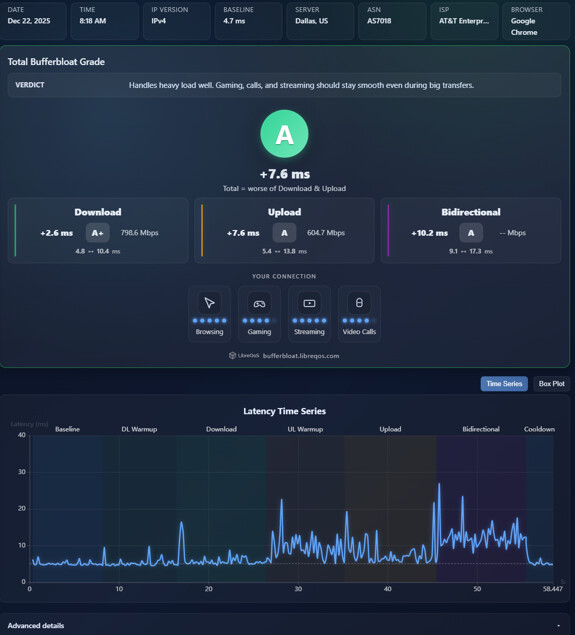
I am currently on a wired connection with a Cat6 cable to the router. Here are my Cloudflare & Libreqos scores (SQM enabled, Network acceleration disabled, cake/layer of cake, manually disabled el_ethos in SSH):

My ping results for the router LAN IP, Google DNS, & the community server in CS I use:

image

image

image

Some more info on this I discovered: This 2-3 minute jitter problem is actually happening with SQM disabled, too. I’ve also found that it is only happening on community hosted/third party servers so far, and not on “official” servers. My first thought after these secondary findings was that this is a Counter-Strike specific issue. However, upon further testing, I am experiencing the same problem when connecting to Overwatch community servers, Apex community servers, & Battlefield community servers. Official servers for each of those games offer no jitter/latency issues at all.

I ended up installing CS on my laptop as to rule out any potential NIC/driver issues specific to my machine, and I experienced the exact same problem on the laptop. 2-3 minutes of extreme jitter (hardwired into the router), and then perfect latency/packet delivery.

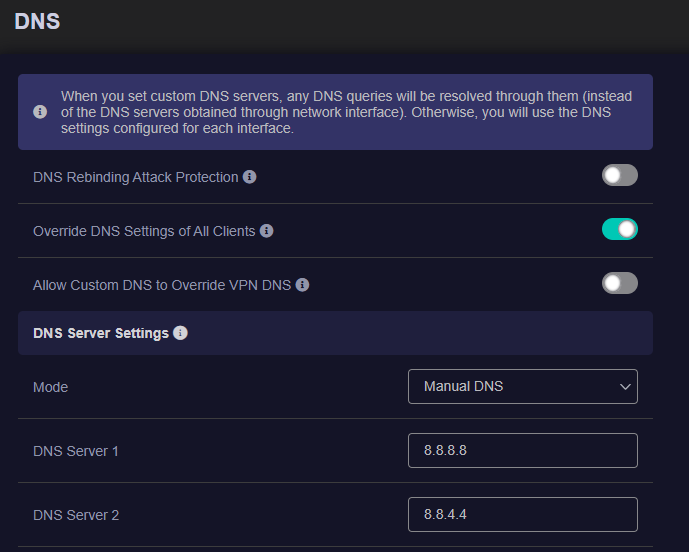
I made an alt/throwaway account on the GLINET subreddit and posted this, too. Someone suggested that perhaps I need to change the DNS on the router to a public one such as Google/Cloudflare, as it is currently listing my ATT BGW210-700’s IP as the DNS Server, which was set automatically during the IP passthrough process while setting up my Flint 2.

Based on testing with Waveform, LibreQOS, and Cloudflare, and given that official servers are functioning normally, the issue is unlikely to be caused by bufferbloat or any performance limitation of the router itself.

This points more toward a issue with certain third-party or community servers.
Yes, as a next step, you can try changing your DNS resolver, which may help direct traffic to servers with better latency or routing quality.

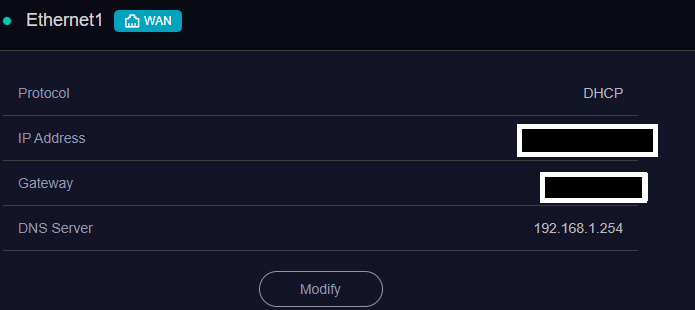
Hello! Please excuse my ignorance, not sure if I’m doing this right. I tried to change my DNS server to Google, but the WAN DNS Server still lists my ATT’s router IP:

A test via DNSleaktest lists my ISP/DNS as Google, though.

If I’ve done the DNS resolve change correctly, then I am sad to say that the issue still persists. Is there any chance that perhaps a Firewall configuration may be causing the packet loss/jitter issue to happen?

Yes, the DNS configuration change you made is correct.

Please note that:

  • The Internet page displays DNS servers assigned by the WAN interface.
  • DNS settings for client devices are managed under Network → DNS.

Adjusting DNS typically only influences server selection, such as routing you to a geographically closer game server. If latency or instability occurs on the path between your ISP and the game servers themselves, the router cannot directly resolve this.

Given that Waveform, LibreQOS, and Cloudflare tests all show normal behavior, a firewall-related cause can be ruled out.

Ended up removing my latest post because it was Fool’s Gold lol. Problem ended up returning. I’m not sure what’s going on, but I guess I’ll just live with it at this point. I appreciate you trying to help out.

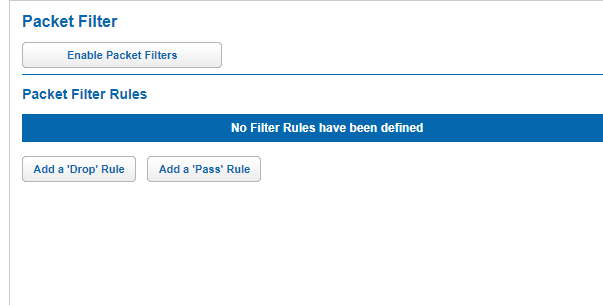
Go to Firewall > Packet Filter and ensure all rules are disabled.

As you have a good bandwidth, I wonder what is the Bufferbloat score without configuring SQM.

1 Like

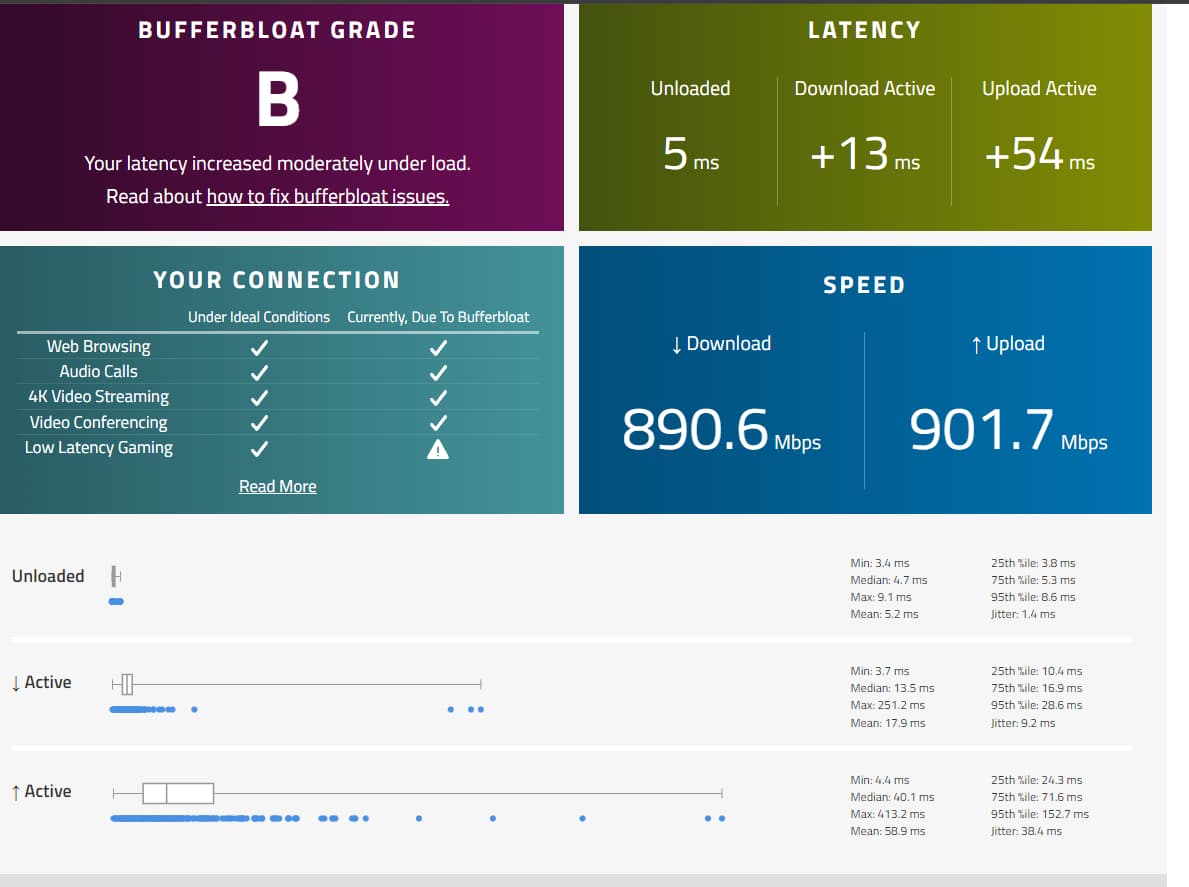
Here is my SQM-less score:

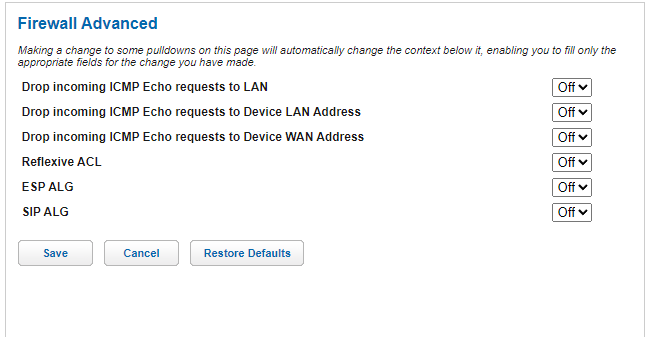
Firewall → Packet filters are disabled on the ATT device @hecatae, as are all firewall advanced options:

Been doing a lot of testing this week on this. Things that have not worked:

Using a VPN

Using ExitLag

Changing DNS on the WAN

Changing DNS on my PC(s)

Swapping cables

Trying a different NIC (with several different drivers)

Trying a different machine

Rebooting both ATT BGW and Flint 2

Disabling SQM / QOS

Installing UPnP and turning it on for my main machine’s IP

Manually adding the CS2 community server ports in the Port Forwarding interface / adding them to my desktop PC’s IP

Completely reinstalling and deleting my CS2 profile to reset all network settings locally and start “fresh”

Re-installed Windows 11 on my test laptop

Things that do work:

Just riding out the 3-4 minutes of packet misdelivery/loss and network jitter before it stabilizes at 0/1ms up/down on community servers.

I figured it may just be an ISP routing issue, but the fact that the problems continue even when I’m on a VPN is really weird.

1 Like

Hello, I was able to resolve this. Hopefully this can help someone in the future:

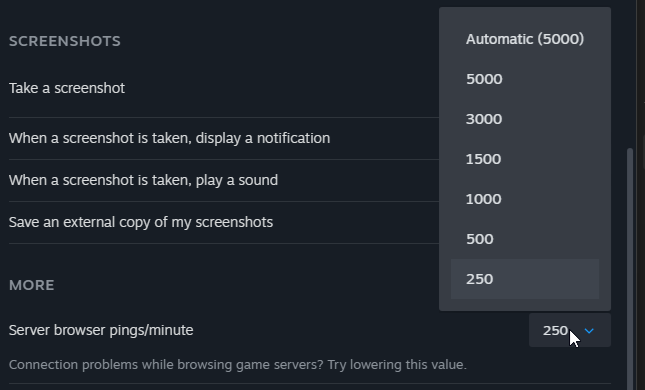
Since my issues were only present for 2-3 minutes in community servers, I began to narrow down my search to all things community servers related. Eventually, I discovered in option in Steam settings → In-game → Server/browser pings/minute. The default value is 5000, however when I tweaked it to the lowest value of 250, all of the initial jitter, packet loss, missed ticks, etc. all disappeared:

I did some digging on this setting, and found several findings on the topic. This thread from reddit offered this insight https://www.reddit.com/r/Steam/comments/xawthe/server_browser_pings_minute/ :

The server browser has to ping each and every server in order to determine what your ping time is to each of them. Sending too many pings can make some routers, especially older ones, to freak out (because of having to create lots of entries in their NAT table) so this setting throttles how frequently servers can be pinged.

The downside of throttling it too much is that the list of servers in a server browser will take longer to load. Unless you’re noticing problems with network connectivity when browsing for servers, it’s probably best to leave this setting at the largest possible value.

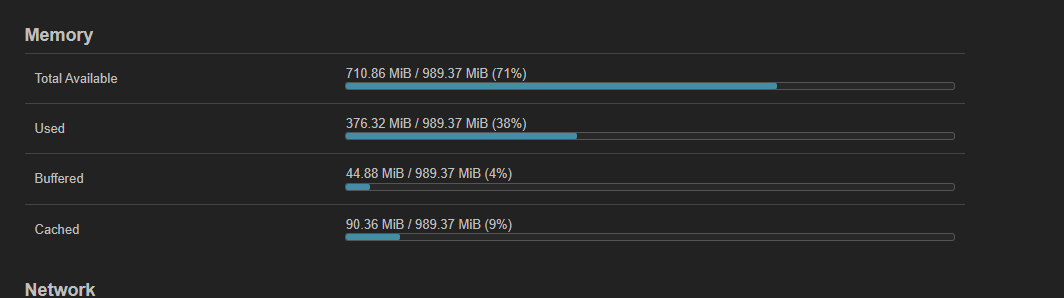
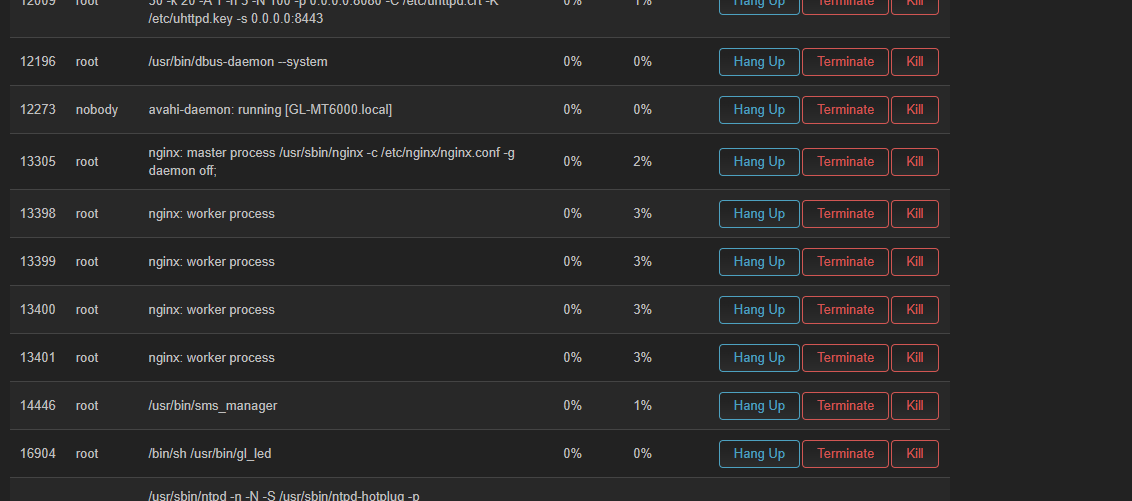
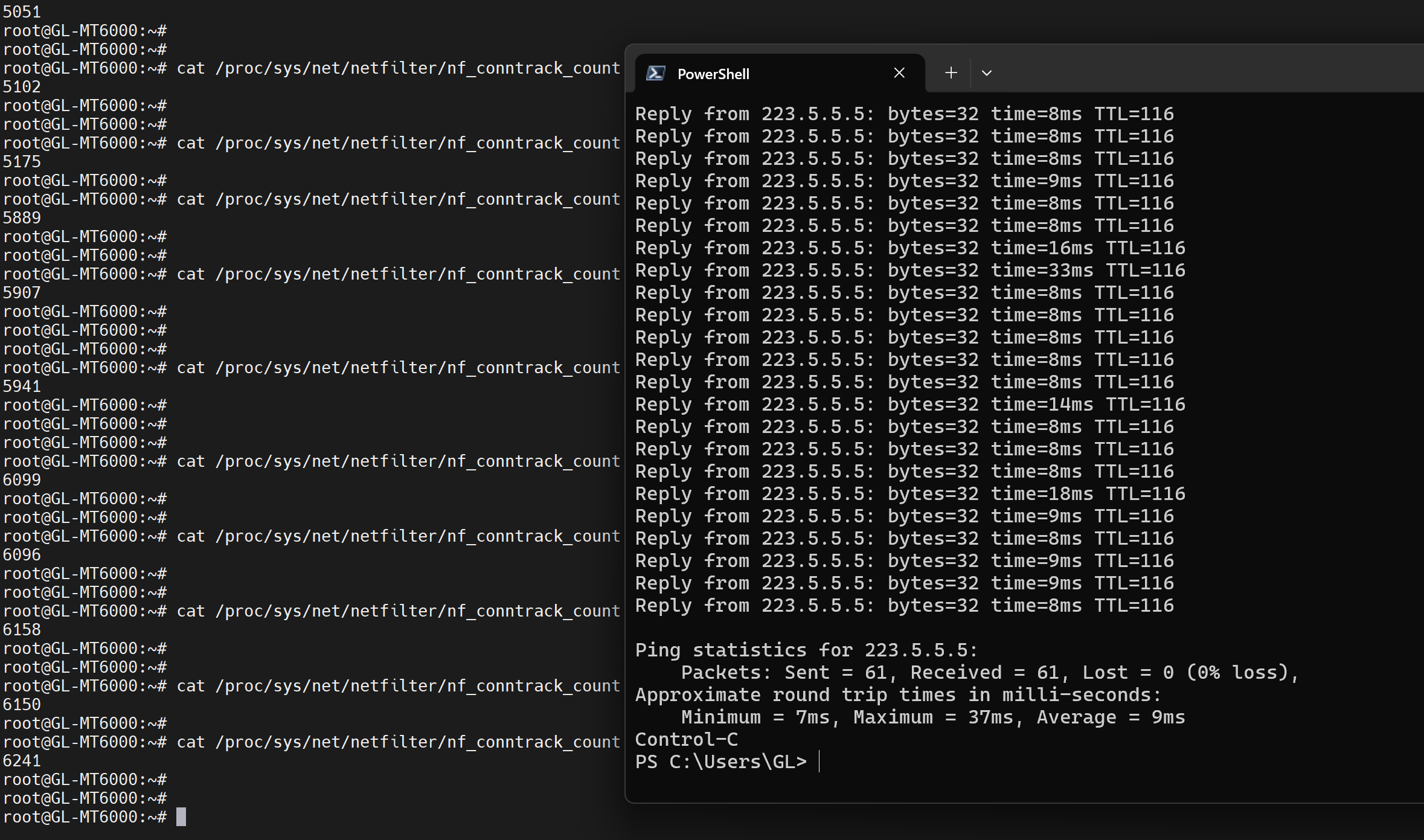
Oddly, it doesn’t look like my RAM is maxing out. Here is the graph during a session where I re-enabled the default Steam community settings and experienced the issues:

The issue also disappears if I leave the default setting of 5000 server pings/minute enabled, but close community server browser after connecting to a server. This perfectly explains why I was having issues for a few minutes initially when joining a server, as the community server “Refresh” was ongoing for my specific search query in the app, which meant server pings were being sent out. This is also why the issue was affecting me in other titles, as the community server browser can be used for a number of titles on Steam.

So from a router perspective - I’m not sure why this is only happening on the Flint 2, whereas it didn’t on the ATT device. My first thought would be perhaps a potential issue with the Flint 2 RAM, despite it not being maxed out.

I appreciate all of your help. I hope this can help out someone else, and potentially raise awareness for the GL.iNet team if any weird issues similar to these happen for other users.

2 Likes

Thank you for sharing your findings!
We're glad to hear the issue has been resolved.

We'll conduct further internal testing based on your observations to see if we can reproduce the problem and identify ways to improve.

For now, it seems that the number of NAT entries is not the cause. We performed a simple test with SQM disabled and established over 5,000 NAT entries. Ping results showed no significant jitter, even within our office's extremely busy network environment.

1 Like