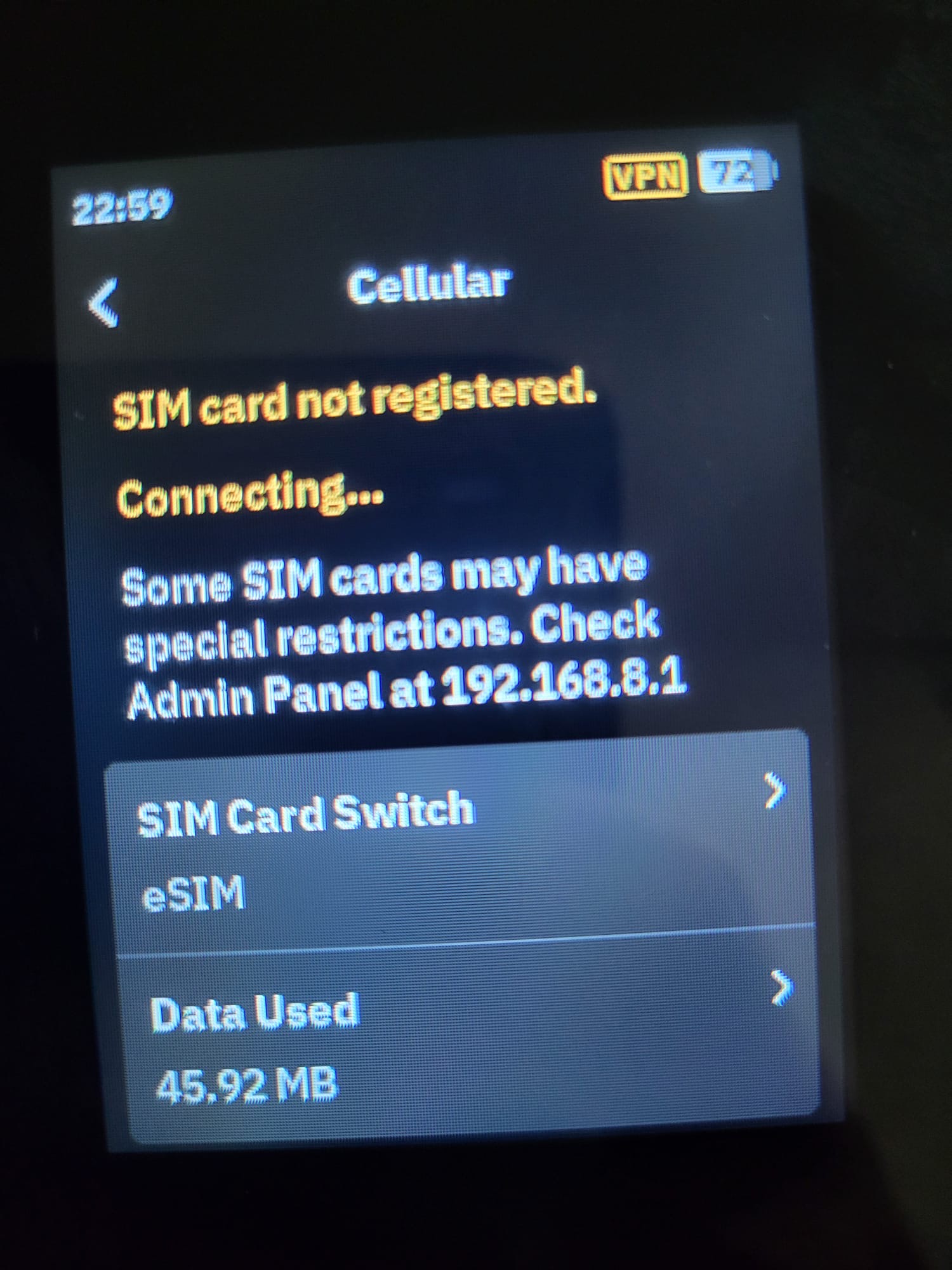
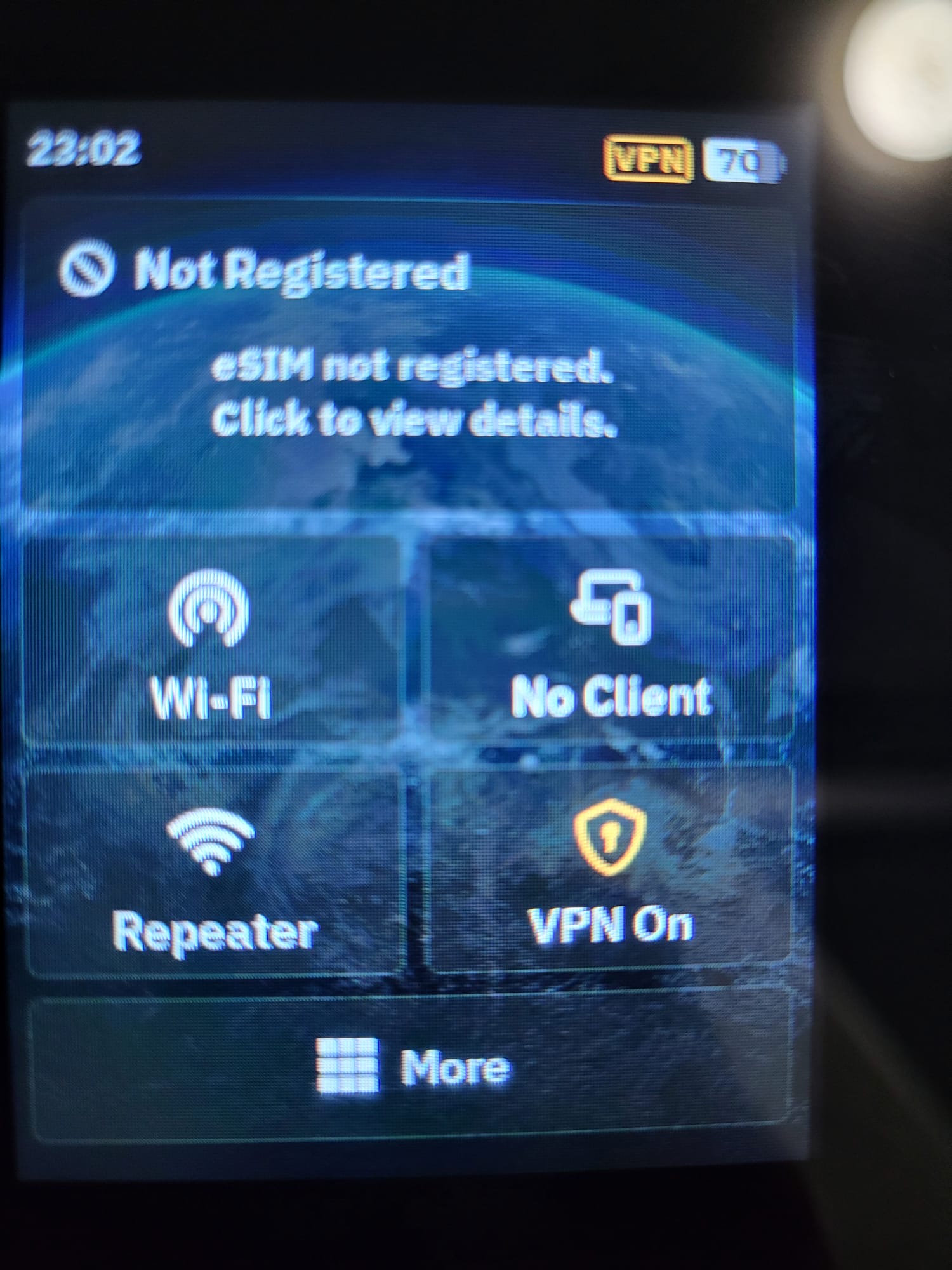
Hi there, I got a new Mudi 7 and tried to put an eSIM from ByteSIm on it which did not work… stopped at 30% activation.
Then I tried an eSIM from Holafly, which worked. I gave it to my girlfriend which is travelling to spain, as she arrived it was working flawlessly. After 4h it stopped and showed SIM not regitered. This is really frustrating, since it is like playing roulette… which eSIM is compatible and working?!
Anyone has a good experince with an eSIM provider in the EU?
ByteSIM - error
Holafly - working, then stopped working
@GLiNet It would be nice to have a list of common eSIM providers that will aktualy work without any problems and are pretestet.
2 Likes
Hi, I’m a newbie and also have a Mudi-7. I recently got and successfully installed an eSIM from Eskimo. Their claim to fame is that their data doesn’t expire for 2 years and they support 110 countries through country specific, regional, or global eSIM coverage. No, they’re not the cheapest but the long lasting data is what drew me in.
I’m in the US presently so I decided to try the US eSIM and it is working well with up to 5G connection. I’m returning to South Korea, and will purchase Eskimo’s global edition soon, since I travel a lot.
I had to do a bit of research to learn how to install their sSIM, and got help directly from Eskimo’s wonderful support team, which I’ll post below. Hope this helps!
→>>>
-
Yes, you can use the eSIM from Eskimo.Travel on your Mudi 7 (GL-E5800) router. The Mudi 7 supports eSIM functionality, but please ensure that your router's firmware is up to date for the best experience.
-
Here are the steps to configure and install the eSIM on your Mudi 7:
-
1. **Purchase the eSIM Profile**:
-
After purchasing the eSIM profile from Eskimo.Travel, you should receive a QR code.
-
2. **Insert the eSIM**:
-
If you're using a physical eSIM card, insert it into the router. If you're using an eSIM chip, simply power on the device.
-
3. **Access the Admin Panel**:
-
Open a browser and type "192.168.8.1" in the address bar to log in to the GL.iNet Admin Panel.
-
4. **Add eSIM Profile**:
-
Navigate to the "eSIM Manage" section under Applications. Click on the "Add eSIM Profile (QR Code Install)" button and upload the QR code you received.
-
5. **Enable and Connect**:
-
After installing the eSIM profile, enable it in the Admin Panel. Your router should now connect to the internet using the eSIM.
-
If you encounter any issues or need further assistance, feel free to reach out to customer support at Eskimo.Travel or GL.iNet.
-
Enjoy your new Mudi 7 router! If you have any more questions, feel free to ask.
As a side note, during my research I learned that Holafly can detect and throttle hotspot traffic, so that might be what you experienced. I have an Holafly eSIM for Korea on my iPhone but opted for Eskimo on my Mudi-7. Good luck!