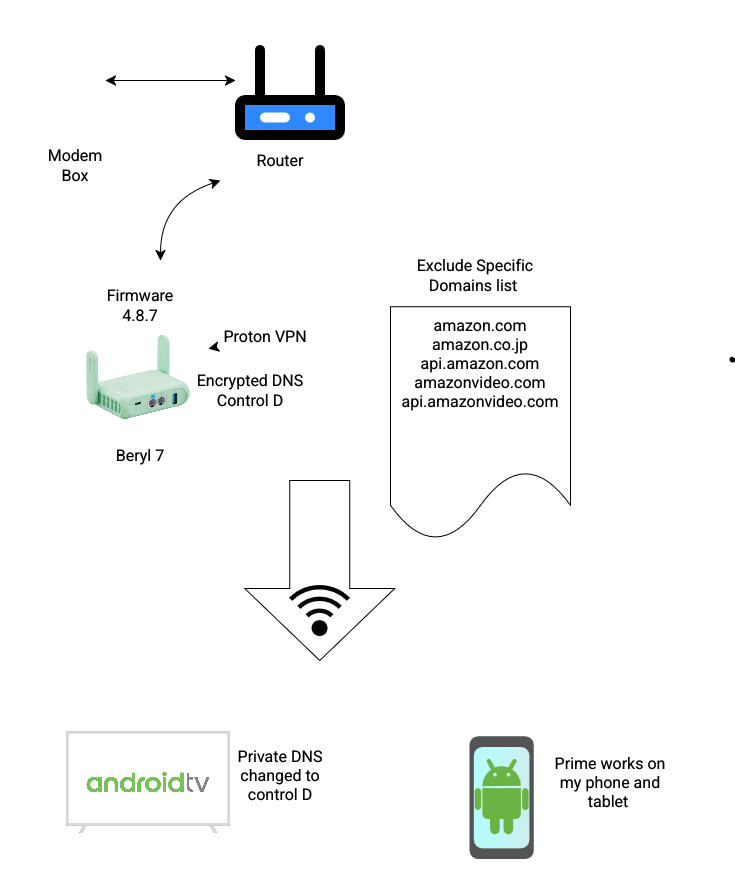
I would try to use this for the first part:
First install screen, this allows you to have a passive ssh screen without closing it, so you can do whatever you like for a couple of days until it is done capturing.
opkg update && opkg install tcpdump screen
To start the screen instance and tcpdump within:
screen -dmS prime tcpdump -i br-lan and host 10.234.53.4 dst port 53 or dst port 853 or dst port 443 -w /tmp/prime.pcap -W 1 -C 50
This starts a screen with the name prime and capture around 50mb in /tmp/prime.pcap, the /tmp folder is basicly a ram disk so after reboot the file is gone, you need to replace the ip to your own ip of the prime device you want to record.
With screen -ls you can see all open screens, and with screen -r <sessionname> you can connect, inside a detached screen you can do: ctrl+c to terminate tcpdump and screen, and with ctrl+a+d you can detach again, and make it run headless so you can disconnect from ssh without interupting the capture.
When it is done, you can surely terminate it faster before 50mb though but the more the more you can learn about the device networking.
Then use winscp and connect to your router similar like filezilla make sure the protocol scp is selected and use the same ssh credentials as the web ui.
Then load this prime.pcap file in wireshark and analyze 
Also maybe 50 is too much, after reading this is about a Beryl 7, you can change the 50 in the -C to a smaller number 
If the tcpdump command fails there will be no spawned screen, you may want to check the tcpdump command directly without the screen -dmS part and see what the error is, I tested it on my own router and it works, but again I'm not using the gl software I can't guarantee if a segmentation fault could happen, then it is a compile problem in their tooling.