I have two GL-RM1PE running V1.8.0 release1 that are great, but I’m running into an issue when trying to deploy a TLS cert. I’ve successfully created a CSR with openssl and obtained a valid cert from Comodo, but I’m getting a “TLS certificate setup failed, please check the certificate content and key.” error when I go to import the custom cert. I suspect, though I cannot verify, this is related to a mismatch in the common name/FQDN of the device, as I cannot set a DNS suffix other than .local in the web GUI. Is there any way to confirm this is what’s causing my issue and, hopefully, a workaround for this in the terminal?
+1
Similar concern. I have both the regular and PoE Comet KVM’s, and it’s giving me the same issue. I have an RSA private key, and I’m feeding it the whole cert chain. My domain is NOT .local, so I have the same concern as OP there as well.
You cannot apply for a legitimate certificate for a .local domain.
Please read my original post - there needs to be a way to set a DNS suffix other than .local.
Hi minmie, thank you for the reply, but I don’t see how that’s relevant. You can self-sign a certificate for any domain, including .local. In OP’s case, they have a public cert from Comodo. In both cases, there’s still an issue.
The issue still stands that:
- You cannot alter the DNS suffix in the GUI (it’s hard-set to
.local, which is a weird design choice) - The GUI is rejecting custom certs with the
TLS certificate setup failed, please check the certificate content and key.error
The glkvm.local on the GUI is just a display. You should focus on the domain name in the browser's address bar.

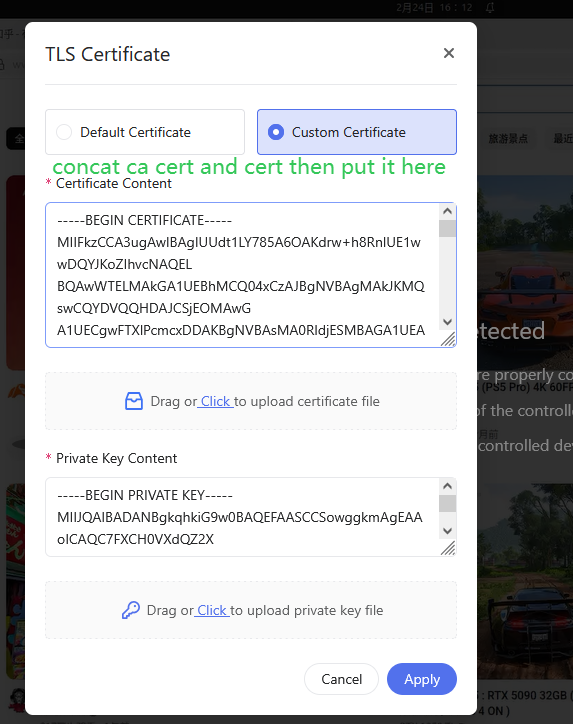
Do you mean to say this needs the full certificate chain?
yes
..
Hi, is there any way to get a more detailed error, so that we can assist you and ourselves in diagnosing the issue? I’m also happy to make a separate thread if this is unrelated.
I have exported the full cert chain in .pem format (which should be PKCS#1), and I tried both .pem and .pk8 for the private key, and it still threw the same error.
@minmie This still isn’t working. I’ve clicked the “Custom Certificate” radio button, pasted my host, intermediate CA, and root CA certificates in order (although, according to the pre-populated text, the intermediate and root certs should be optional), and pasted my private key for the host cert in the appropriate box, and I’m still getting the “TLS certificate setup failed, please check the certificate content and key.” error. As @matta reiterated from my original post, if would be great if we could get additional details as to why this is getting rejected. It would be even better if any documentation existed that outlined the expected format, chain order, etc. Without this feature working, it really limits the usefulness of the device as we can’t ensure host identity is authentic.
Hi,
We still suspect that the certificate and private key you are using may not match. Please first verify whether your certificate and private key are a valid pair by comparing their public keys.
You can use the following commands:
# From the certificate (public part)
openssl x509 -in <your_certificate_file> -noout -pubkey \
  | openssl pkey -pubin -outform der \
  | openssl sha256

# From the private key
openssl pkey -in <your_private_key_file> -pubout \
  | openssl pkey -pubin -outform der \
  | openssl sha256
If the two SHA256 outputs are identical, it means the certificate and private key match. If they are different, the certificate and key do not belong to the same key pair, and the device will reject them.
On our side, we have tested with a self-signed certificate and it works correctly. Below is an example of how we generated and tested a self-signed certificate for reference:
openssl genrsa -out xieglkvm.local.key 2048

cat > san.cnf << 'EOF'
[ req ]
default_bits       = 2048
prompt             = no
default_md         = sha256
distinguished_name = dn
req_extensions     = req_ext

[ dn ]
C  = CN
ST = Guangdong
L  = Shenzhen
O  = ClanXie
OU = Test
CN = xieglkvm.local

[ req_ext ]
subjectAltName = @alt_names

[ alt_names ]
DNS.1 = xieglkvm.local
EOF

openssl req -new \
  -key xieglkvm.local.key \
  -out xieglkvm.local.csr \
  -config san.cnf

openssl x509 -req \
  -in xieglkvm.local.csr \
  -signkey xieglkvm.local.key \
  -out xieglkvm.local.crt \
  -days 365 \
  -extensions req_ext \
  -extfile san.cnf
This self-signed certificate (even with a .local name) can be imported and works correctly on the device, which indicates the TLS import feature itself is functioning as expected.
If you still believe your certificate is correct, you can also send us your certificate and private key via email, and we can help test them on our side:
I've only been following this briefly, but in case it helps:
- I have two Comet Pros, one I manually pushed the certs into place via SCP prior to v1.8 and this one works fine. The second I used the UI to push the cert and it works for Chrome but not Curl.
- I'm using Let's Encrypt to generate a wildcard cert for an FQDN (ultimately via CloudFlare) that resolves to an RFC1918 address.
- I uploaded cert.pem as the certificate and privkey.pem as the key via the UI. I didn't touch chain.pem nor fullchain.pem. UPDATE Yes, fullchain.pem has two certs and uploading this worked. This was what I was pushing for my setup script for the first Comet Pro.
- Chrome now shows no cert issues (note that this may take a Chrome restart, it will show the connection as insecure if it's ever been insecure).
- Curl, however, reports:
curl: (60) SSL certificate problem: unable to get local issuer certificate
More details here: https://curl.se/docs/sslcerts.html

curl failed to verify the legitimacy of the server and therefore could not
establish a secure connection to it. To learn more about this situation and
how to fix it, please visit the web page mentioned above.
I think the important bit is that the issue is browser dependent. I'm not quite sure why, both Curl and Chrome trust LetsEncrypt, but I'm happy to explore more if it's useful to this thread.
Update
As expected, replacing the cert.pem with fullchain.pem worked with Curl (Chrome must have an intermediary cert pre-installed). And I was wrong, checking my script I was pushing fullchain.pem --> server.crt and privkey.pem --> server.key. Still interesting that Chrome is fine with the cert but Curl needs fullchain.pem and may be worth asking which browser/client is being used for people unable to get things working.
Hi @clannad, thank you for your follow-up!
I got the sha256 digests as instructed, and my key and cert do match:
matth@[REDACTED]:/mnt/c/temp$ openssl version
OpenSSL 3.0.17 1 Jul 2025 (Library: OpenSSL 3.0.17 1 Jul 2025)
matth@[REDACTED]:/mnt/c/temp$ ls -la
total 8
drwxrwxrwx 1 matth matth 4096 Feb 26 14:11 .
drwxrwxrwx 1 matth matth 4096 Feb 26 14:22 ..
-rwxrwxrwx 1 matth matth 1578 Feb 26 14:11 [REDACTED].home.arpa.crt
-rwxrwxrwx 1 matth matth 1675 Feb 26 14:11 [REDACTED].home.arpa.pem
matth@[REDACTED]:/mnt/c/temp$ openssl x509 -in [REDACTED].home.arpa.crt -noout -pubkey   | openssl pkey -pubin -outform der   | openssl sha256
SHA2-256(stdin)= [REDACTED]513c30c
matth@[REDACTED]:/mnt/c/temp$ openssl pkey -in [REDACTED].home.arpa.pem -pubout   | openssl pkey -pubin -outform der   | openssl sha256
SHA2-256(stdin)= [REDACTED]513c30c
I do not feel comfortable providing my cert and key, so I have made a duplicate that’s cryptographically unique, but otherwise set-up the EXACT same way. Here’s the proof that they match:
matth@REDACTED:/mnt/c/temp$ openssl x509 -in test.home.arpa.crt -noout -pubkey   | openssl pkey -pubin -outform der   | openssl sha256
SHA2-256(stdin)= 47158d068a4c6d38cfee2457fd166efc3ad3c599695b3a9faa62539c04b9637e
matth@REDACTED:/mnt/c/temp$ openssl pkey -in test.home.arpa.pem -pubout   | openssl pkey -pubin -outform der   | openssl sha256
SHA2-256(stdin)= 47158d068a4c6d38cfee2457fd166efc3ad3c599695b3a9faa62539c04b9637e
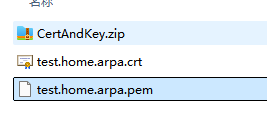
Attached is the TEST cert and key. This is not sensitive information:
CertAndKey.zip (2.7 KB)
Hi @matta ,
We tested the certificate file and private key file you provided on our side using an RM1PE running V1.8.0 release1, and the certificate imported successfully without any errors. TLS setup completed as expected.
Could you please double-check on your side and confirm that the import is still failing?
Here is our test result:
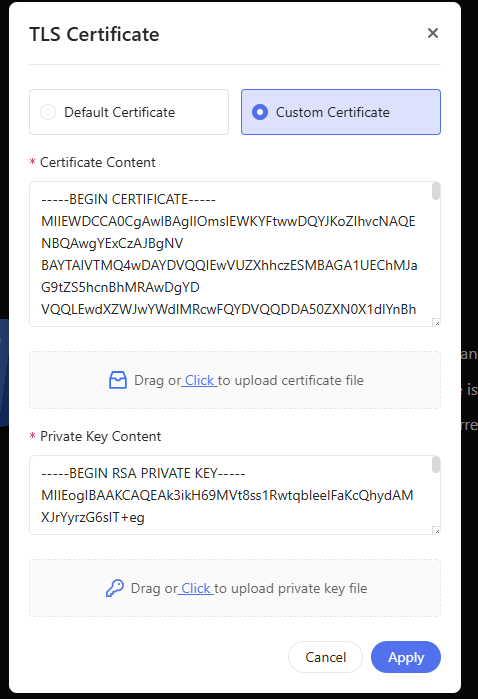
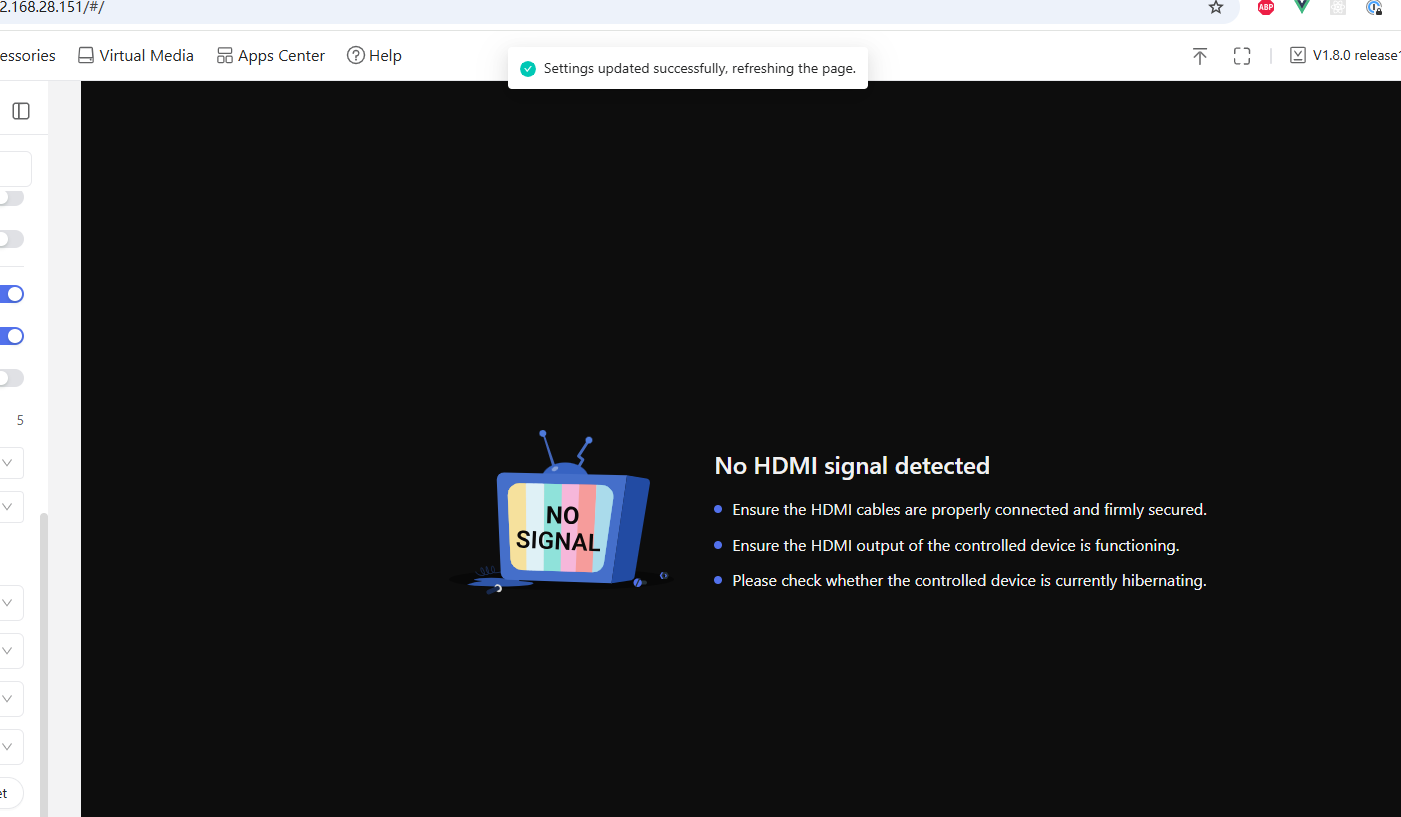
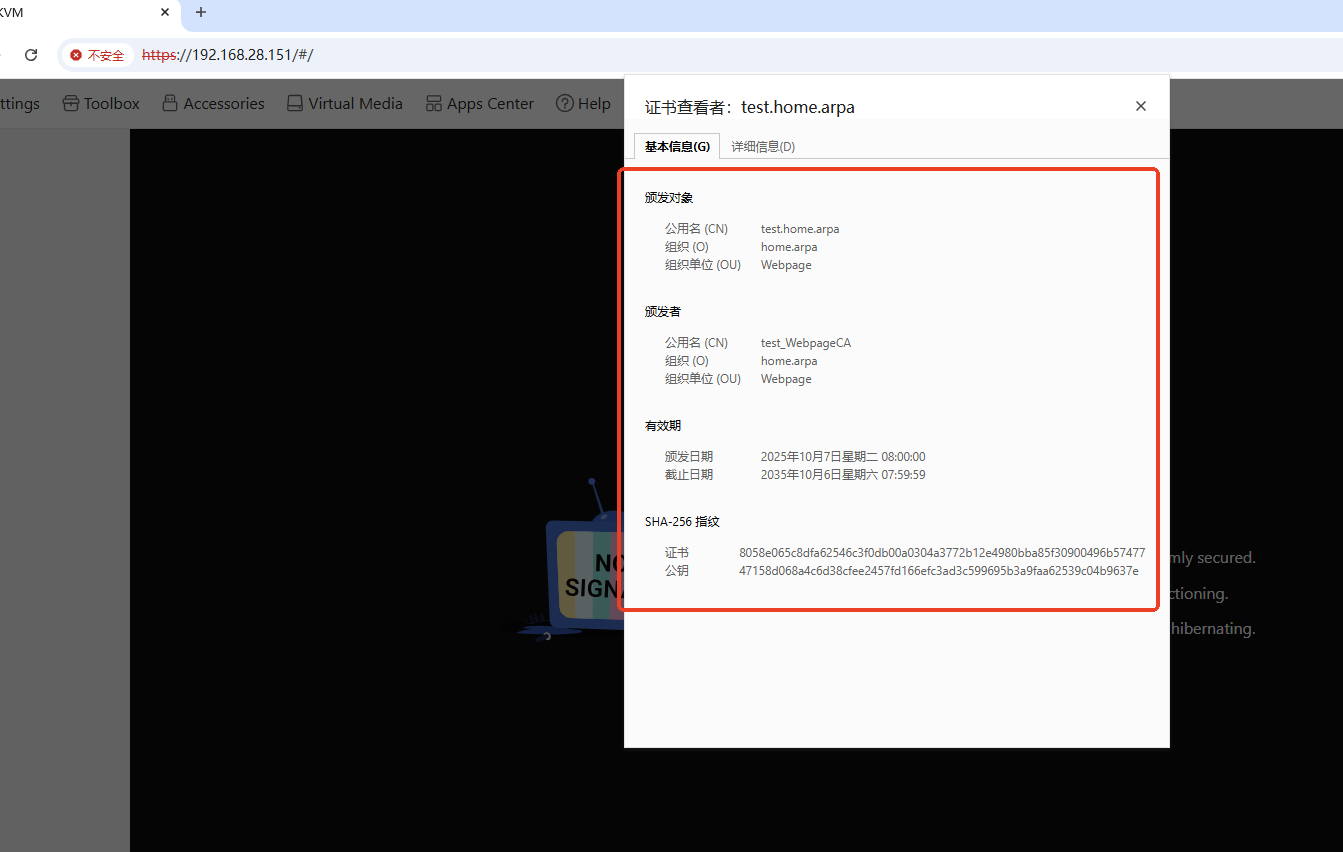
For fun you can try:
curl --resolve test.home.arpa:443:192.168.28.151 https://test.home.arpa
This essentially tells Curl to try to authenticate a TLS connection but to spoof the IP address 192.168.28.151 for test.home.arpa. In theory it shouldn't throw any cert warnings.
Also, if you’re like me and actually want your hostname to match the CN on your cert, you can run this from the KVM’s terminal:
echo "[YOUR.ACTUAL.FQDN]" > /etc/hostname
reboot
The web GUI still appends “.local” to the hostname, but this seems to be purely cosmetic.
After finding this post for the Comet, I was able to successfully apply my custom cert via the KVM’s terminal. High level steps:
cd /etc/kvmd/user/ssl/
echo "[PASTE YOUR KEY]" > ./server.key
echo "[PASTE YOUR CRT]" > ./server.crt
reboot
There is clearly a bug in the web GUI import process as this is the exact same cert I’ve been trying to use since I initially reported this issue.
I have followed the provided steps, and just like @matta , I can also confirm my private and public keys match:
mike@[REDACTED] Desktop % openssl pkey -in ./[REDACTED].key -pubout \
  | openssl pkey -pubin -outform der \
  | openssl sha256
412b16d574dfc38926cbec34e333b040cb87bb1a628f108736c67bb93fd31e53
mike@[REDACTED] Desktop % openssl x509 -in ./[REDACTED].crt -noout -pubkey \
  | openssl pkey -pubin -outform der \
  | openssl sha256
412b16d574dfc38926cbec34e333b040cb87bb1a628f108736c67bb93fd31e53
I have tried using both the host cert by itself as well as the full cert chain - neither work. I cannot emphasize enough how much documentation and additional error details would assist in troubleshooting where this is failing.