I can’t make any voip calls, no matter if i call from the pc or from the smartphone. I can’t here no ringing signal after dialing the phone number, when the other side answers I can’t here it, but the other side can here me.
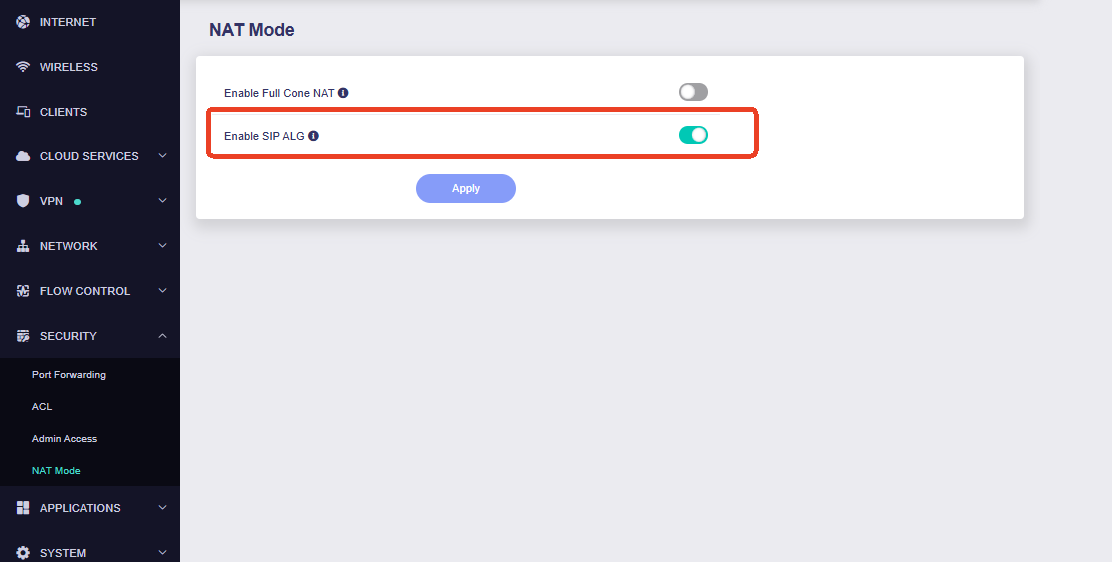
SIP ALG on the router is turned off as it was by default. The Flint is connected to the internetproviders modem. I think this configuration is called “double nat”. With my old router I had no issues with the same double nat setup. Voip calls worked from every device.
I’ve read in another thread that uninstalling a package via the gl-inet gui could solve the problem. The thread was an older one and i am assuming that this was solved with the SIP ALG button that has been added to the newer versions of the router firmware.
I don’t have a clue and wouldn’t feel comfortable with opening any ports on the router, since i hadn’t had to do that on my old router but voip still worked fine.
Using voip providers probably seems so yesterday for most people but i still hope that someone here has a clue and can help me.
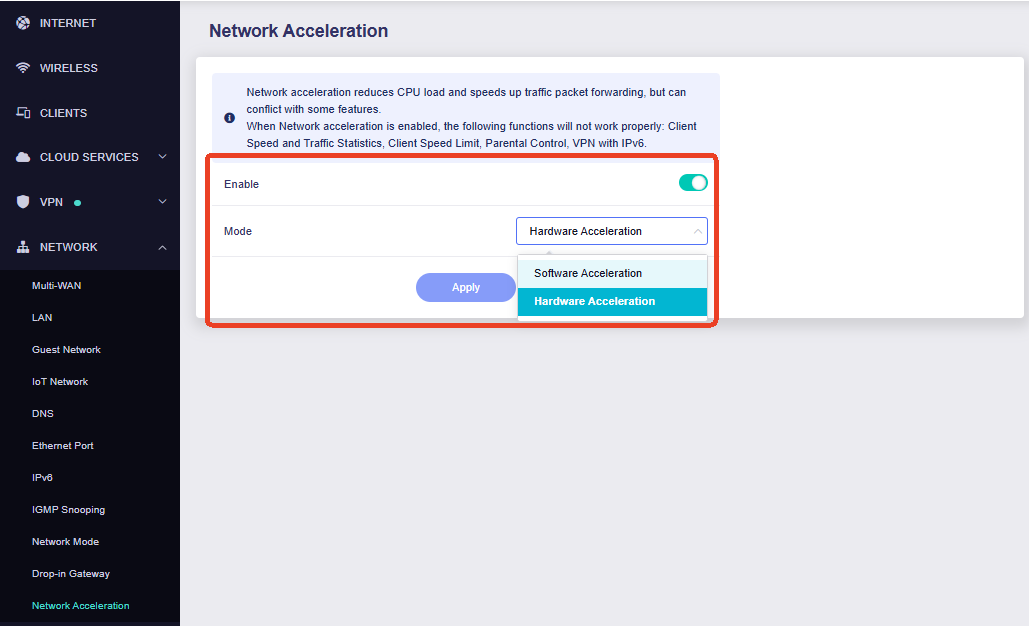
Could you please also try the following Network Acceleration options separately: Disabled, Software Acceleration, and Hardware Acceleration. Please test one setting at a time and let us know whether the call behavior changes.
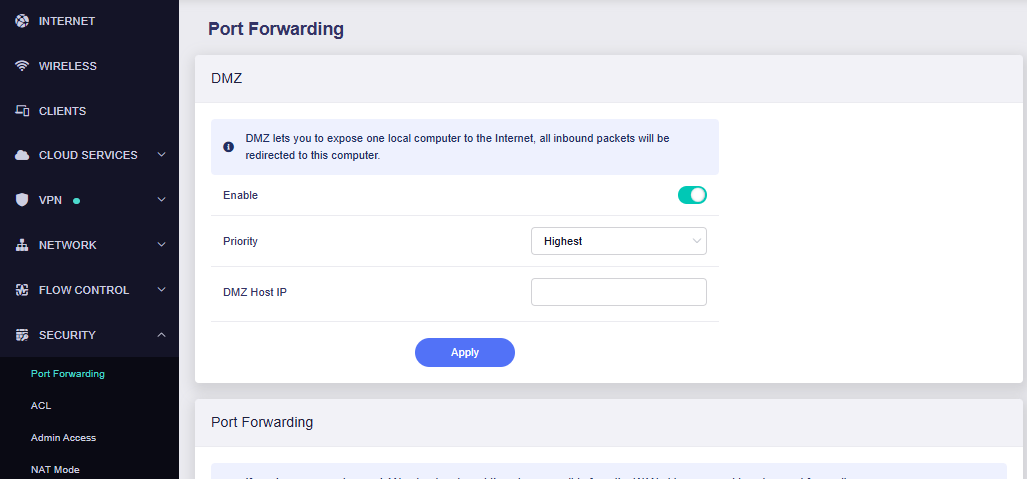
If the issue persists after these tests, you may temporarily enable DMZ, enter the local IP address of the device running the VoIP application as the DMZ Host IP. and test whether the call works normally.
thanks a lot for your advice. Unfortunately non of the steps helped. I tried them all.
I thought the other side could hear me, but it isn’t. There is no ringing tone signal on my voip client nor on the phone i am calling, then the voip software either says that the other side is busy or even weirder the voip provider is deducting my credit but no one has picked up on the side i have tried to call.
Do you have any further advice that would be easy to follow through?
Thank you for testing the suggested settings and providing the additional details.
Could you please capture the network traffic while reproducing the problem so that we can investigate it further?
Before starting, please temporarily disable Network Acceleration, and then connect to the router via SSH.
You can run the following commands to install tcpdump:
opkg update
opkg install tcpdump
After the installation is complete, run the following command to start the packet capture:
tcpdump -i any -s 0 -w /www/voip.pcap
While the capture is running, please make a VoIP call and reproduce the issue. Please wait for around 20–30 seconds before ending the call. Then press Ctrl+C to stop the capture.
You can then download the capture file by opening the following address in your browser:
http://192.168.8.1/voip.pcap
If you have changed the router’s LAN IP address, please replace 192.168.8.1 with the current LAN IP address.
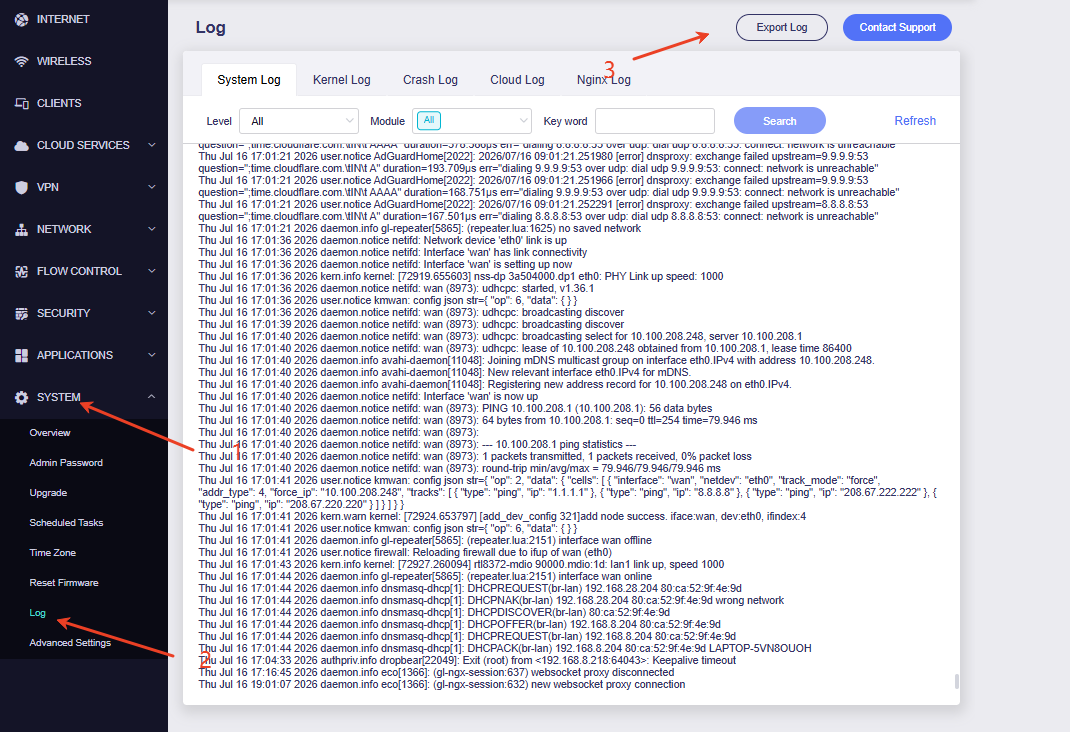
Please export the system log from SYSTEM > Log and send the voip.pcap file and system log to us via private message for further analysis.
i have some privacy concerns regarding sending you the routers log. Maybe i am too worried, i don’t know if there is any sensitive data in there or not.
Therefore i will rather wait if some other user here has some good advice. Without the need for me to expose that data. No offense, i appreciate your help and effort.