WireGuard "client configuration" GUI stuff

Managed to analyse it further, so here's the conclusion post WireGuard "client configuration" GUI stuff - #4 by Foxy

So this basically becomes a feature request/request to improve gui to be less prone to errors.

Original starting post's content (not actuallytrue, sorry!):

Related closed post - forum.gl-inet.com/t/wireguard-client-qr-codes-in-glinet-gui-are-wrong/58445

It seems in the closed post people focused on the fact that someone suggested the default value to include 0.0.0.0/0 and NOT on the actual issue.

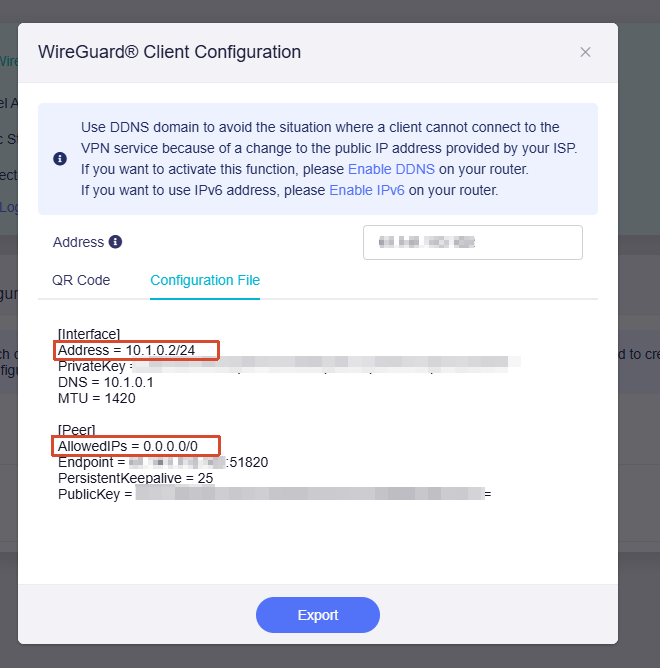
Actual issue is that the address fields are switched - in the client, the first field (Interface>Addresses) should have the IP that device is supposed to claim for itself, while Peer>AllowedIPs is supposed to hold connection to which ips is supposed to be tunneled.

Explanation: Client's allowed ip is the opposite of server's - both mean what the other side manages - server's "allowed ips" means "what ips is the client allowed to take for itself", client's "allowed ips" means "what ips to route through the tunnel".

I spent too much time debugging why my tunnel doesn't work because I trusted you </3 - and wireguard accepts only subnets with 0s in the host part, so just switching those around doesn't work and gives "bad address" error in the client.

(That might be why for your programmers the current version looks "right" - because /32 is both host and network, no “host bits” == all bits are 0s. So the client accepts that order.)

Let me give you my generated config (shown by gui) as example:

[Interface]
Address = 192.168.6.2/24,fd00:9c05:59b2:402c::2/64
PrivateKey =... 
DNS = 192.168.6.1,fd00:9c05:59b2:402c::1
MTU = 1420

[Peer]
AllowedIPs = 192.168.6.2/32
Endpoint = ...:51820
PersistentKeepalive = 25
PublicKey =... 

While the correct settings are:

[Interface]
Address = 192.168.6.2/32, fd00:9c05:59b2:402c::2/128
PrivateKey =... 
DNS = 192.168.6.1,fd00:9c05:59b2:402c::1
MTU = 1420

[Peer]
AllowedIPs = 192.168.6.0/24,fd00:9c05:59b2:402c::/64,192.168.5.0/24
Endpoint = ...:51820
PersistentKeepalive = 25
PublicKey =... 

  1. As I said, host bits need to be zeroed - 192.168.6.2/24 had to be switched to .0/24 - set the host bits to 0, same with ::2 becoming just :: - THAT is what makes WG client give "bad address" error.
  2. .5.0 is my normal LAN, the generated settings don't add that despite me setting "Allow Remote Access to the LAN Subnet" - just a detail to fix alongside it.
  3. Also notice that the pregenerared settings only put ipv6 in one place.

I can explain the symptoms I got with the pregenerared config if anyone wants that. But the fact is: after switching them up (with the host bits zeroed), the tunnel started working perfectly.

Edit: forgot to say: Flint 3, firmware 4.9.0 - but the upgrade notes didn't say anything about wireguard and the old thread is over a year old, so I assumed no one touched that

The client-side [Peer] AllowedIPs should contain the destination prefixes routed through the tunnel. Therefore, 192.168.6.2/32—the client’s own tunnel address—is not useful there; for your use case it should include the WireGuard subnet and server LAN subnet. When a subnet is used in AllowedIPs, it must be written as the network prefix, such as 192.168.6.0/24, rather than 192.168.6.2/24.

One distinction: [Interface] Address = 192.168.6.2/24 is a valid interface address and does not inherently need to be /32; the apparent “bad address” occurs when that host/prefix combination is used as an AllowedIPs network. To verify whether the exported-profile generator is producing incorrect routes or retaining a stale profile, please provide the router model, exact firmware version, and confirm whether this configuration came from a newly created profile after Allow Remote Access to the LAN Subnet was enabled.

This reply was generated by AI. Please verify its accuracy.

GL.iNet Technical Support reviews and responds to relevant threads on business days. Please allow time for a staff response.

Heh, AI agrees with me that the host's own address shouldn't be in the AllowedIPs and that main network ip should be given (host bits zeroed). :smiley:

Yes, the /24 doesn't error in Addresses - because a client can use a whole subnet. I didn't say that errored, I said 192.168.6.2/24 in AllowedIPs errored - because it was supposed to be 192.168.6.0/24.

The "Allow Remote Access to the LAN Subnet" was toggled after generating the profile - so point 2 might be moot, ok.

I edited the main post to include firmware version just after submitting, before my browser loaded the AI answer.

Okay, tried generating a new profile... I realised it's a UX/UI problem only:

When making a new profile, there's a field to set "AllowedIPs" and no place to put what IPs I want the client to claim.

If I leave that field empty, it gives the AllowedIPs = 0.0.0.0/0,::/0 - so full tunnelling. Kiiinda makes sense. Not fully.

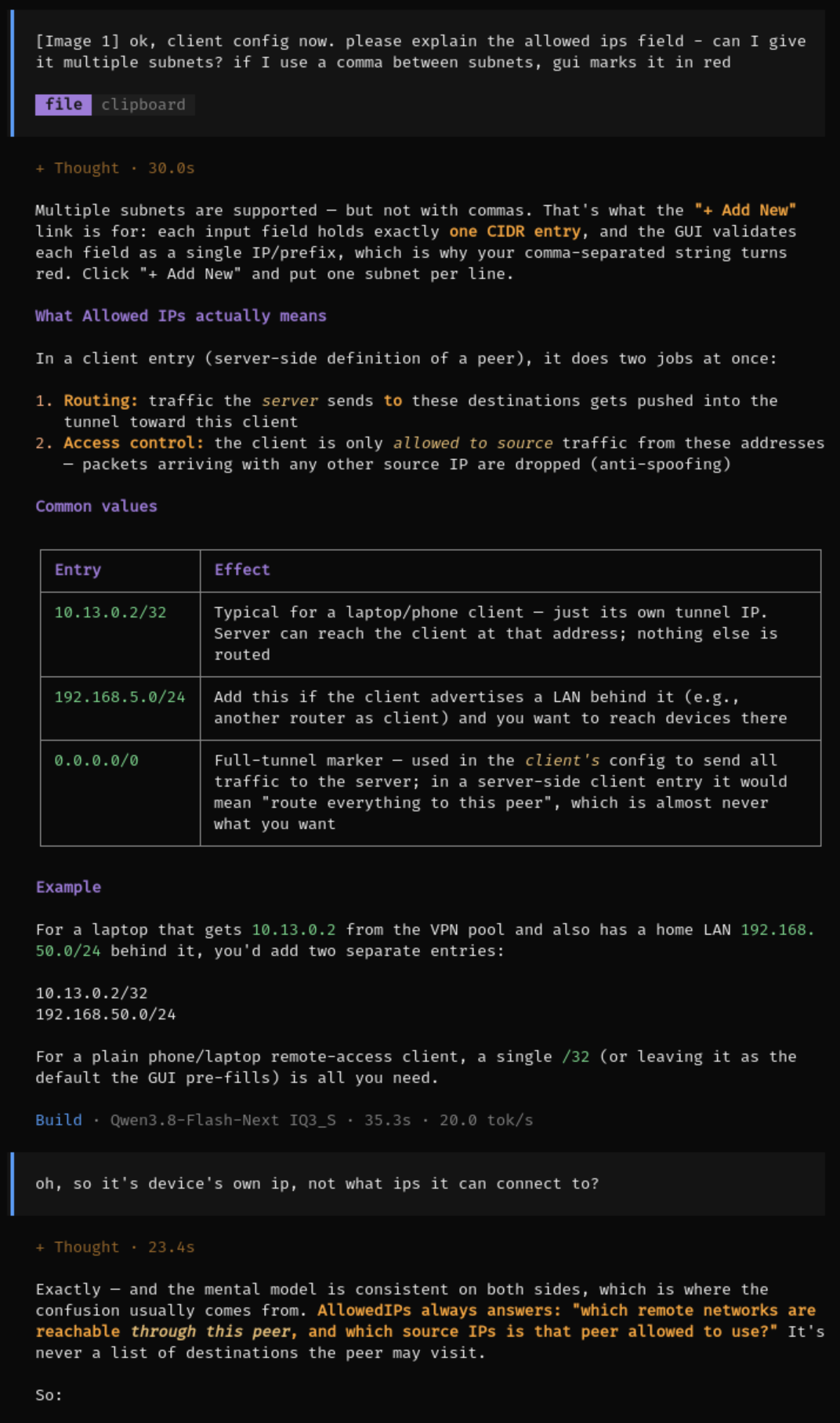
My own AI assistant told me that's server's interpretation of "AllowedIPs" (ie what client is allowed to use for itself), so I put 192.168.6.2 there myself... That added the /32 and treated it as subnet - making the client only be able to access itself... (Edit: can I add pictures here?

I wanted to use it right :sob:)

Then when I went to editing the client's config to add the LAN, I saw subnets being put in the Addresses field and put the lan subnet there manually. So my symptoms were weird. I put the LAN in as 192.168.5.1/24 - meaning when I tried pinging what I thought was gate, I pinged myself.

... So, yeah. Two things:

  • why doesn't the gui allow me to set the client's given ip? I like to keep my ips in order (after testing it for a bit, I wanted to eventually make LAN IP ending be same as VPN's end)
  • don't debug network stuff after a Friday night's drink :skull:

Edit: my AI forgot it told me the wrong thing, still trying to claim Glinet is at fault. :skull: Tried to gaslight me :skull: so I had to screenshot how it told me to put in /32 address in the Allowed IPs gui (added the screenshot above as well) - only after that it apologised, lol

In firmware 4.9.0, the GL.iNet Admin Panel automatically assigns each new WireGuard profile an address from the server’s tunnel subnet; it does not currently provide a GUI field for choosing that client address.

The profile’s AllowedIPs field is instead used for destination prefixes in the exported client’s [Peer] AllowedIPs. It does not specify the address assigned to the client. Leaving it empty generates the default full-tunnel routes (0.0.0.0/0, ::/0). A manually chosen client IP would also need the corresponding server peer updated to the same /32 and /128, so changing only the exported file would not be sufficient. A clearer label and a separate client-address selector would therefore be UI enhancement requests rather than a WireGuard configuration error.

This reply was generated by AI. Please verify its accuracy.

GL.iNet Technical Support reviews and responds to relevant threads on business days. Please allow time for a staff response.

I find wireguard’s allowed ip settings confusing. Mentally I think of it as “tunneled ips”. Setting aside the GUI, and the firewall settings and policy based routing that get layered on top, what you want to end up with in the wireguard configuration:

  1. Server side (i.e., the peer that is listening for connection attempts). It has an IP address in the wireguard subnet, so in your example 192.168.6.1/32. That goes in the interface section of the server’s configuration. It’s allowed ip setting is the traffic it will direct over the tunnel, which means first, the cient’s IP address in the wireguard subnet, in your example 192.168.6.2/32; second, it could include the subnet that is the client’s own lan, I can’t see in your case what that is. Those two things go in the peer section of the server’s configuration.
  2. Client side (i.e., the peer that will initiate the connection). It has an IP address in the wireguard subnet, so in your example 192.168.6.2/32. That goes in the interface section. In the Peer section the allowed ips are the addresses the client will direct over the interface. Usually this is full tunnel and is 0.0.0.0/0. For split tunnel it would be the server’s IP of 192.168.6.1/32 and the server’s own lan, which in your case looks like 192.168.5.0/24.

That’s the tunnel configuration. Firewall rules and pbr may operate to keep traffic from reaching/coming from the tunnel to begin with.

Actually, the official WireGuard documentation is quite clear on this.
AllowedIPs serves two purposes: packets received from a peer are accepted only if their source IP addresses match its entries, and outgoing packets whose destination IP addresses match its entries are sent through that peer.

Yes, both are important. But when trying to untangle what goes where, I find it easier to focus on the second part.

Hi,

Sorry, could you clarify the exact issue and the steps required to reproduce it?

If you enable the WireGuard server in the Admin Panel and use the default generated configuration, Interface → Address and Peer → AllowedIPs should both be configured correctly for a full-tunnel connection, where all client traffic is routed through the server.

If you use the Set More button to customize these parameters for a site-to-site tunnel, you may need to configure the relevant fields manually according to their WireGuard definitions. Site-to-site WireGuard tunnels are not currently supported in the GL.iNet Admin Panel.