GL-RM1 USB WiFi dongle howto guide + scripts

Hello everyone, I managed to successfully launch Wi-Fi via USB adapter based on the MT7601U chipset, below is the instruction on how to do it.
!!! Use at your own risk, I am not responsible if something goes wrong !!!

  • 1. How to install:

    • 1.1. Go to "Toolbox" tab and access the internal shell using the "Access Terminal" button on the GL-RM1 Web page (or use SSH)
    • 1.2. Use your PC to copy the glrm1-wifi.tar file (from the attachment below) to a USB flash drive and connect it to your GL-RM1.
    • 1.3. Enter the following command and check that the glrm1-wifi.tar file is displayed in the list.
      ls -l /media/usb0
      (If there are several partitions on the flash drive and the file is not found, try changing usb0 to usb1, usb2, and so on until the file is found.)
    • 1.4. Once the file is located, enter the command below to unpack it and install it on the system. Note the "/" at the end of the line - it is also part of the command!
      tar -xvf /media/usb0/glrm1-wifi.tar -C /
      (Use the USB path from the previous step, it will not always be /media/usb0!)
  • 2. Settings that need to be changed manually:

    • 2.1. The USB adapter IDs and WLAN interface name must be changed in the /etc/kvmd/user/scripts/S10wlan.sh file:
      VID=148f
      PID=7601
      WLANIF=wlan0
      (The values above are for the MT7601U chipset, they do not need to be changed if you have an adapter based on the same chipset.)

    • 2.2. SSID names and passwords for Wi-Fi APs must be set in the /etc/kvmd/user/wpa_supplicant.conf file (sample included):

      • You can enter your Wi-Fi password in double quotes if it is a cleartext password: psk="your_wifi_password"
        or you can use the wpa_passphrase shell command to get the password in a more secure, hashed form. Then the quotes are not needed:
        wpa_passphrase "YOUR WIFI SSID" "your_wifi_password"
        will return the full entry that can be copied and pasted into the /etc/kvmd/user/wpa_supplicant.conf file.
      • You can specify the priority of the connection to the Wi-Fi network, then if several known networks are detected at once, the connection to the network with the highest priority (and the best signal quality) will be made.
      • It is necessary to reboot GL-RM1 after making changes to the wpa_supplicant.conf file.
    • 2.3. GL-RM1 will blink blue LED once during boot if everything is done correctly and Wi-Fi adapter was detected and initialized.

  • 3. Notes:

    • 3.1. GL-RM1 listens on all available network interfaces, so both SSH and Web interfaces will be accessible via both wired and Wi-Fi connections.
    • 3.2. The Wi-Fi adapter can be connected via a USB hub, then it can be used simultaneously with a flash drive, for example.
    • 3.3. The script execution log files can be found in the /var/log/wifi-*.log file.
    • 3.4. These scripts withstand firmware updates without any problems (tested on version V1.5.0 beta1).
    • 3.5. Not tested with Cloud functionality and/or Tailscale enabled!
    • 3.6. Text configs are edited using the vim file.conf command in the terminal, this instruction is already quite big, so those who do not know how to use vim can search for it on Google.

PS: I am not a professional Linux admin, so maybe something is not done optimally. I am open to constructive comments, if any.

(The archive is updated, minor changes - missing variable substitution in one script.)
glrm1-wifi.tar (6 KB)
1 Like

I see the LOG_FILE being created:
Thu Jan 1 01:00:14 CET 1970: /etc/init.d/S99custom - wlan0 init...
Thu Jan 1 01:00:16 CET 1970: /etc/init.d/S99custom - wlan0 init done!

But the PID_FILE isn’t there and it doesn’t connect to Wifi.
lsusb says the same as in your instruction:
Bus 001 Device 002: ID 148f:7601

Any idea? My Wifi uses WPA2

Make sure to use V1.5.0 beta1 / V1.5.0 release1 FW for GL-RM1, in the early versions there is no driver for MT7601U.
https://fw.gl-inet.com/kvm/rm1/release/glkvm-RM1-1.5.0-0902-1756780733.img

Thanks, but it’s the same. Had the beta1 before, but no difference with the release1 now.

if I use “iwlist scan” after booting, it says:
wlan0 Interface doesn't support scanning : Network is down

After “ip link set wlan0 up” I can scan and it finds my Wifi Network. Looks like wifi is turned off, after booting.

I can then type “wpa_supplicant -B -c /etc/kvmd/user/wpa_supplicant.conf -i wlan0”, but it doesn’t get an IPv4 Address and doesn’t show up in my router also.

I’m not very experienced, this is just what I found out after searching online.

/ # iwconfig
sit0      no wireless extensions.

wlan0     IEEE 802.11  ESSID:"MadMen"  
          Mode:Managed  Frequency:2.462 GHz  Access Point: xx:xx:xx:xx:xx   
          Bit Rate=43.3 Mb/s   Tx-Power=20 dBm   
          Retry short limit:7   RTS thr:off   Fragment thr:off
          Encryption key:off
          Power Management:off
          Link Quality=70/70  Signal level=-37 dBm  
          Rx invalid nwid:0  Rx invalid crypt:0  Rx invalid frag:0
          Tx excessive retries:0  Invalid misc:50   Missed beacon:0

eth0      no wireless extensions.

lo        no wireless extensions.

/ # ifconfig
eth0      Link encap:Ethernet  HWaddr xx:xx:xx:xx:xx  
          inet addr:192.168.3.15  Bcast:192.168.3.255  Mask:255.255.255.0
          inet6 addr: xxxxxxxxxxxxxxxxxxxx/64 Scope:Link
          UP BROADCAST RUNNING MULTICAST  MTU:1500  Metric:1
          RX packets:3230 errors:0 dropped:0 overruns:0 frame:0
          TX packets:78723 errors:0 dropped:0 overruns:0 carrier:0
          collisions:0 txqueuelen:1000 
          RX bytes:482059 (470.7 KiB)  TX bytes:94672584 (90.2 MiB)
          Interrupt:54 

lo        Link encap:Local Loopback  
          inet addr:127.0.0.1  Mask:255.0.0.0
          inet6 addr: ::1/128 Scope:Host
          UP LOOPBACK RUNNING  MTU:65536  Metric:1
          RX packets:494 errors:0 dropped:0 overruns:0 frame:0
          TX packets:494 errors:0 dropped:0 overruns:0 carrier:0
          collisions:0 txqueuelen:1000 
          RX bytes:45554 (44.4 KiB)  TX bytes:45554 (44.4 KiB)

wlan0     Link encap:Ethernet  HWaddr xx:xx:xx:xx:xx  
          inet6 addr: xxxxxxxxxxxxxxxxxxxxxxx/64 Scope:Global
          inet6 addr: xxxxxxxxxxxxxxxxxx/64 Scope:Link
          UP BROADCAST RUNNING MULTICAST  MTU:1500  Metric:1
          RX packets:822 errors:0 dropped:3 overruns:0 frame:0
          TX packets:100 errors:0 dropped:0 overruns:0 carrier:0
          collisions:0 txqueuelen:1000 
          RX bytes:183972 (179.6 KiB)  TX bytes:24494 (23.9 KiB)

xxxxed some values

Hmm, very interesting.
Try to run /etc/kvmd/user/scripts/wifimon.sh wlan0 INIT from the current state?

/etc/kvmd/user/scripts/wifimon.sh: line 11: syntax error: unexpected redirection

Line 11: exec > >(tee -a "$LOG_FILE") 2>&1

Honestly, I do not understand why you get this error, I do not have it either when launching through the terminal or when launching through the ssh. Can you tell me how do you launching this command?

Try to delete this line completely and restart GL-RM1.

su root /etc/kvmd/user/scripts/wifimon.sh wlan0 INIT
Sun Sep  7 21:40:45 CEST 2025: /etc/kvmd/user/scripts/wifimon.sh - wpa_supplicant init...
killall: wpa_supplicant: no process killed
killall: wpa_cli: no process killed
rm: cannot remove '/var/run/wpa_supplicant/wlan0': No such file or directory
Successfully initialized wpa_supplicant
Sun Sep  7 21:40:46 CEST 2025: /etc/kvmd/user/scripts/wifimon.sh - wpa_supplicant init done!
Sun Sep  7 21:40:46 CEST 2025: /etc/kvmd/user/scripts/wifimon.sh - wpa_cli init...
Selected interface 'wlan0'
Sun Sep  7 21:40:46 CEST 2025: /etc/kvmd/user/scripts/wifimon.sh - wpa_cli init done!

Isn’t connected, though. I’ll try to overwrite your files tomorrow again and start over.

It worked. Sorry for the trouble. Might have had a spacing somewhere it made a difference.

Overwrote everything, changed wpa_supplicant, rebooted and it connected. Thanks!

Great that it worked!

Hello! Thanks for this tutorial, it worked for me as well! The only issue is that my LED keeps blinking as if it’s still trying to connect, even though it is already connected. Also, I get sudden screen refresh every few seconds.

I can also confirm Tailscale works fine without issues when on WiFi.

Thank you for your feedback!
The white LED blinks only because the system's built-in internet monitoring detects whether the eth0 interface is up and running first, then it tries to ping something. This is normal behavior if the ethernet is not connected.
I didn't notice any problems with screen refreshing, but perhaps there are some issues with the quality of the Wi-Fi connection.

I have my GLKVM on an isolated network with no access to the internet or other devices besides the gateway, but still get’s an IP from my DHCP server, it also blinks all the time, but works just fine.

Any way to make the led stay solid when connected via WI-FI connection?

No, the code detects the absence of an Ethernet cable and triggers the LED to blink.

I can’t get tail scale to work on version 17.0 on WIFI card. Any tips on what you did to get it work on yours. Does it only work on 15.0?

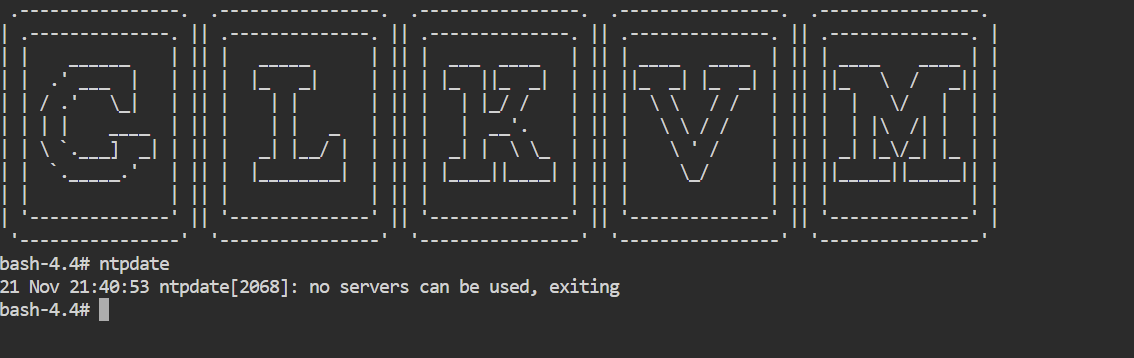
One possible cause is that connman cannot manage the newly added WIFI interface, as NTPD was removed, preventing connman from synchronizing time via WIFI and causing system malfunctions. You may try using the ntpdate command to synchronize the time.

Just manually set the date with date -s '2025-11-21 21:39:00' . Seemed to let me bind with tailscale.

After a reboot it won’t rebind because the time. Any suggestions to get ntpdate to work on reboot with wifi?

1 Like