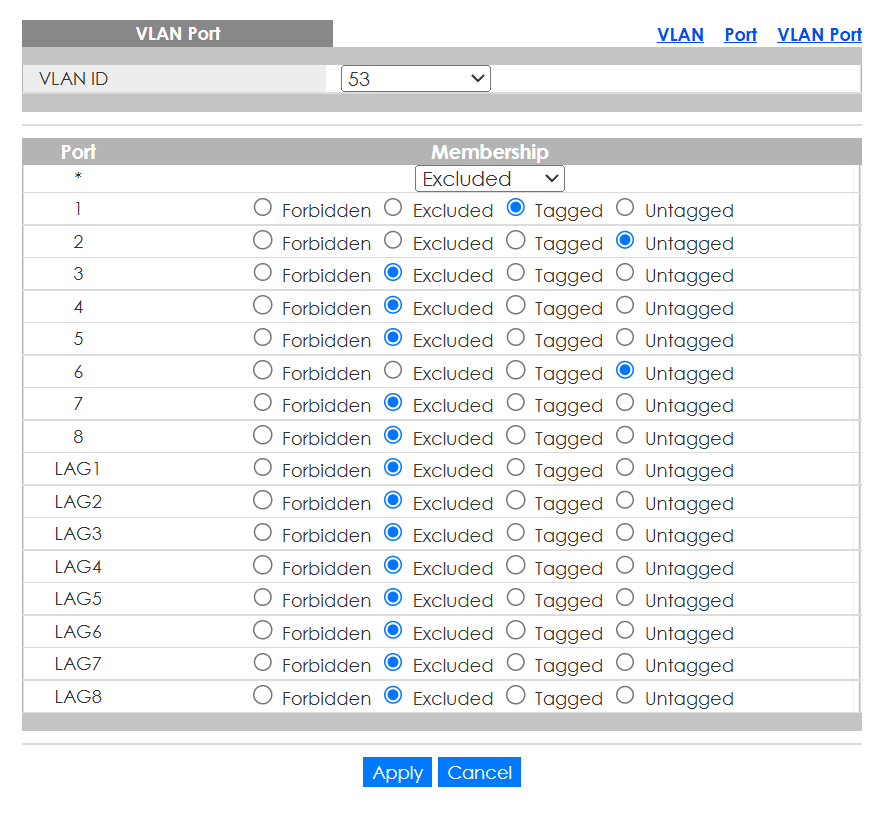
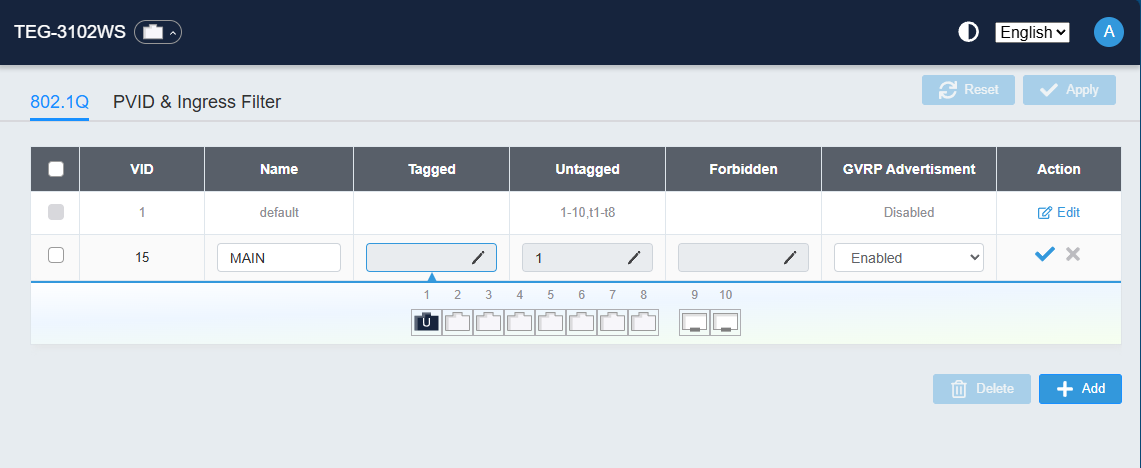
I see you have more likely just the factory configuration, nothing points for me what you tried for vlans.
so since I sit on my pc now, I can help making a tutorial.
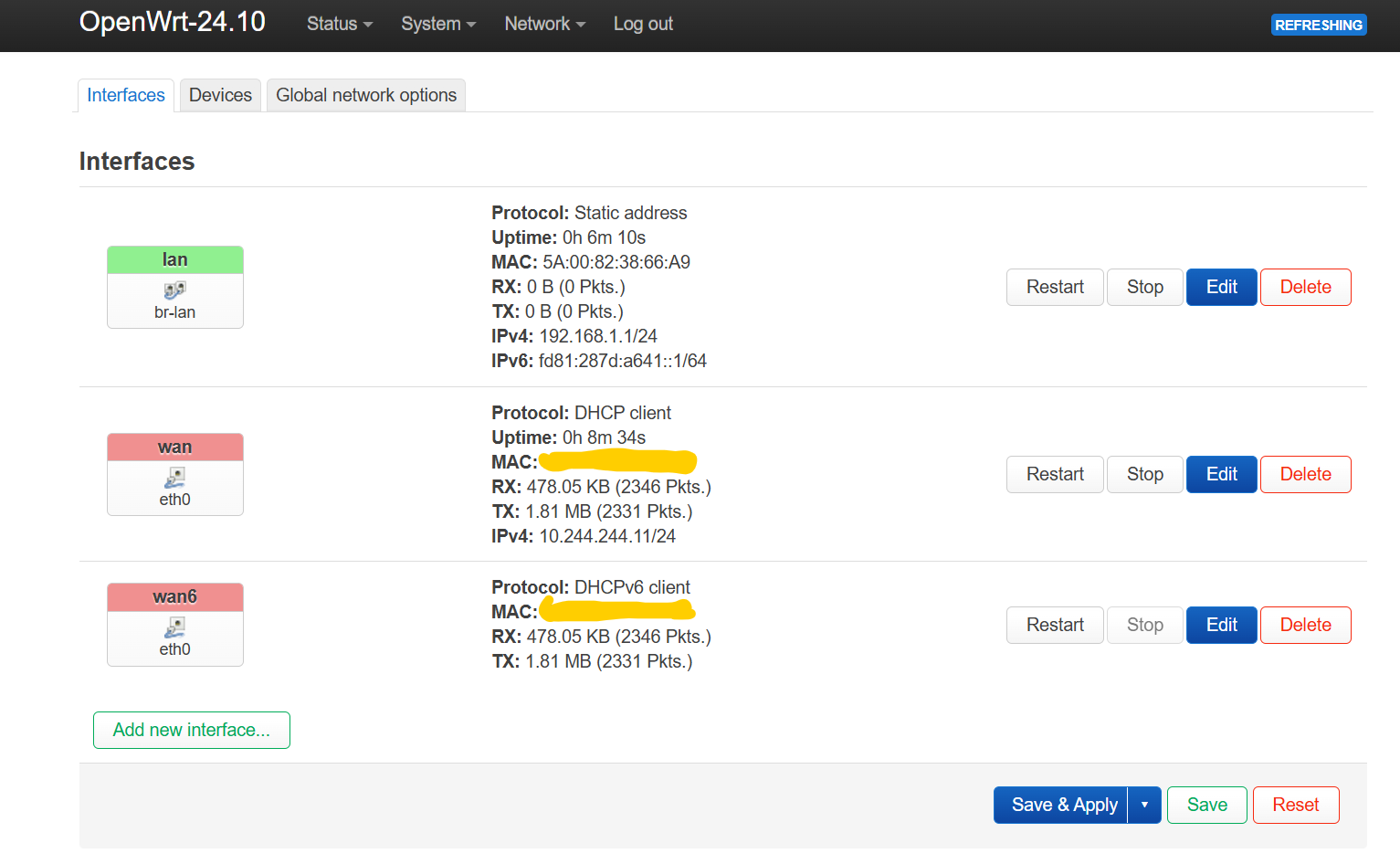
First we navigate to interfaces:
you will see something like:
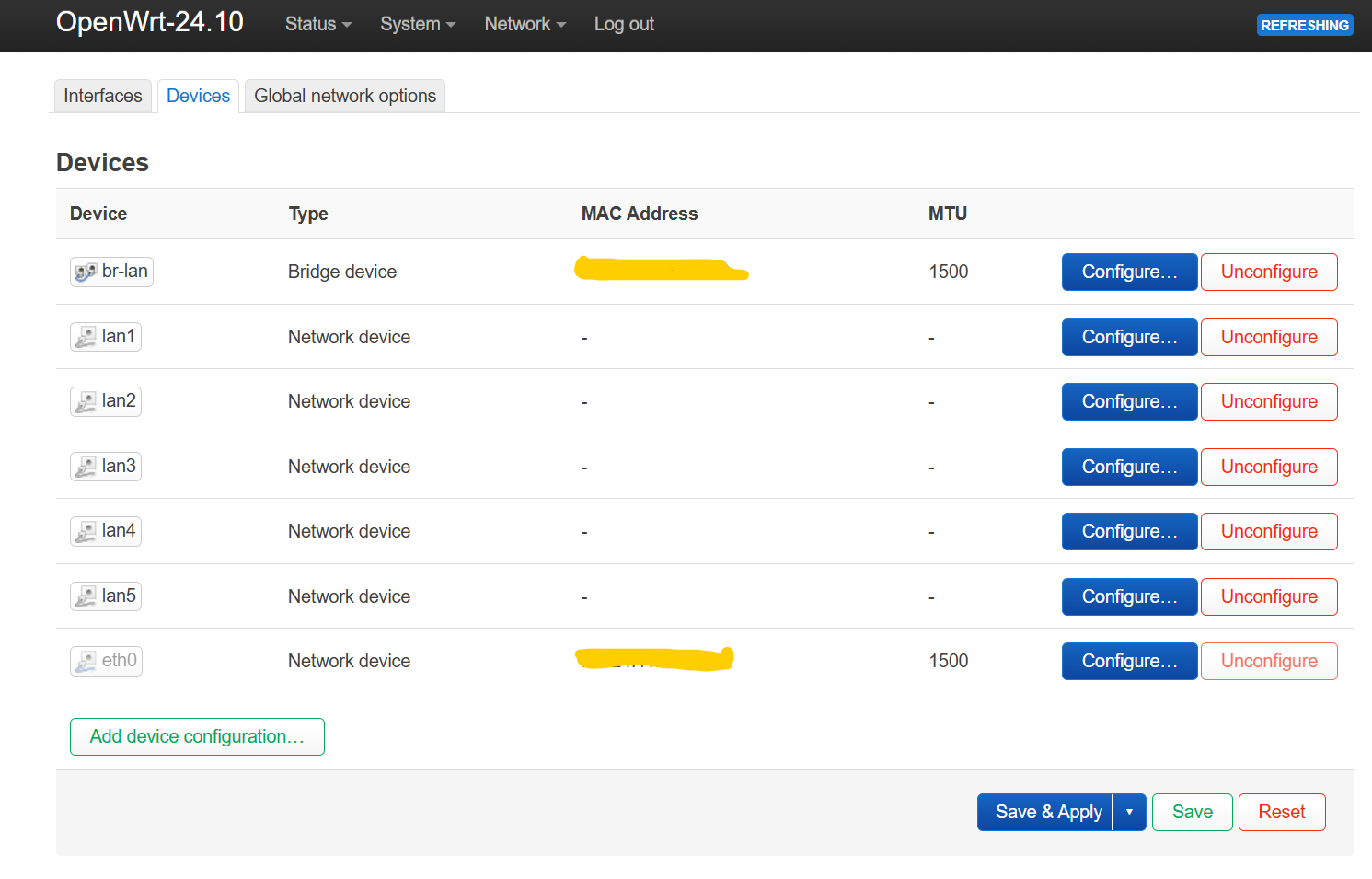
now click on Devices as shown here:
this will result in something like this:
on the left tree you can see how the device names are named, br- stanza means it is a bridge, for vlans we want to have bridge vlan filtering 
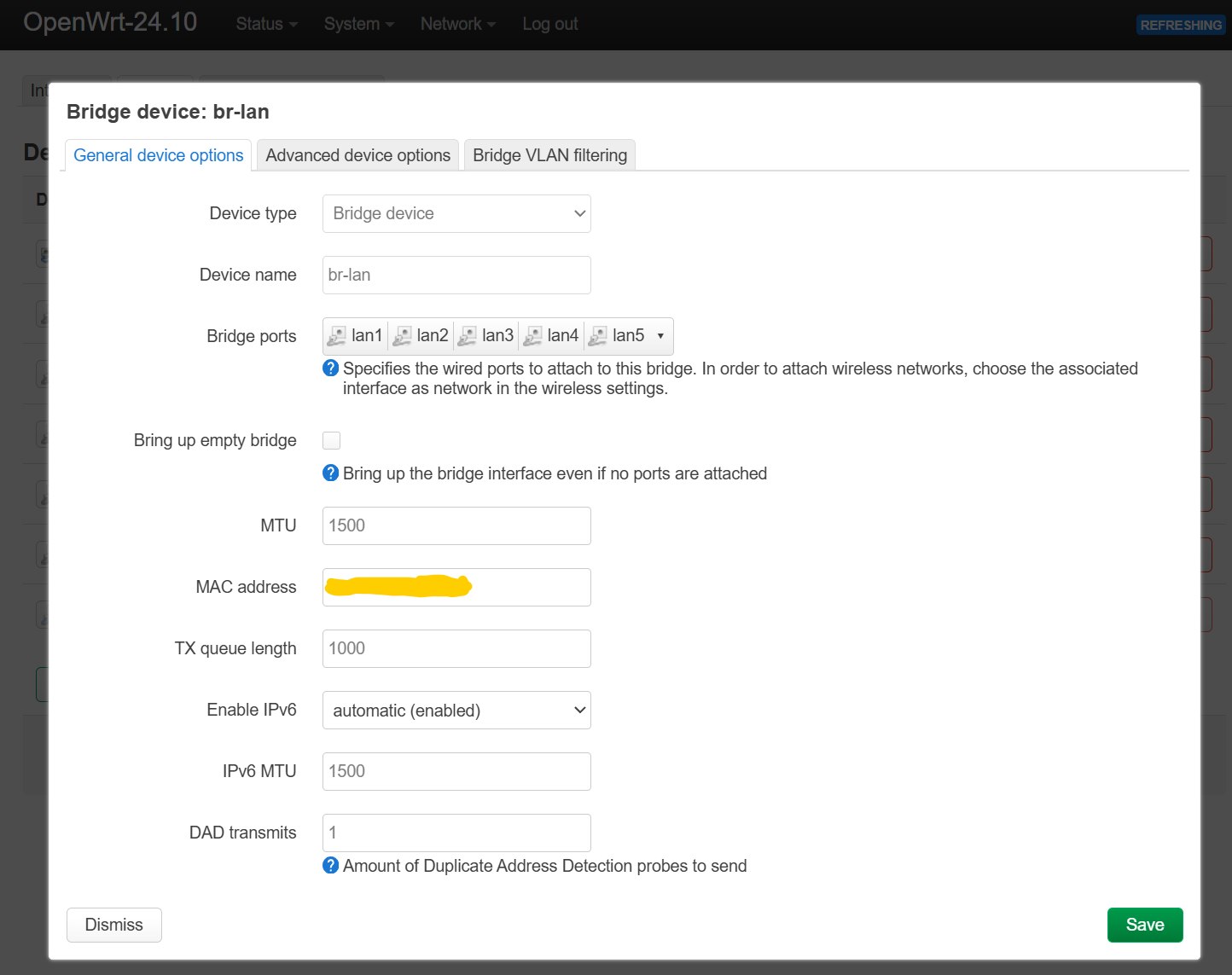
Lets edit br-lan by clicking on Configure...
you will see:
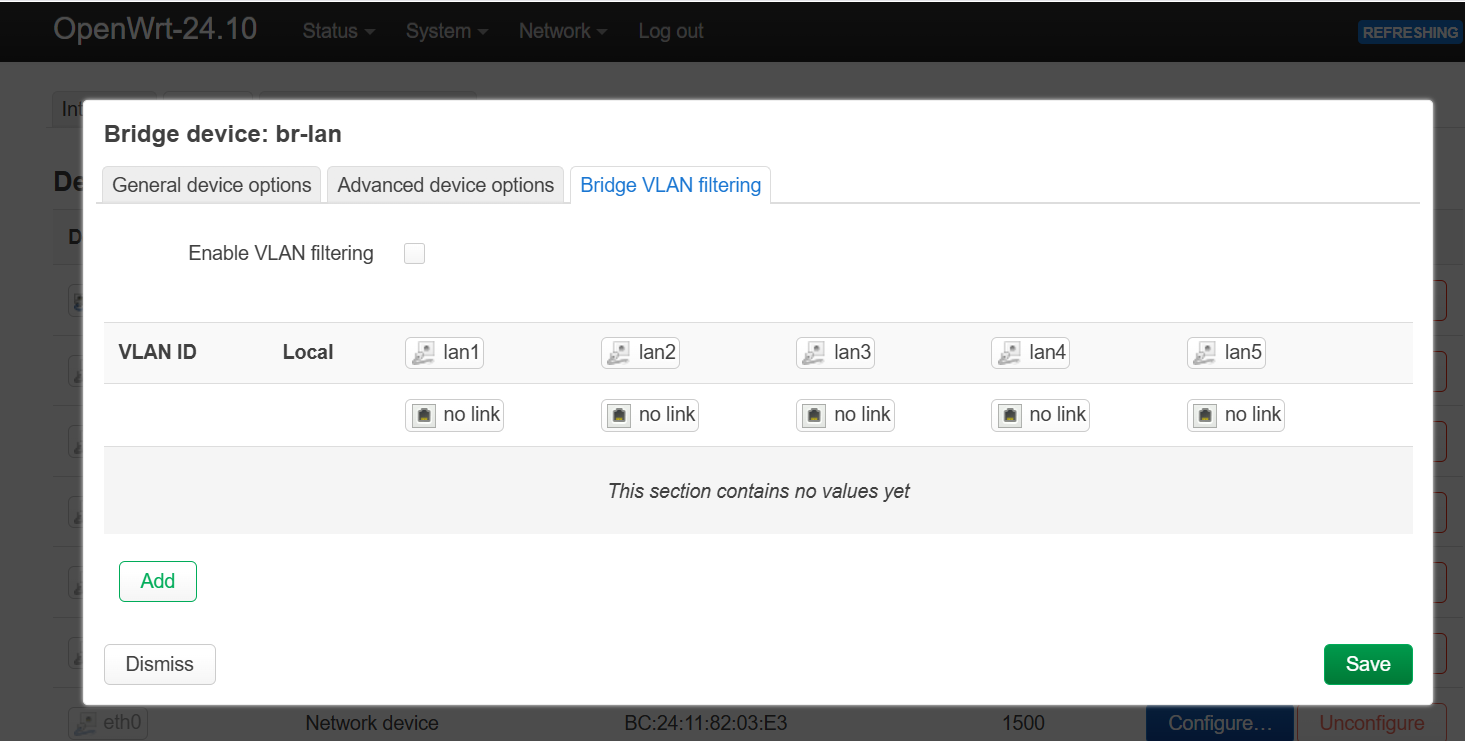
now click on tab Bridge VLAN filtering:
and you will see this:
great!, lets check Enable VLAN filtering but do not save yet.
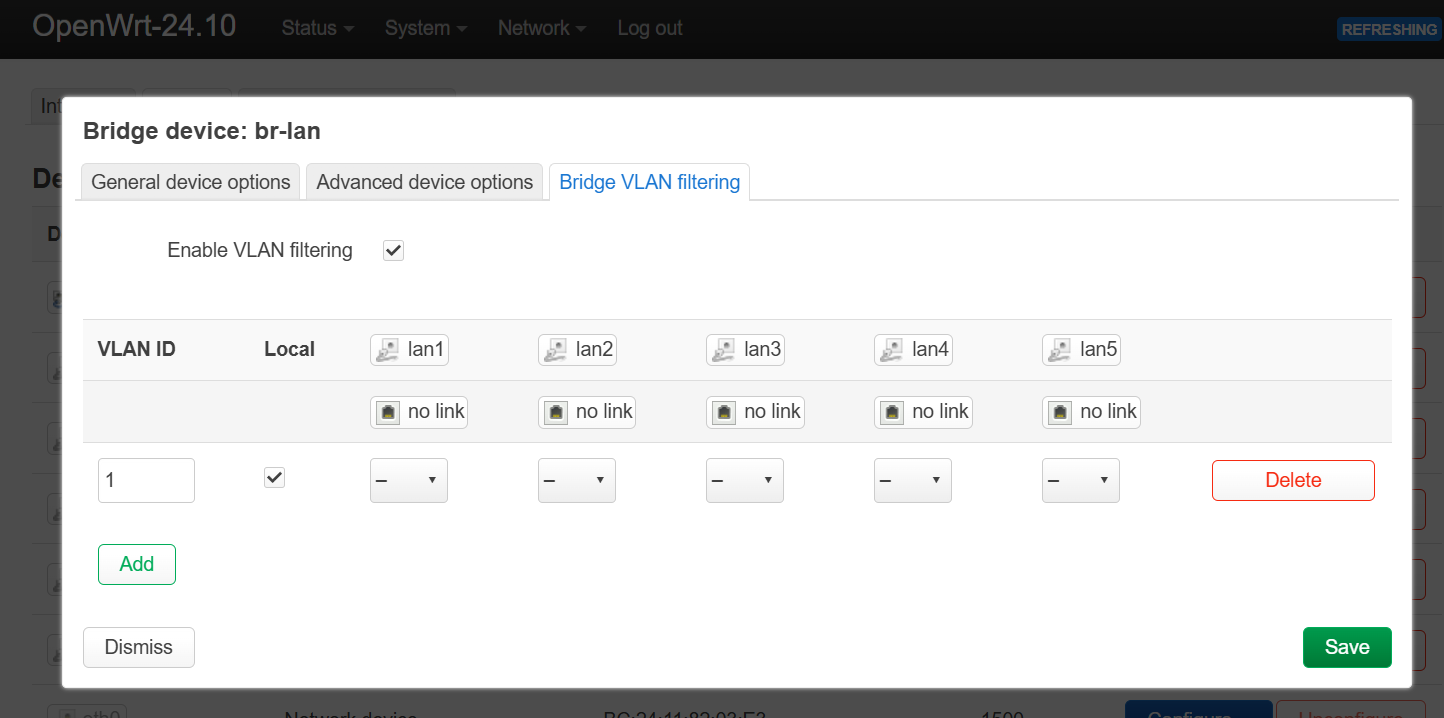
Now click on Add and you will see:
if not, it is a visual bug as part of the ancient luci by GL-iNet, click Save, scroll down and click again on Save, I can't stress this enough do not save and apply.
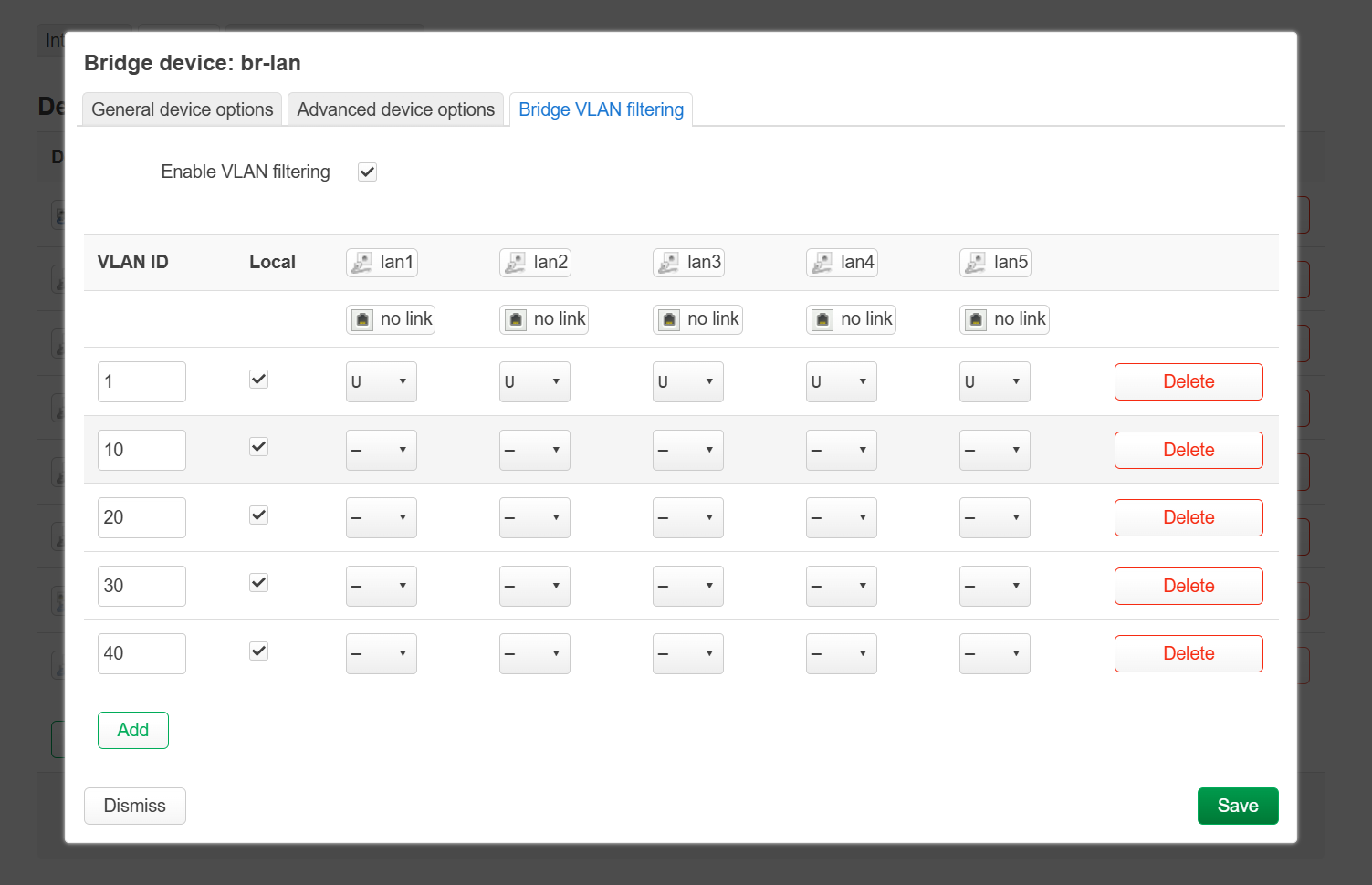
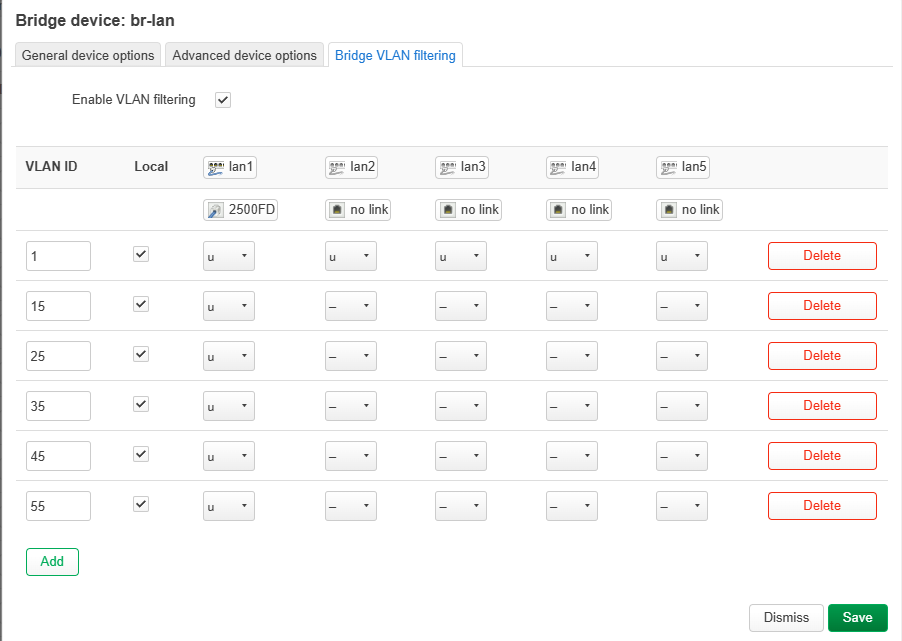
Now navigate back to Bridge VLAN filtering and you will see the expected result as of the image.
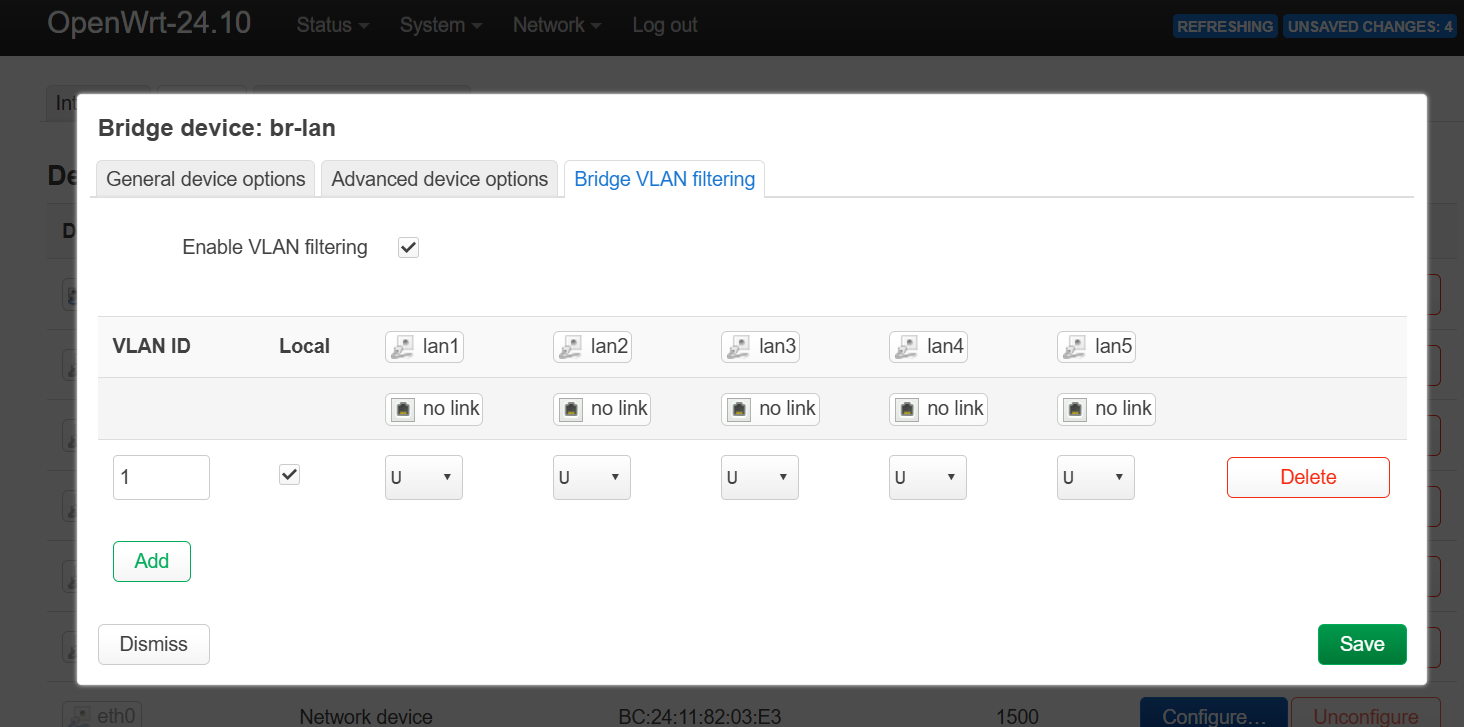
As for now without any untagged traffic or defined pvid (primary vlan id) this will not function, so lets fix it:
Now vlan 1 is the default vlan on all ports, each port can only have 1 untagged vlan, and after the port vlan 1 will not traverse further and won't exist, untagged vlans are for the destination ports and not for passing through.
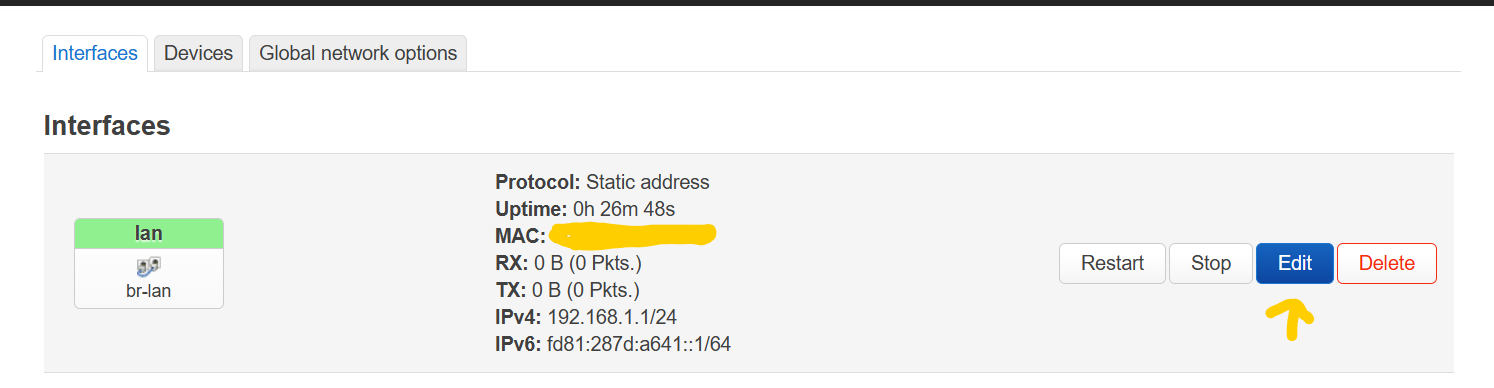
Okay great, click on save, and then navigate back to this page, again: DO NOT SAVE AND APPLY, because br-lan under interface lan needs to be changed into br-lan.1 so lets navigate back to this tab menu:
and edit lan:
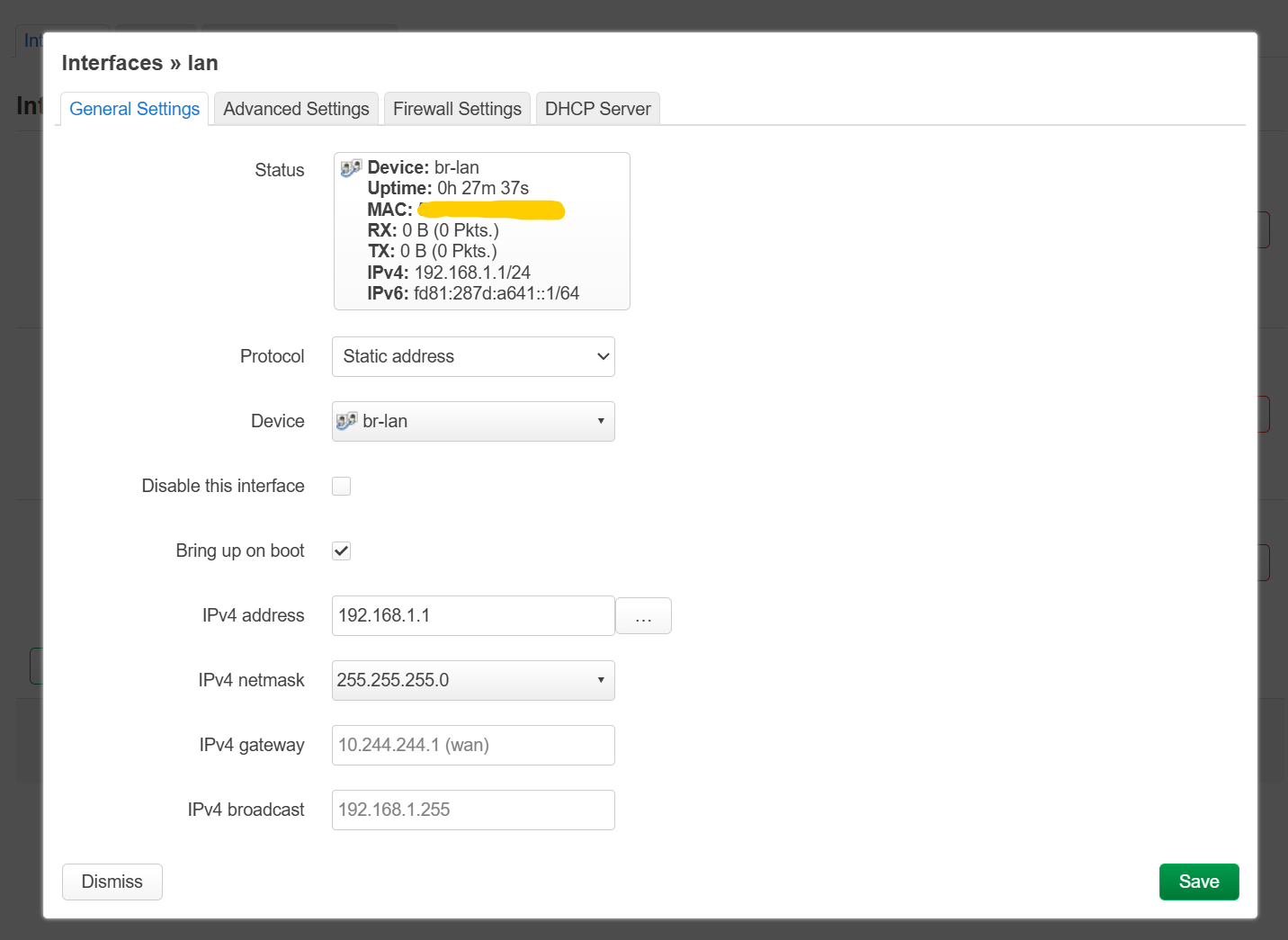
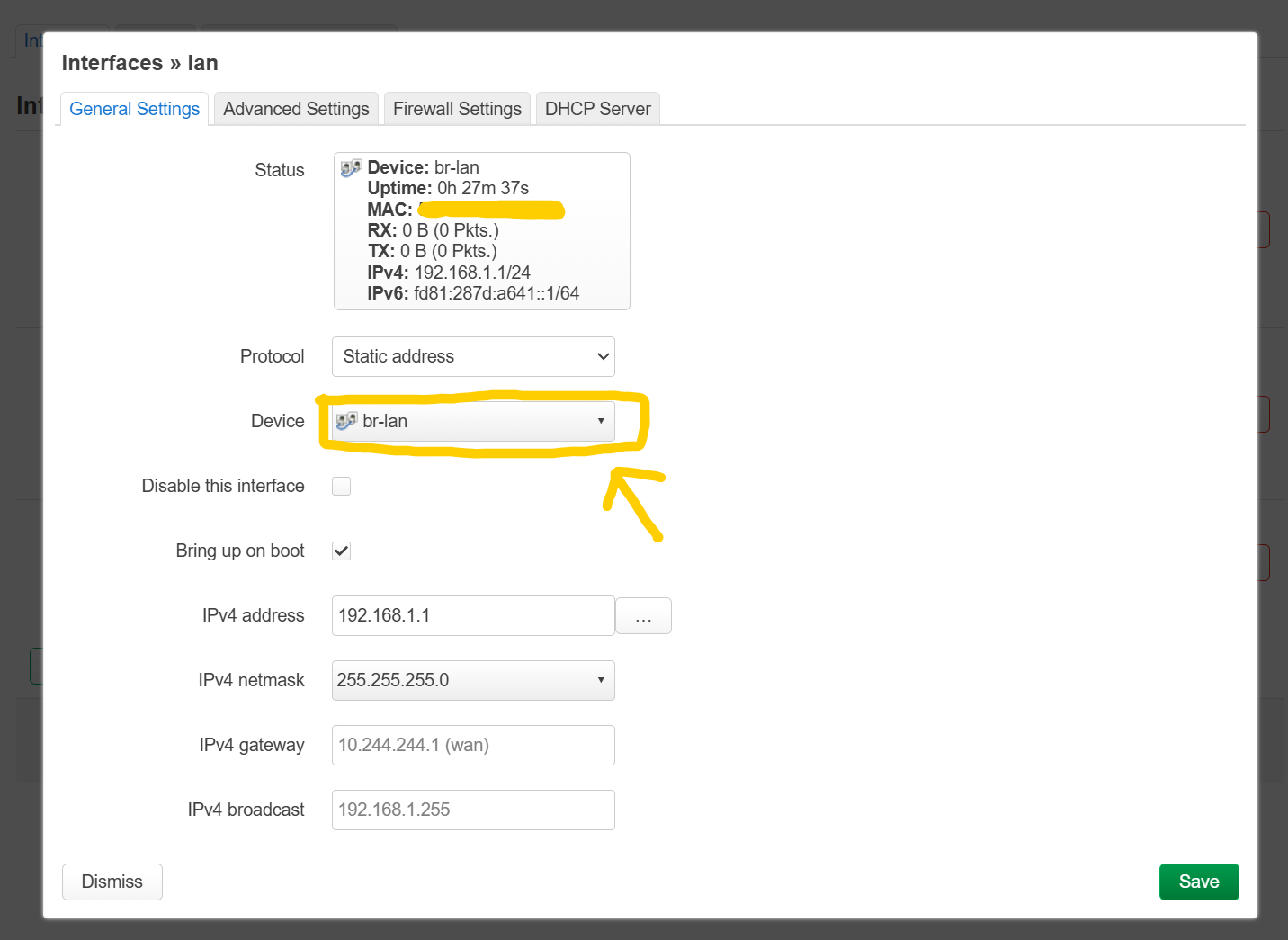
you will see something like this:
note that your ip address might be different, just ignore that, lets only change this field:
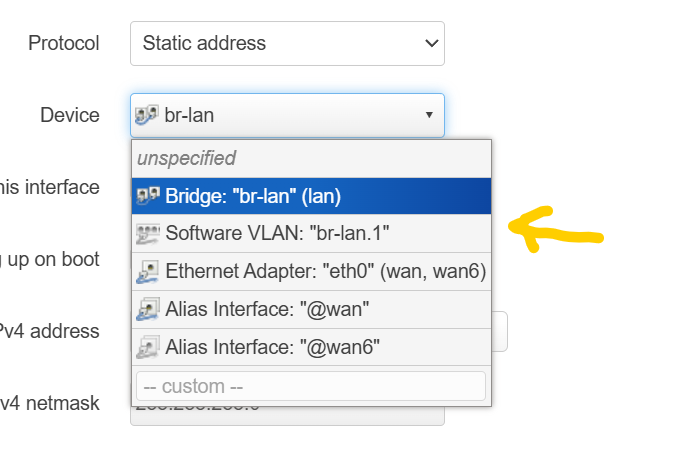
and you will see:
Select br-lan.1, and now you can finally click save, scroll down and click on save and apply.
great we now got the pvid ready, and basic vlan filtering, now we want to add more vlans.
lets head back to Bridge vlan filtering when editing br-lan.
and add a few vlans like this...
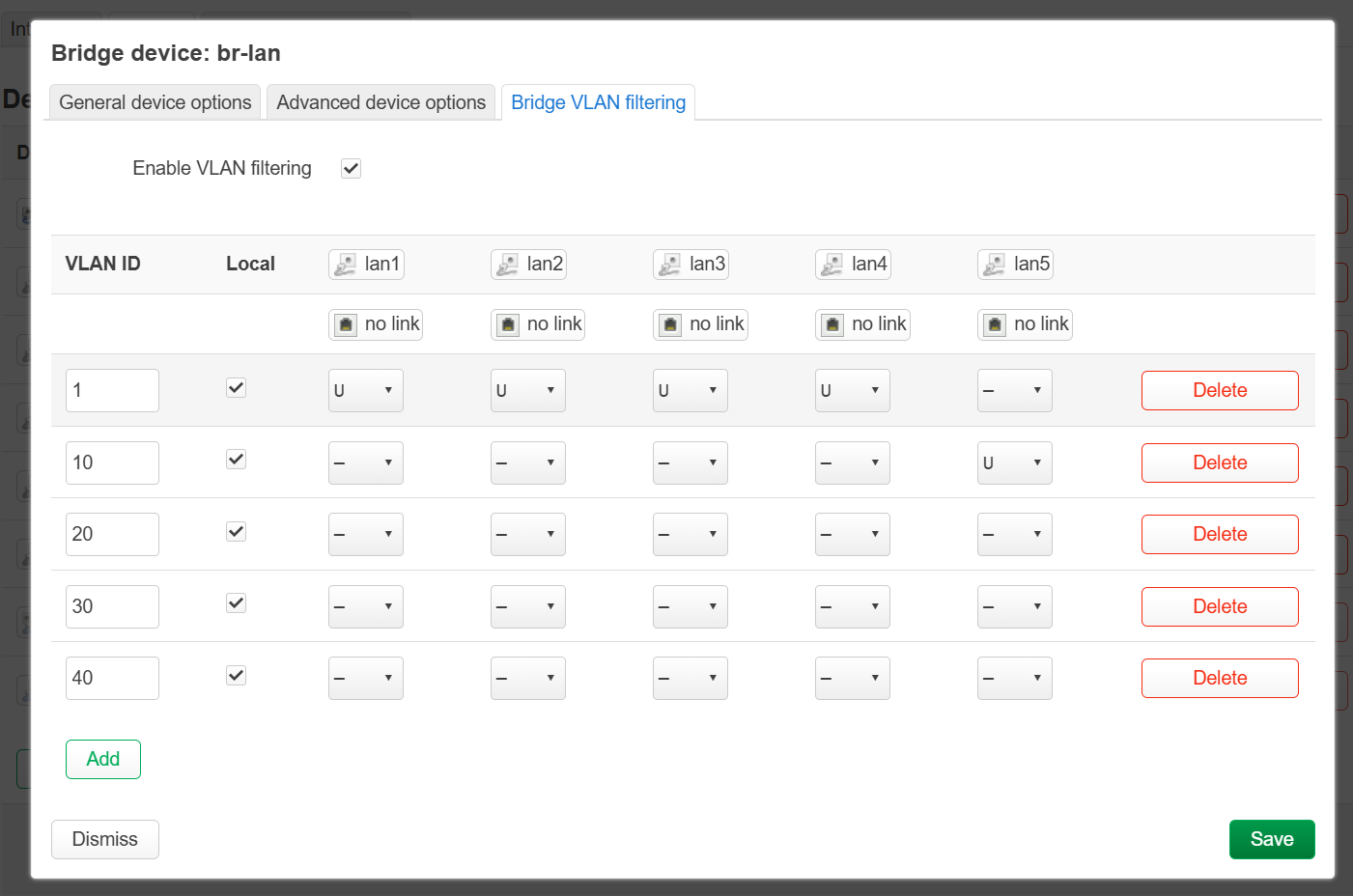
Okay, but how do I assign only one vlan to one port?, lets say port lan5 gets vlan 10.
Then we do:
And what about multiple vlans on one port?:
Alright, in that case this is when tagged vlans (T) get used, tagged vlans can be added to untagged ports aswell and traverse further, note that you need a vlan aware device on the other end aswell, to either make the tagged vlan traverse further (through multiple switches), or to turn the tagged vlan into a untagged vlan to a final destination port, untagged is for final destination and won't exist anymore after the port, and tagged will traverse further and is not for destination.
So if you have a vlan aware managed switch, you could theoretically assign tagged vlans as untagged on other ports and have more ports 
now click save, and here it is fine to also save and apply, it is only important to do not when configurating the managed vlan aka lan.
great we now got managed vlan working, we also have one port lan5 with default vlan 10, but now we need to assign vlan 10 to a actually network interface, lets do that now.
after we clicked on save and save and apply, lets navigate back to interfaces:
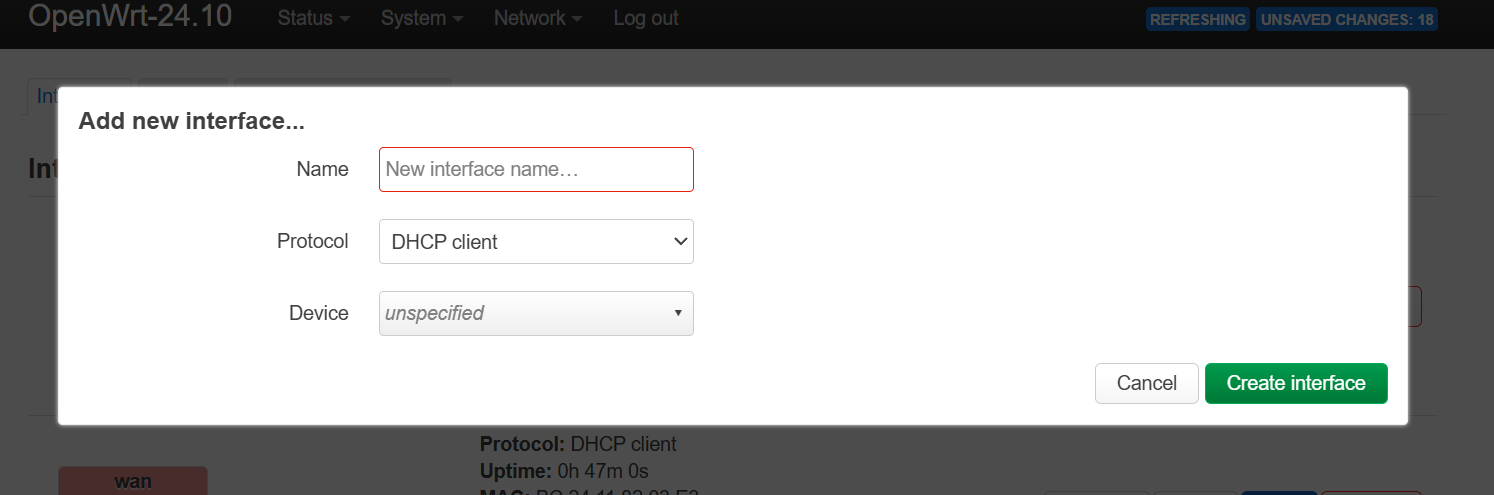
scroll down until you see button:

this will result into:
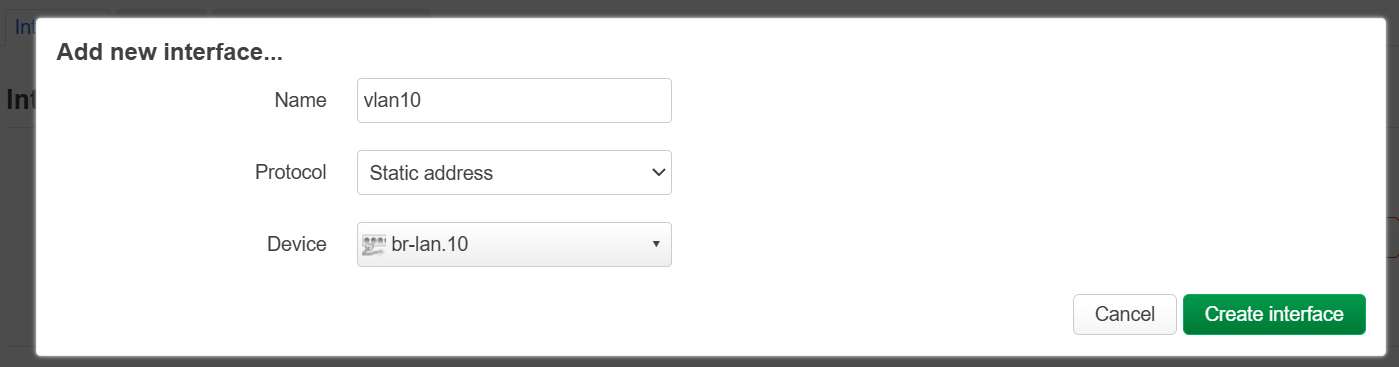
you can give it any name this is your own preference ;-), lets fill it in like this:
and click Create interface
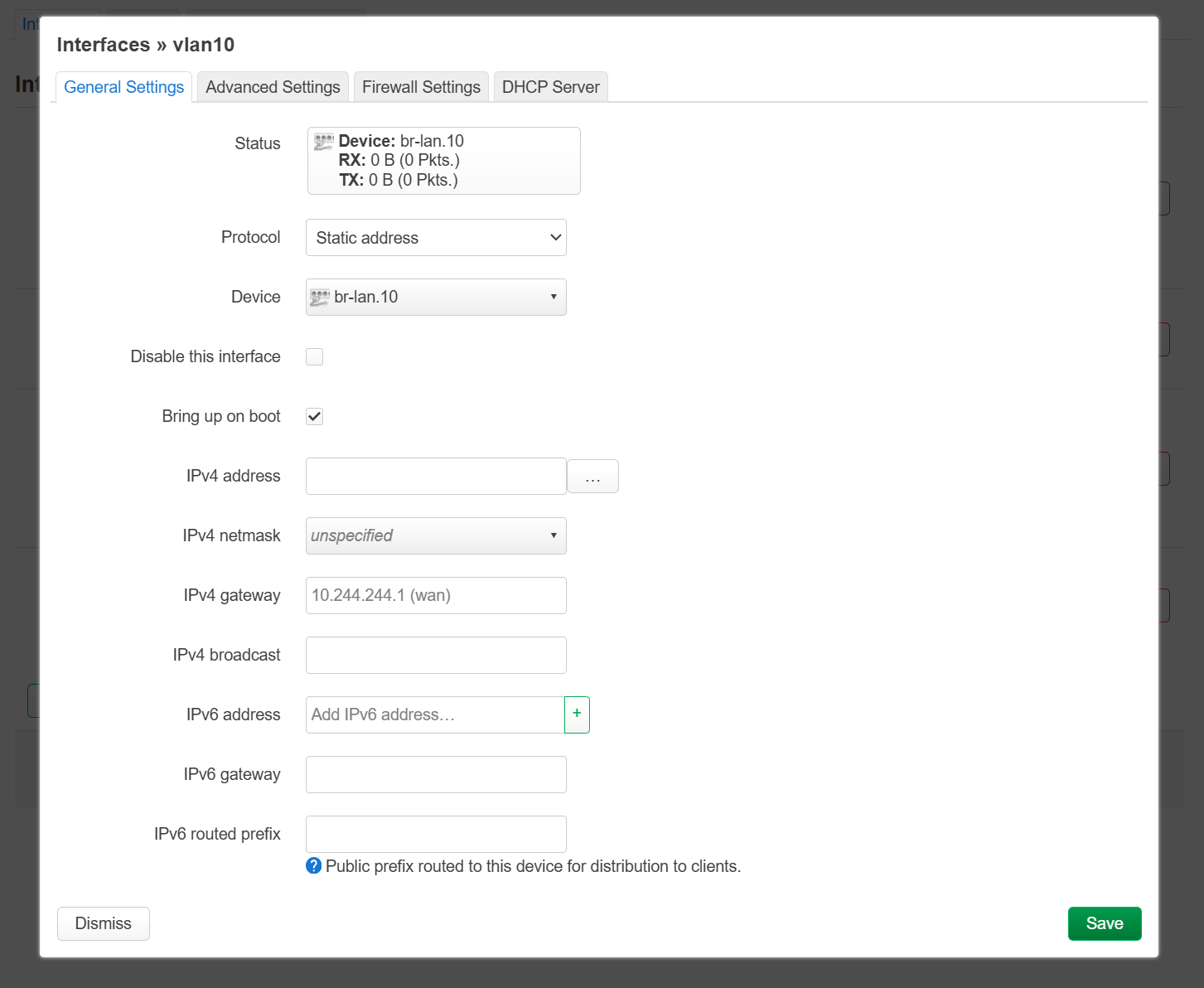
you will see this:
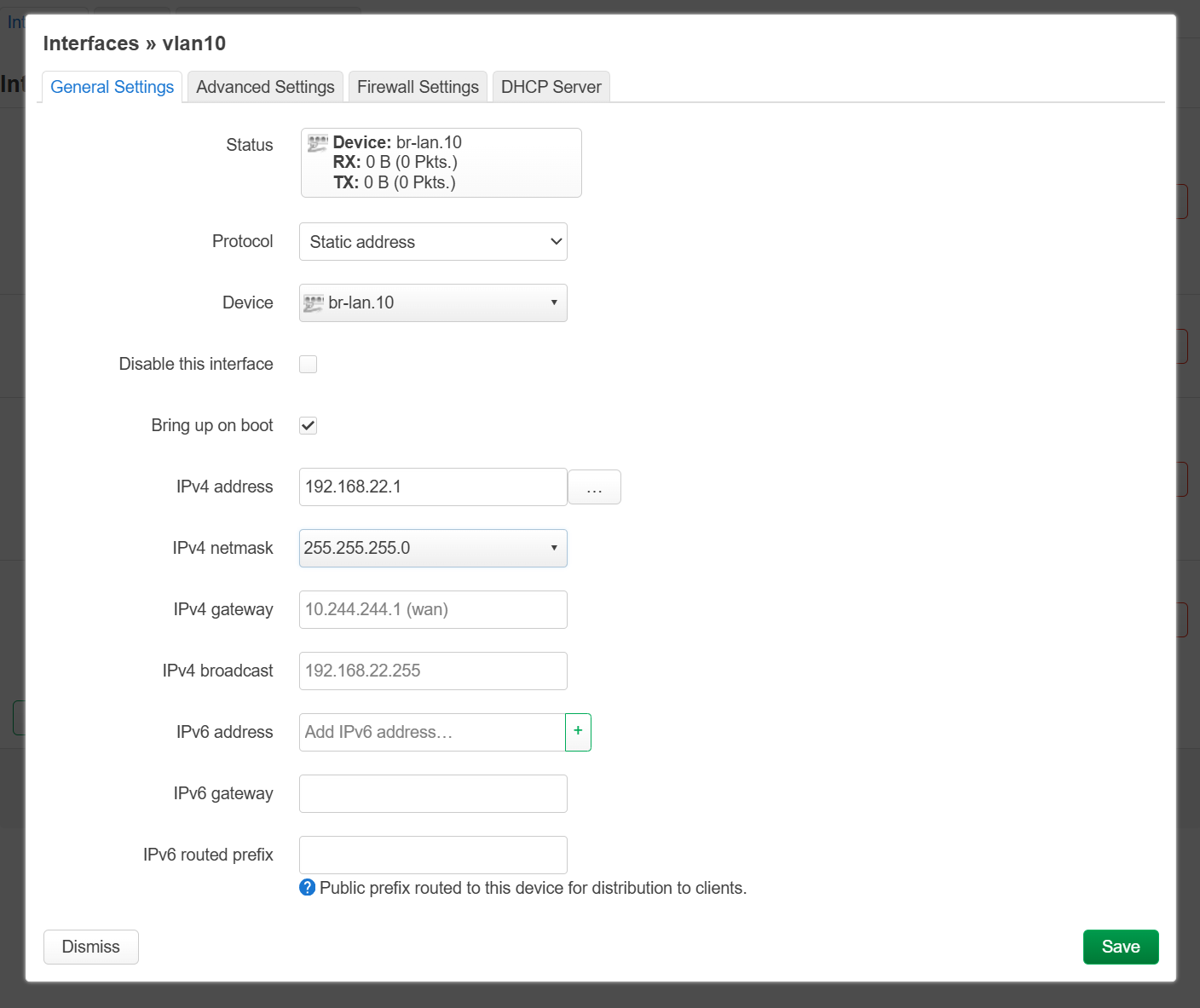
now you can fill this in like this:
as for ipv4 address you can use every ip here aslong it is rfc1918 compliant, do not fill in IPv4 gateway or broadcast the light greyed fields need to be empty.
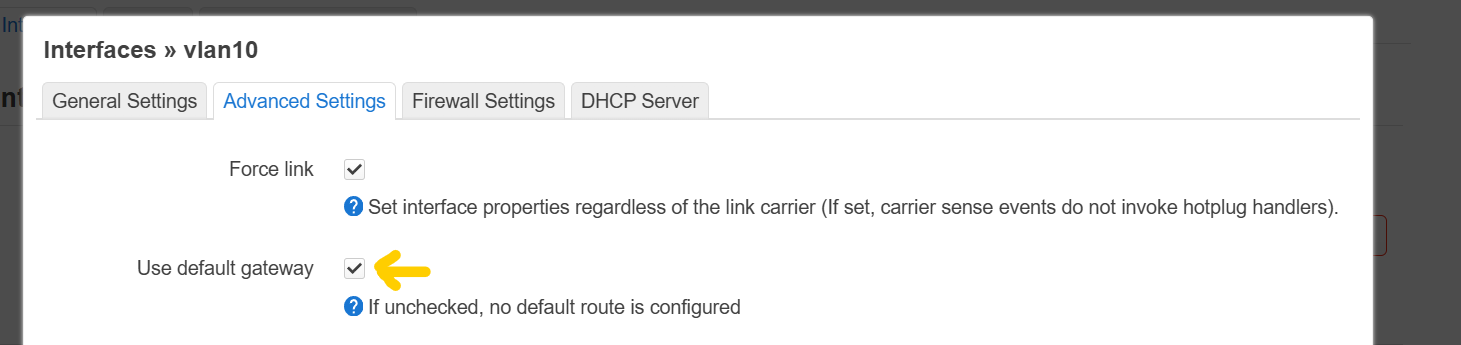
now lets click on Advanced Settings:
and uncheck this:
this is so because you do not want the interface generate a default route, your default route should be wan, wwan or follow lan since it is a special interface, otherwise traffic could forward through different interfaces which is not good.
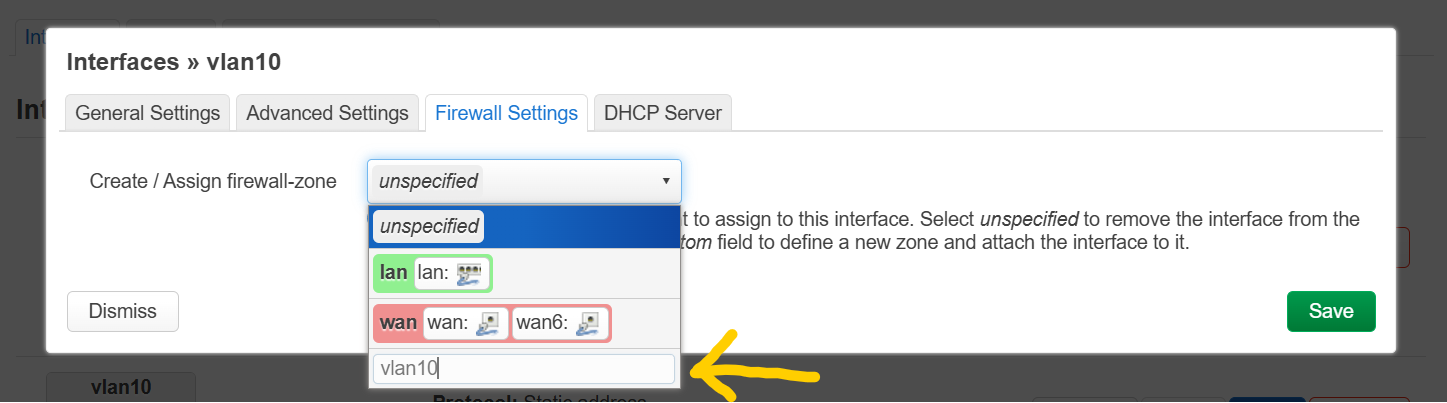
now lets click on Firewall Settings:
and create a new firewall zone like this and click enter:
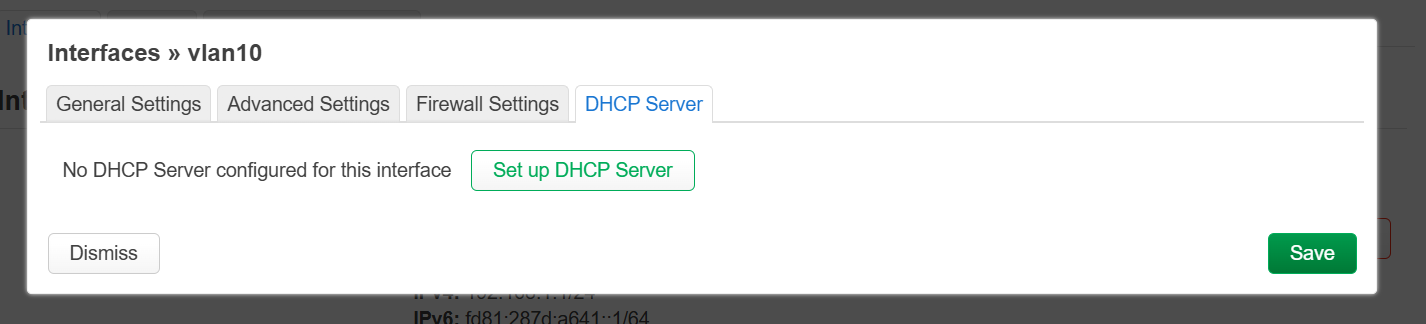
now lets navigate to DHCP server:
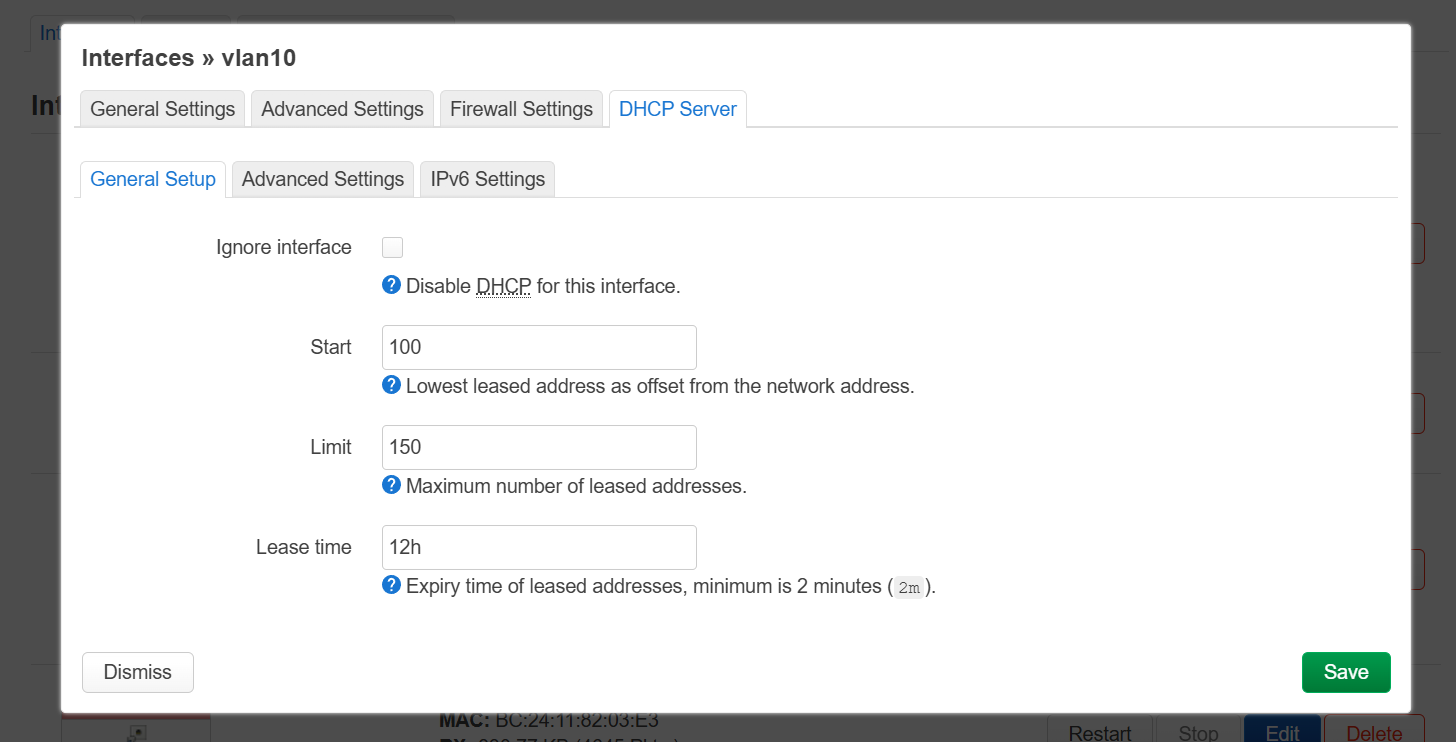
and click on Set up DHCP Server.
you could change the start to 2 but you can also just click save.
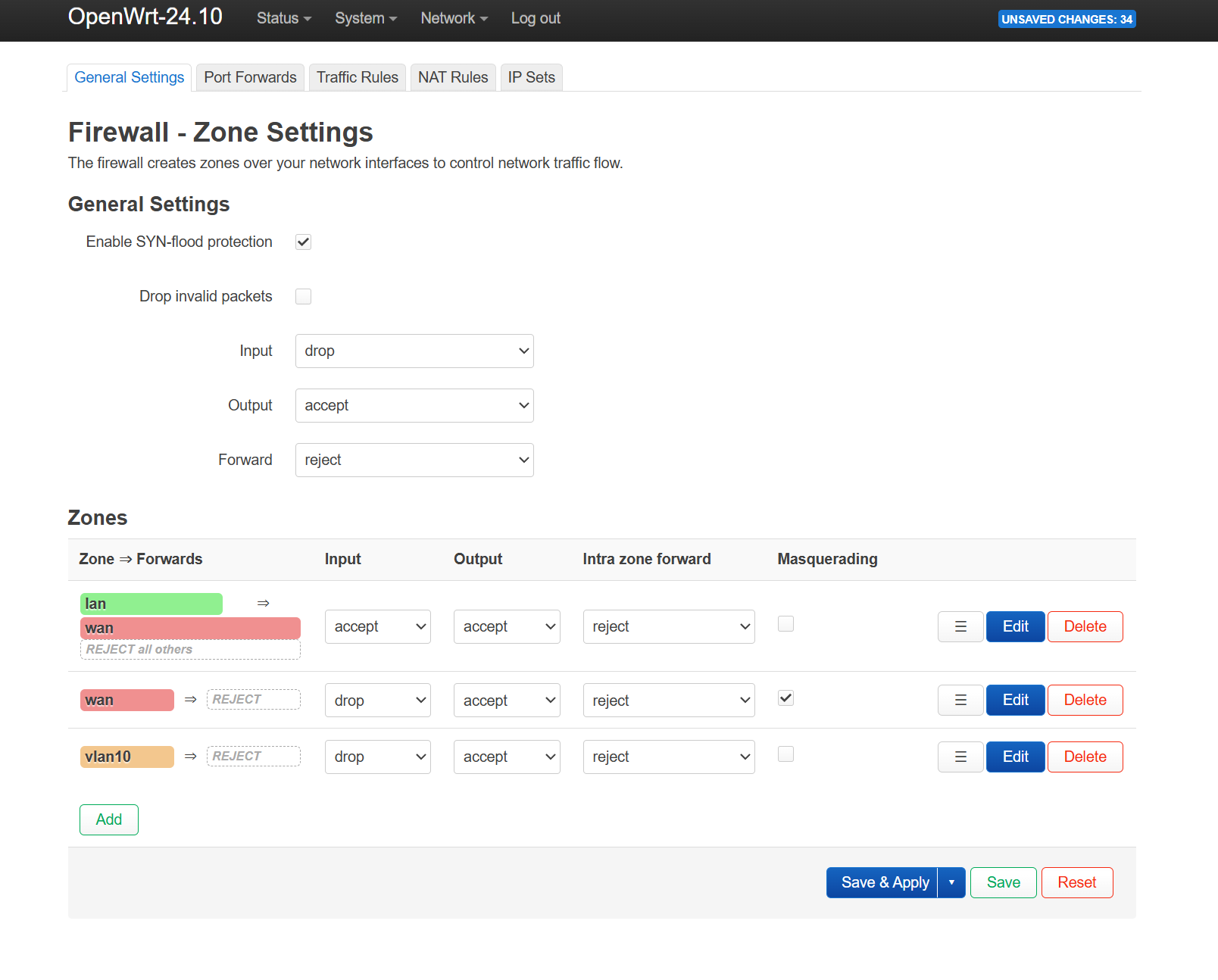
Great, you got your first vlan created and assigned to a new interface, but you still have to do one configuration change, remember you created a new firewall zone vlan10?, by default this blocks input, and this prevents clients getting an ip address from dhcp.
so lets navigate to:
and then to:
you will see this:
and you want to turn this:

into this:
click save and apply.
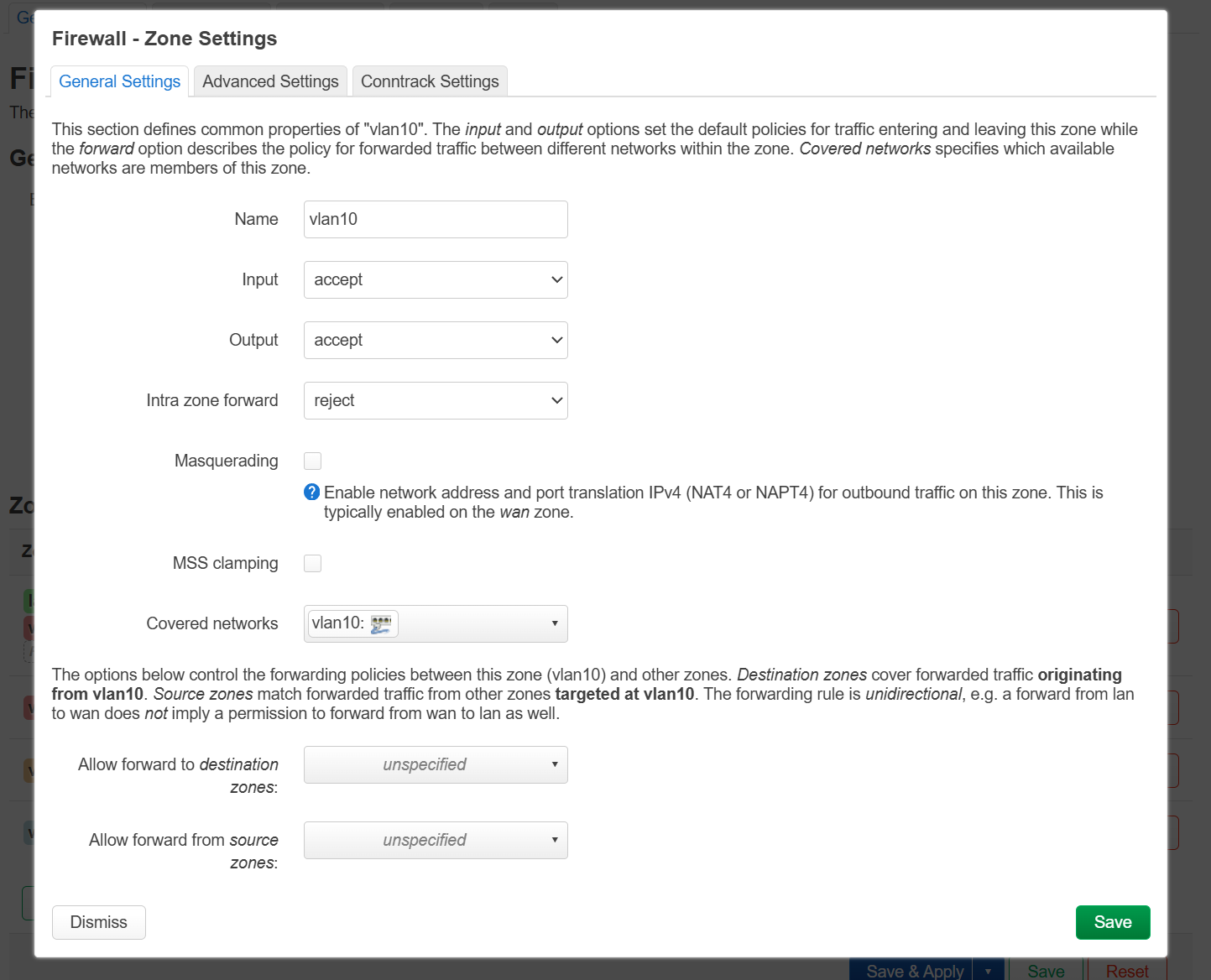
now edit vlan10, you will see this:
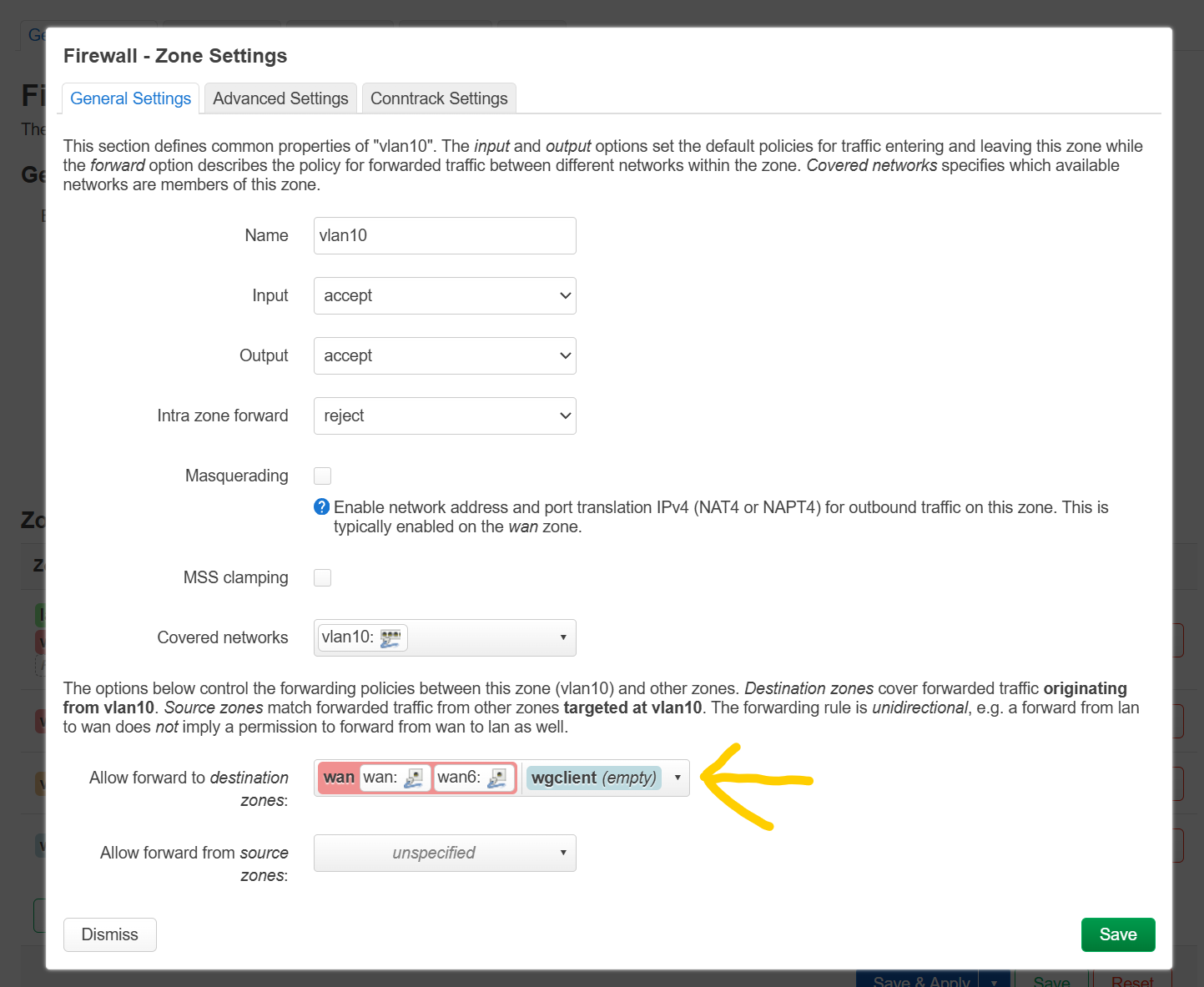
and you want to edit:
result:
note, vpn policies or vpn might not work with this because the gl firmware is not made fully compatible with vlans you need to modify scripts, but this is how you would do it if it did worked, atleast it will have internet through wan.
As for some situations vlans may be not needed, in that case you want to create a new interface and instead of assigning br-lan you assign the port i.e lan2 you need to also remove lan2 from br-lan, if wifi also needs to be connected, then you must remove lan2 also from bridge br-lan and create another bridge with lan2, and have the checkbox Keep up empty bridge checked, then assign the new bridge to your new interface, for wifi bridges are required.
I hope this helps a bit, please take as much time as what you want
theres no shame into this, I myself also started with zero knowledge so, feel free to ask if you have questions
edit:
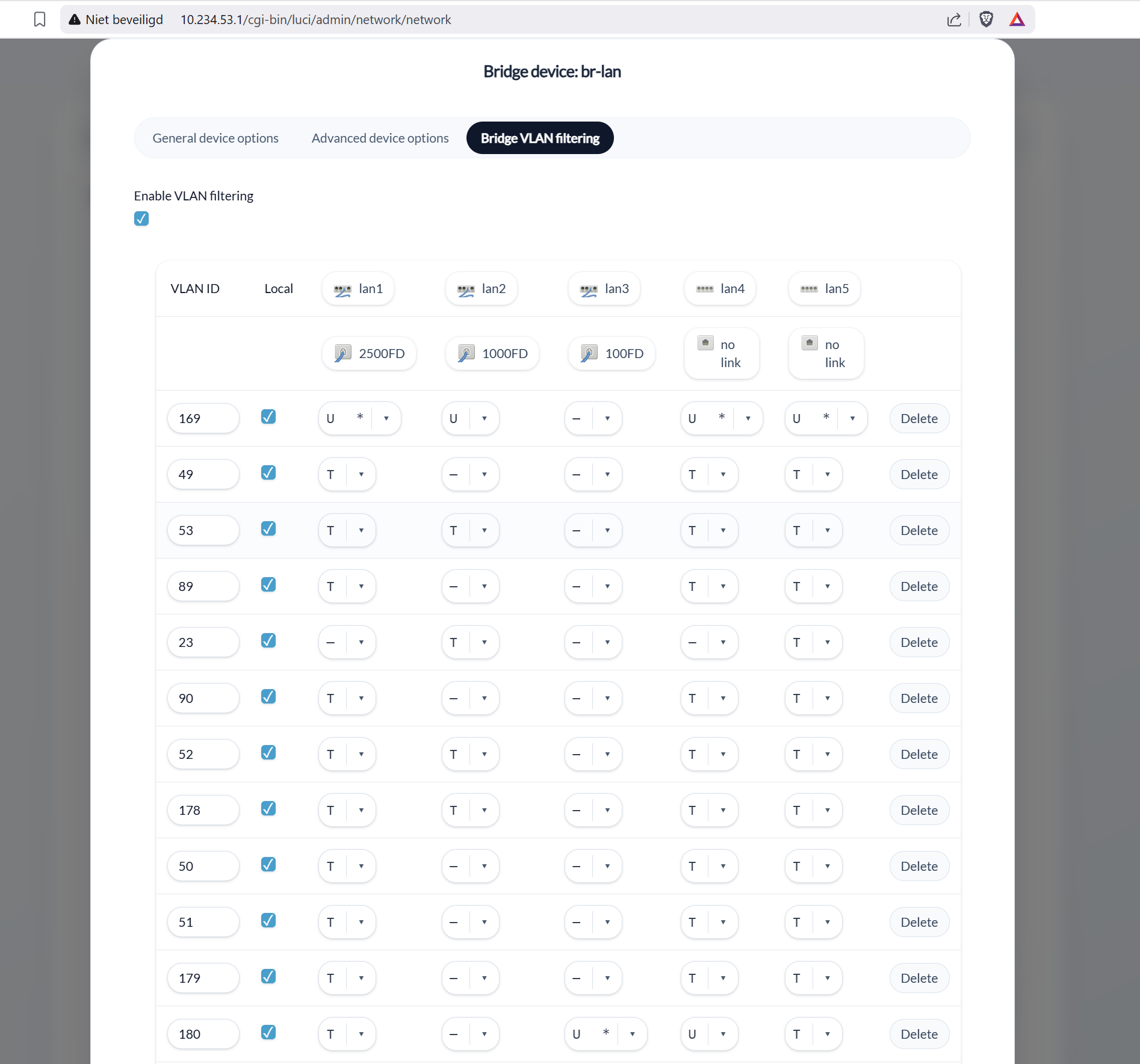
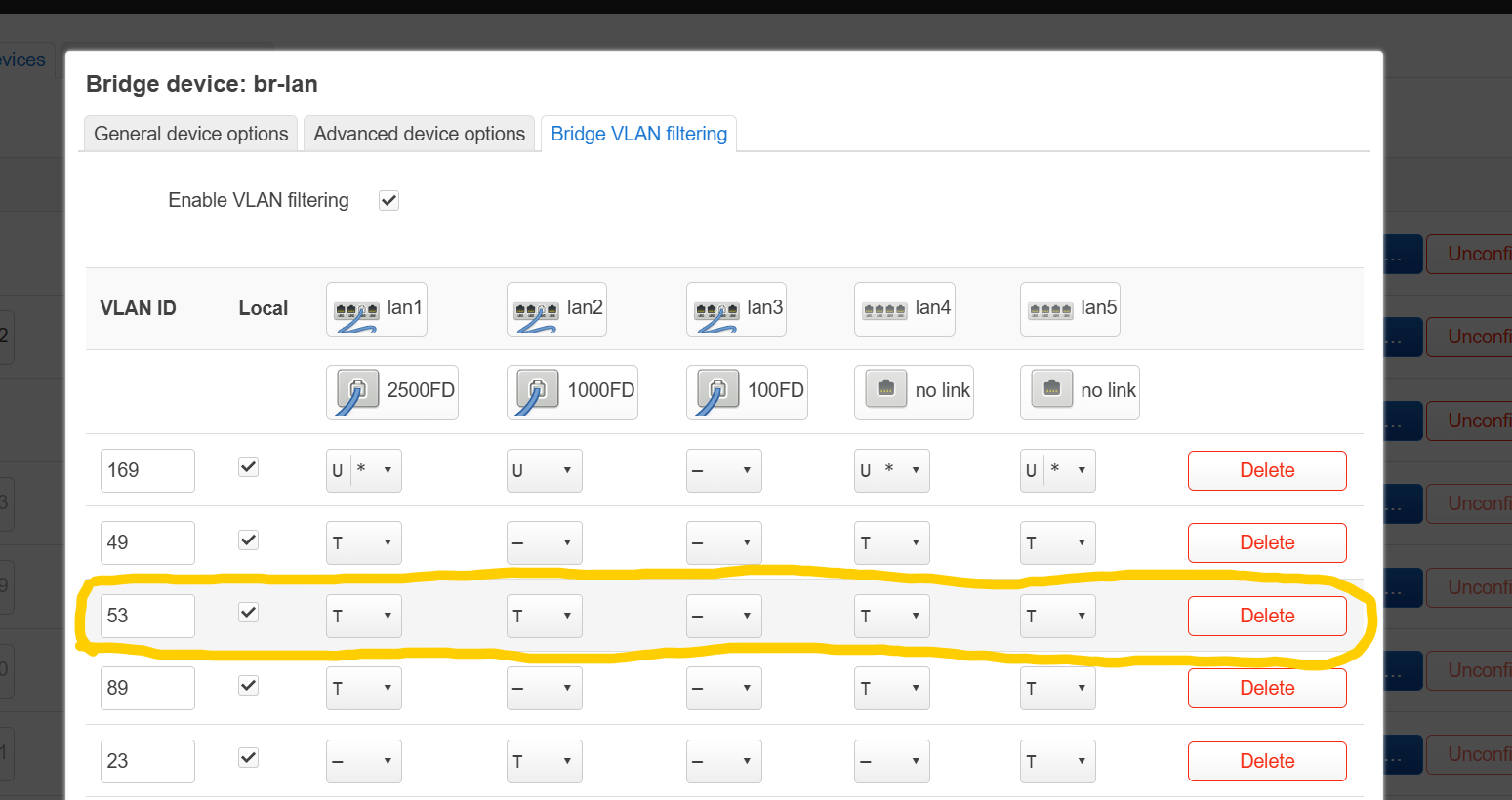
here is a working example without a vm on proxmox just on my main router:
as you can see my default vlan for ports is 169, so instead of 1 I asigned br-lan.169 on lan it doesn't really mather for simplicity keep vlan 1, but what I wanted to show is what happens on lan3, lan3 does not use 169 but instead vlan 180 if you scroll down, on lan1 I have also multiple (T) tagged vlans these will reach my switch in where I untag ports, I hope this also awnsers some other questions
Edit 2:
I noticed lan4 having two untagged, I was experimenting there, if you watch carefully one has a * and set to primary, the other untagged packet is therefor discarded/not sent on the port