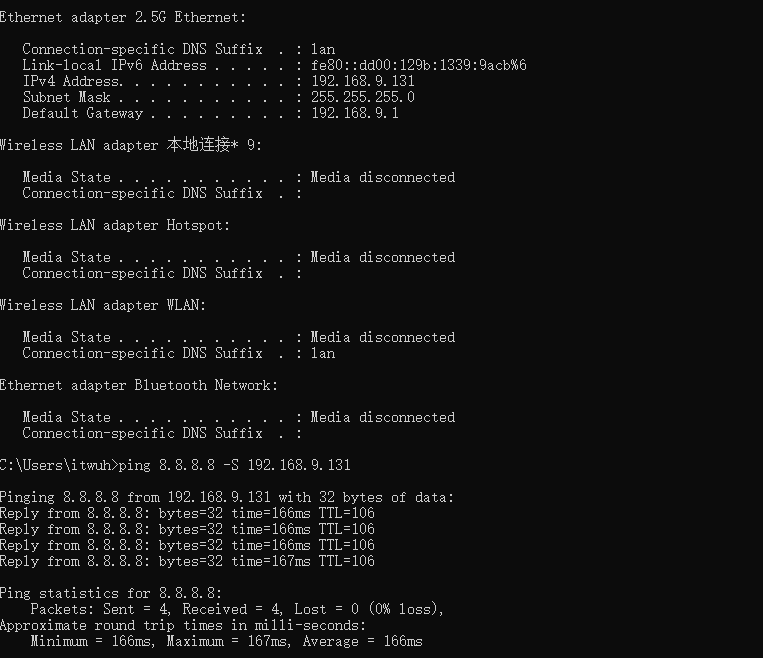
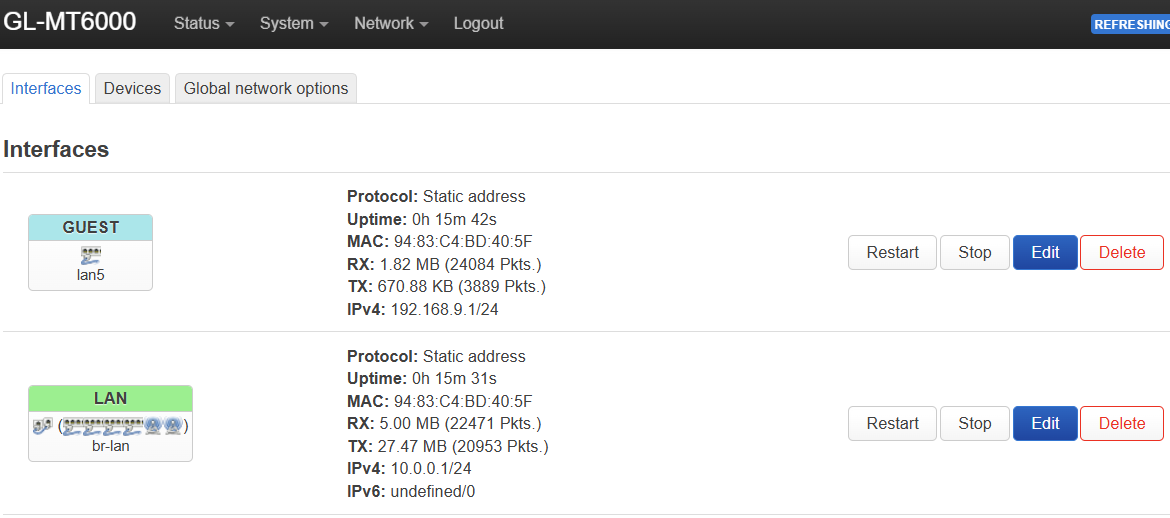
I am sure this is very easy for experienced guys. I am trying to assign LAN5 port on Flint 2 to the guest network so I can attach the iot bridges that do not have wifi.
I followed this guide and when I connect to LAN5, I am getting an IP address from the guest network in the 192.168.9.X range. However, I am not able to get to the internet. What am I missing?
Thank you for responding. I will provide the screenshots today evening. I did do every step and the screens look like mine.
One thing I noticed is that even though my IP is in the 192.168.9.x subnet I cannot ping the default gateway 192.168.9.1 - Isolation setting is off in GUI.
Do you have the Guest Wi-Fi enabled? I’m thinking you do since you mentioned the Isolation setting. If the Guest Wi-Fi is enabled, then it’s the default IP is 192.168.9.1. So, it appears that you created a new LAN Interface with the same IP and DHCP services as the Guest network which is conflicting. Try setting the new LAN5 network interface to a different IP subnet.
But that is the idea, and it is per the instructions I posted. I want lan5 to be in the same network as guest wifi (192.168.9.x) which is enabled and working.
I will use the guest wifi ( plus a switch connected to lan5, which will also be in the guest wifi network) for iot and other insecure devices.
I want to plug in some iot bridges like the Tapo Bridge into the lan5 switch so it can communicate with other nodes in the guest wifi network (hence the isolation is off). At the same time, the guest wifi and main wifi will be isolated from each other to avoid compromised iot devices from accessing the main network.
You are right. lan5 is set up with the same IP range and DHCP as the guest wifi network but isn't this necessary to let it communicate with the guest wifi?
I followed these instructions and apparently this works.
I don't want that the clients in the 192.168.9.x and 192.168.10.x range to communicate between themselves or the main network 192.168.8.x. That`s why I wanted to move them to the Guest part so they are isolated from themselves or from the main network. They can only access the wan.
Yes, is set to on. Maybe in your use case would be better to try VLAN`s. I would use them as well, but if I do, I will not be able to see devices in the GL.iNet UI Clients TAB. And I really like that part
For ex, now on lan5 I can`t see the device connected in the Clients tab.
Just wondering…. If you chose the lan5 to be 192.168.9.2 and leave the DHCP unchecked as before, it would stay in the same network and then you will be able to see the clients attached in the GUI. Want to try?
Ok, then you want LAN5 to be on the same IP network as the Guest network. The setup is different depending on which GL firmware version you are running.
First, on either firmware, do what you already did and remove the LAN5 checkbox from the br-lan bridge device.
On the Stable version of the Flint 2 firmware, edit the Guest Interface and select LAN5 in the Devices dropdown, then save and apply.
On the OpenWRT 24 firmware, edit the br-guest bridge interface and select LAN5 in the bridge ports dropdown, then save and apply.
That should put LAN5 on the Guest network.
Just a note, if you are using the Stable version of the GL firmware and you ever disable the Guest Wi-Fi, that will totally disable the Guest network and wired devices won’t even work. That’s because the base OpenWRT firmware in the Stable firmware version sets the Guest Interface as a Bridge device instead of using the br-guest bridge device that is created in the OpenWRT 24 firmware version.
Removed the LAN5 checkbox from the br-lan bridge device.
Edited the Guest Interface and selected LAN5 in the Devices dropdown, then save and apply.
Result: The device on LAN 5 got IP address from the wifi network 192.168.9.x all right, but was not able to ping anything. Weirdly, the guest wifi network also lost internet access for all clients. Then I tremoved LAN5 from Guest interface and guest wifi had internet access again.
This is what it looked like after step 2 (And it took away internet access from all guest network)
@bruce I have the same settings you have posted except for one big distinction.
Your Guest wifi is not enabled (no IP address), and probably that is why your LAN5 is working fine. My challenge is, I want both the Guest wifi clients and the LAN5 port clients to be enabled together in the same 192.168.9.x network.
Below is what my devices look like, and this configuration does not let LAN5 clients ping anything - in the guest wifi network OR the internet, despite being in the same (bridged) subnet.
However in this case
Guest wifi clients are fine, can ping others and get to internet
LAN5 client cannot ping any other guest wifi clients and cannot get to internet
@Void An update, your formula (assigning a different subnet to lan5 interface works.
But as you noted, the lan5 network devices do not appear in the GUI any more. So I’m still hopeful of a solution whereby both guest wifi and lan5 can be in the same subnet.
Sorry that didn’t work, it did for me. Did you remove the LAN5 interface network that you created? If not, then do that.
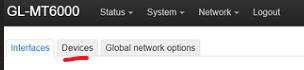
Also, since you are using the Stable firmware, you could do what I did to create the br-guest device bridge so that you can edit it on that version of the firmware so you can see and edit it in the Advanced LUCI GUI.
First, remove all the changes you made and return everything back to the defaults.
Here’s is how I was able to make the ‘br-guest’ device show up on the devices tab of the GL Stable version 21 firmware’s LUCI GUI on my Flint 2. I used the VI editor to Edit the ‘/etc/config/network’ file to add a few lines to create the ‘br-guest’ device bridge, and changed one line in the Guest interface section of the network file to change it from being the ‘br-guest’ bridge to using the br-guest device bridge that I created.
SSH to the router.
Edit the ‘/etc/network/config’ file by adding this which creates the br-guest device bridge.
vi /etc/network/config
Add this new section;
  config device
     option name 'br-guest'
     option type 'bridge'
     option igmp_snooping '0'
Change one line in the (interface 'guest') section of the config to change the Guest Interface from being the hidden ‘br-guest’ bridge itself, to using the ‘br-guest’ device bridge created above.
Find the ‘interface guest’ section of the ‘/etc/network/config’ file and change this line;
option name 'br-guest'
to this instead;
option device 'br-guest’
Save the file and restart the Guest interface in the LUCI GUI. You should then see the ‘br-guest’ bridge device assigned to the Guest network like @xcyber picture above, and be able to see and configure the br-guest device bridge on the devices tab.
If you do all this, then remove LAN5 from the br-lan device and add it to the br-guest device bridge.