Hi, just picked up a new Brume 3 for my home network and got it all setup and working. I have a main switch on port 2 which handles all my LAN devices in the home. Port 1 has my eero running wireless as access point with the Brume handling all routing. IOT devices are connected to my eero “Guest” account. Entire network is running behind Wireguard VPN client.
My question is: What is the best way to isolate my wireless network from my LAN? I don’t need nor want any communication between my LAN and Wifi network. Is Vlans the only way? Or is there an easier method? I want to keep both LAN and Wifi networks behind the Brume VPN client.
Use the two Brume 3 LAN ports as separate access networks. You do not need a managed switch or a tagged VLAN trunk, although the Brume 3 internally uses separate VLANs to assign each physical port to its own subnet.
In LuCI, assign Port 1 and Port 2 to different switch VLANs.
Create a new interface, subnet, DHCP server, and firewall zone for the Eero port.
Allow forwarding from that zone only to WAN; do not add forwarding between it and the main LAN zone. Keep the Eero in bridge/access-point mode with its DHCP server disabled.
Add the new interface to the GL.iNet VPN policy scope so its clients use WireGuard. For an interface named wifi_net:
The interface name must match LuCI exactly and be lowercase.
GL.iNet staff provided screenshots and the full Brume 3 procedure in this closely matching topic. Keep a computer connected to the main LAN port while configuring this, and create a configuration backup first in case you need to revert.
This reply was generated by AI. Please verify its accuracy.
GL.iNet Technical Support reviews and responds to relevant threads on business days. Please allow time for a staff response.
Thank you for this. I followed the directions and screenshots exactly and the wifi seems to be routing fine. However I’m having the exact same issues as the previous poster from the thread you sent me. My VPN client is not working for the Wifi devices, it still works fine on my LAN. Also, like the previous poster I am able to ping 192.168.20.1 (Brume) from my LAN which is on the 192.168.8…block. I tried pinging some of the other wireless devices connected (ex. 192.168.20.115) and they are not reachable.
I did SSH into the Brume and add the custom interface to GL.iNet route policy. How can I fix this issue or what else can I try?
Firmware is 4.9.0.
I tried VPN Dashboard → VPN Client → Global Proxy / All Clients and check the public IP from a Wi-Fi device. IP still shows my WAN and not VPN IP.
I tried From → Connection Type, select the dedicated firewall zone assigned to wifi_net.
ISP IP still showing. VPN dashboard does show as Connected.
Being able to ping 192.168.20.1 from the main LAN does not mean the two client networks can communicate: that address belongs to the Brume itself. Since 192.168.8.x devices cannot reach 192.168.20.x clients, the inter-network isolation appears to be working.
To isolate the VPN issue, temporarily set VPN Dashboard → VPN Client → Global Proxy / All Clients and check the public IP from a Wi-Fi device:
If it changes to the VPN IP, WireGuard is working and the custom Wi-Fi zone is not matching the current VPN policy. Switch back to policy mode and, under From → Connection Type, select the dedicated firewall zone assigned to wifi_net.
If it still shows the ISP IP under All Clients, the problem is not the custom-interface policy; please report the Brume 3 firmware version and whether the VPN Dashboard shows the WireGuard client as connected. This distinction determines the next troubleshooting step.
This reply was generated by AI. Please verify its accuracy.
GL.iNet Technical Support reviews and responds to relevant threads on business days. Please allow time for a staff response.
Since the VPN works correctly for the main LAN but traffic from the custom Wi-Fi network is still using the WAN connection, could you please confirm that the custom interface has been added to the GL.iNet VPN route policy correctly.
If the interface name is wifi_net , please check the current configuration with:
uci show route_policy
And check whether wifi_net appears under route_policy.global.append_source_if.
If it is not present, please run:
Then reconnect the Wi-Fi client and check its public IP again.
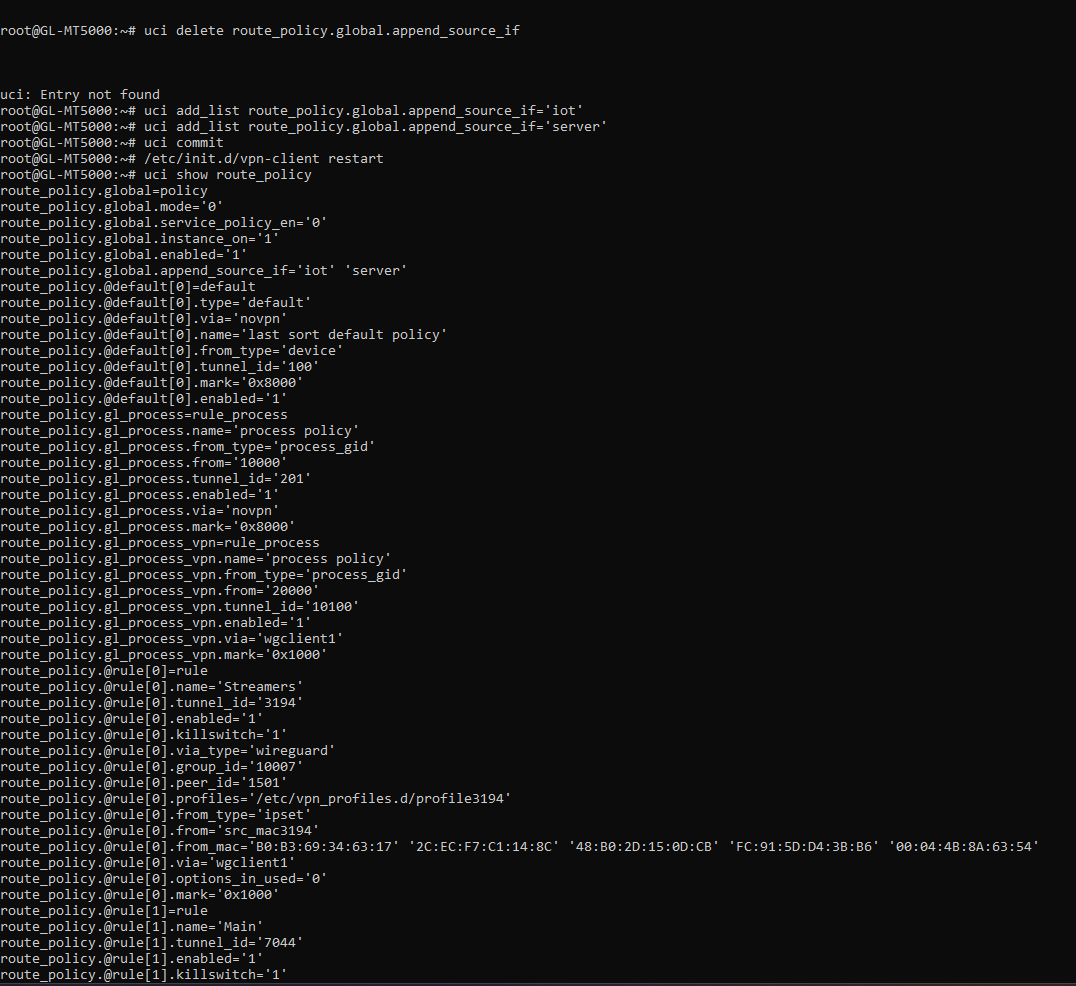
Please also send us the output of uci show route_policy if the traffic still does not go through the VPN.
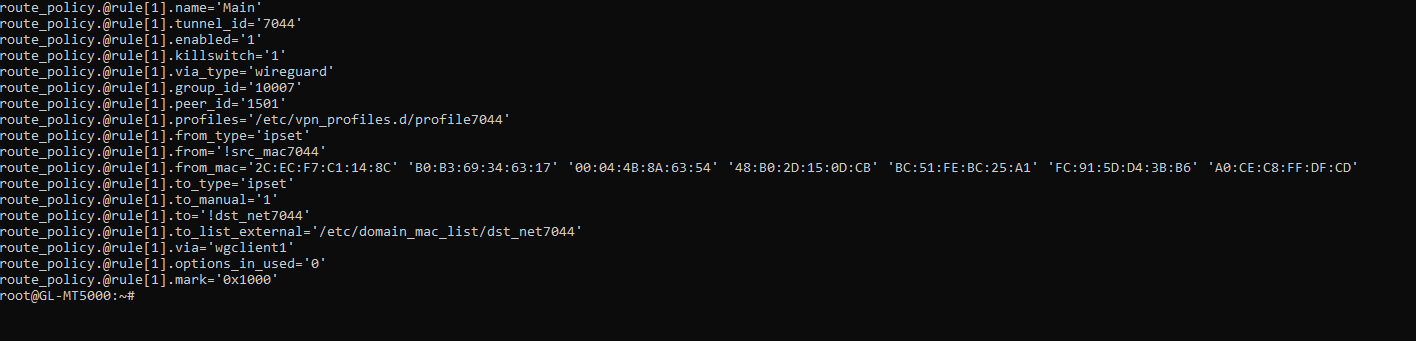
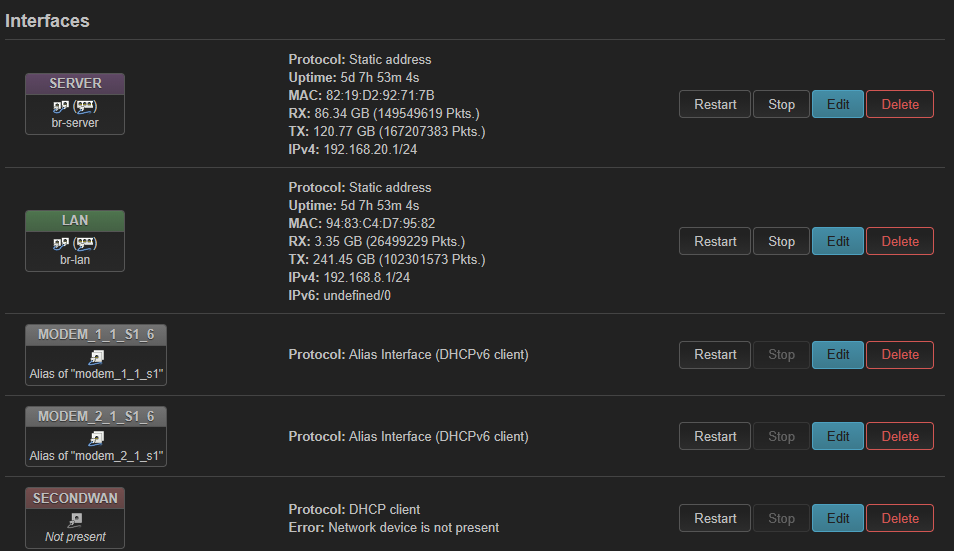
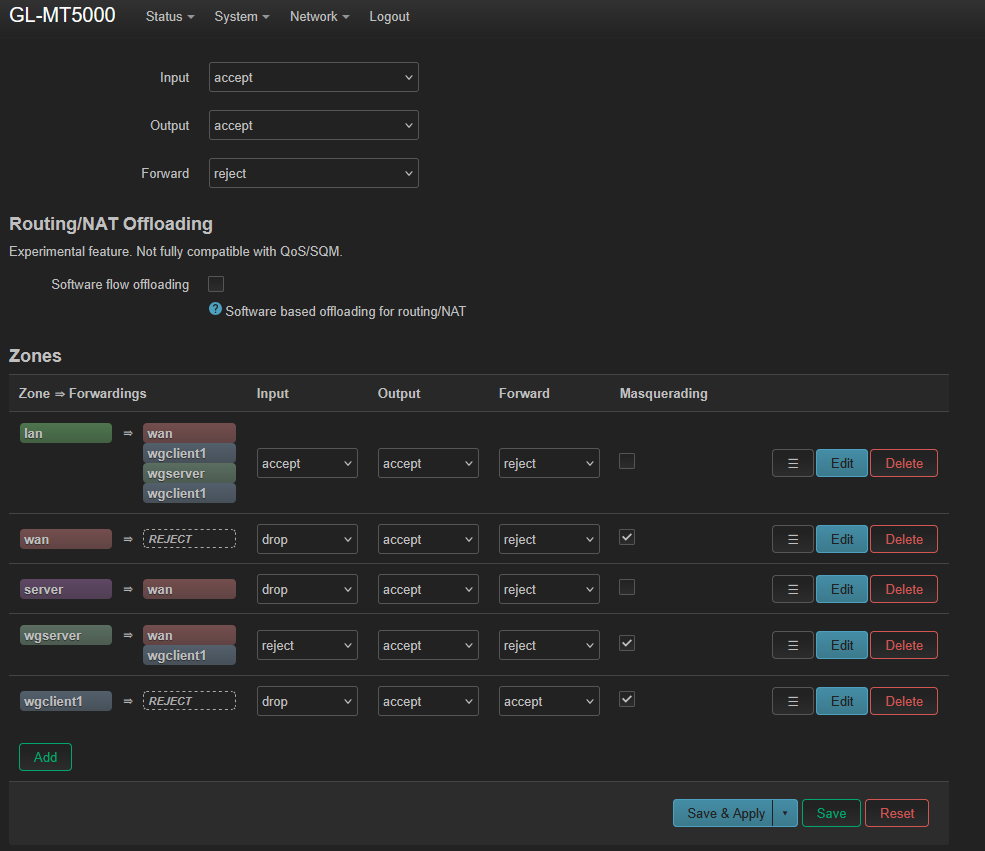
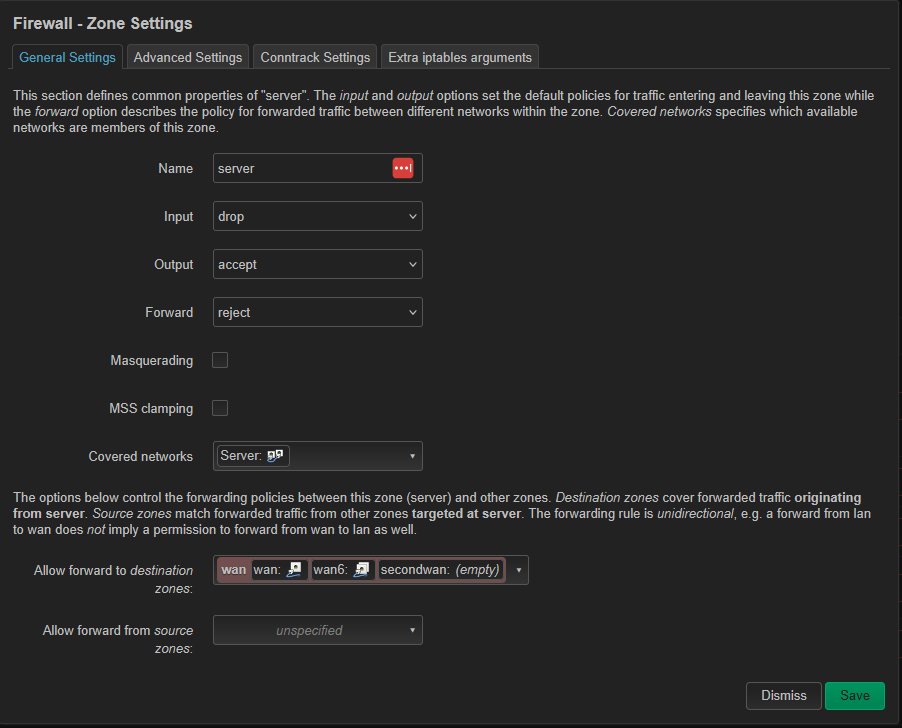
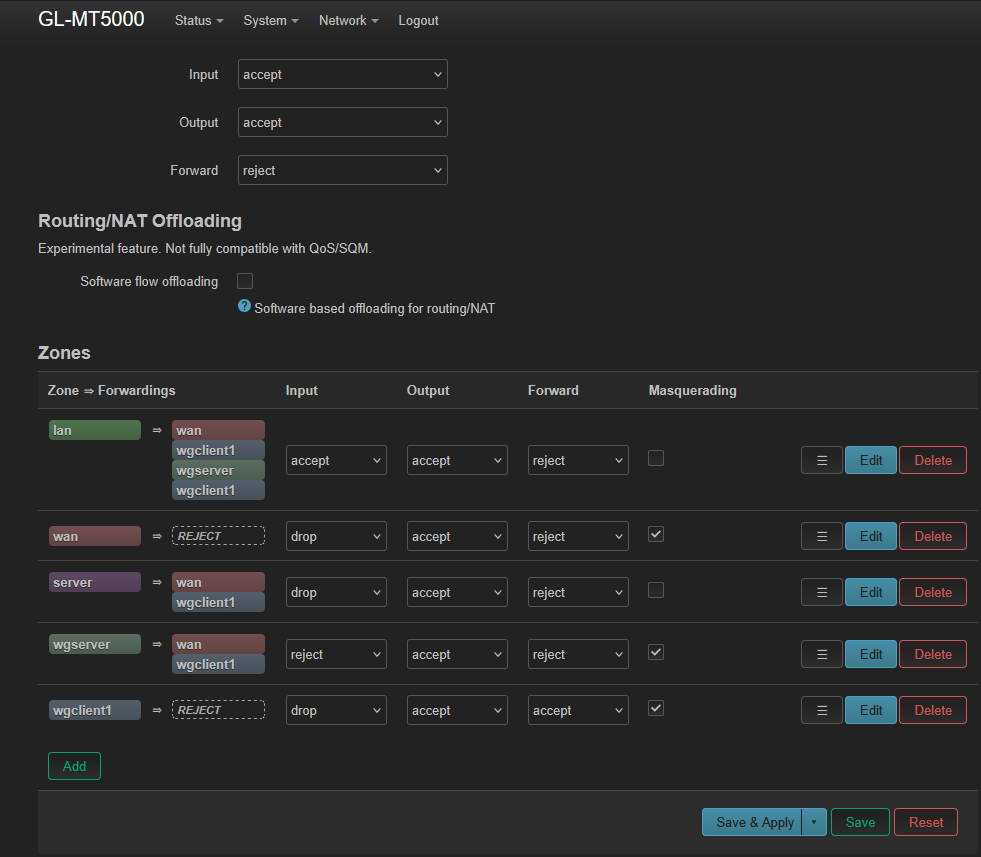
I ran those entries and wifi traffic is still not going through VPN client. I have screenshot the ‘uci show route_policy’ for you. The new interface I created is caller ‘server’. I have screenshot the Interface page from Luci so you can see how its setup. The wifi is running through ‘server’ and broadcasting on 192.168.20.* and my LAN is broadcasting through ‘LAN’ on the 192.168.8.* I also screenshot the firewall settings for new ‘server’ interface. Let me know if you need any further information. LAN devices are working fine behind VPN client. Thanks.
We can see that the server interface has already been added to the VPN routing policy.
However, in your firewall settings, the server zone currently only allows forwarding to wan .
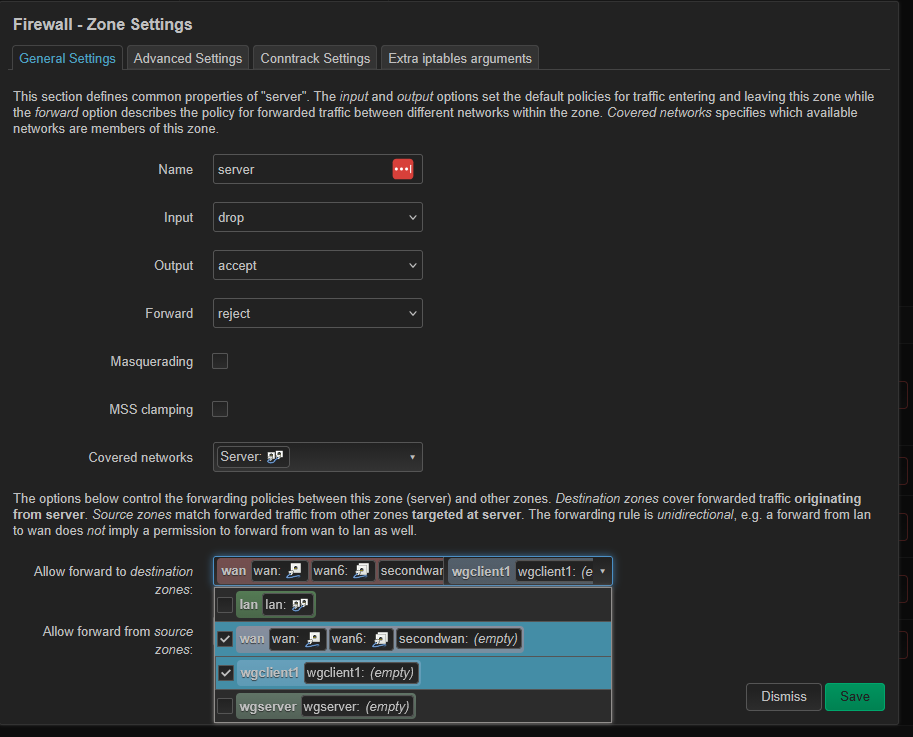
Could you please go to LuCI → Network → Firewall → Zones → server → Edit , add wgclient1 under Allow forward to destination zones , and click Save & Apply ?
Then please check whether your Wi-Fi devices are using the VPN public IP.
still not going through VPN client. Wifi devices still show my ISP IP. I screenshot the Firewall settings to see if I did it correctly. I hit Save & Apply. I disconnected from Main VPN tunnel and reconnect, same result.
From your screenshots, the server interface has already been added to the VPN routing policy, and the firewall forwarding to wgclient1 also appears to be configured correctly.
If convenient, could you please share your router with our technical support team through GoodCloud so that we can investigate this issue remotely?
You can refer to the following guide:
After shared, please send us the router's MAC address and temporary admin password via private message.
Thank you again for your cooperation and patience.