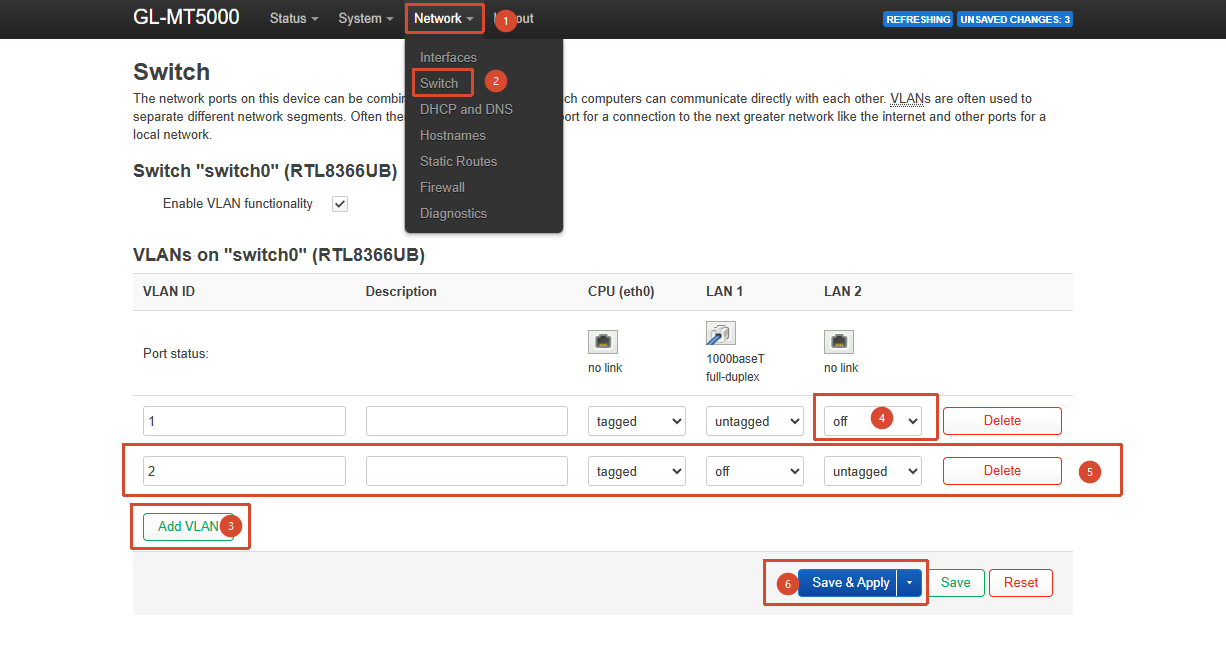
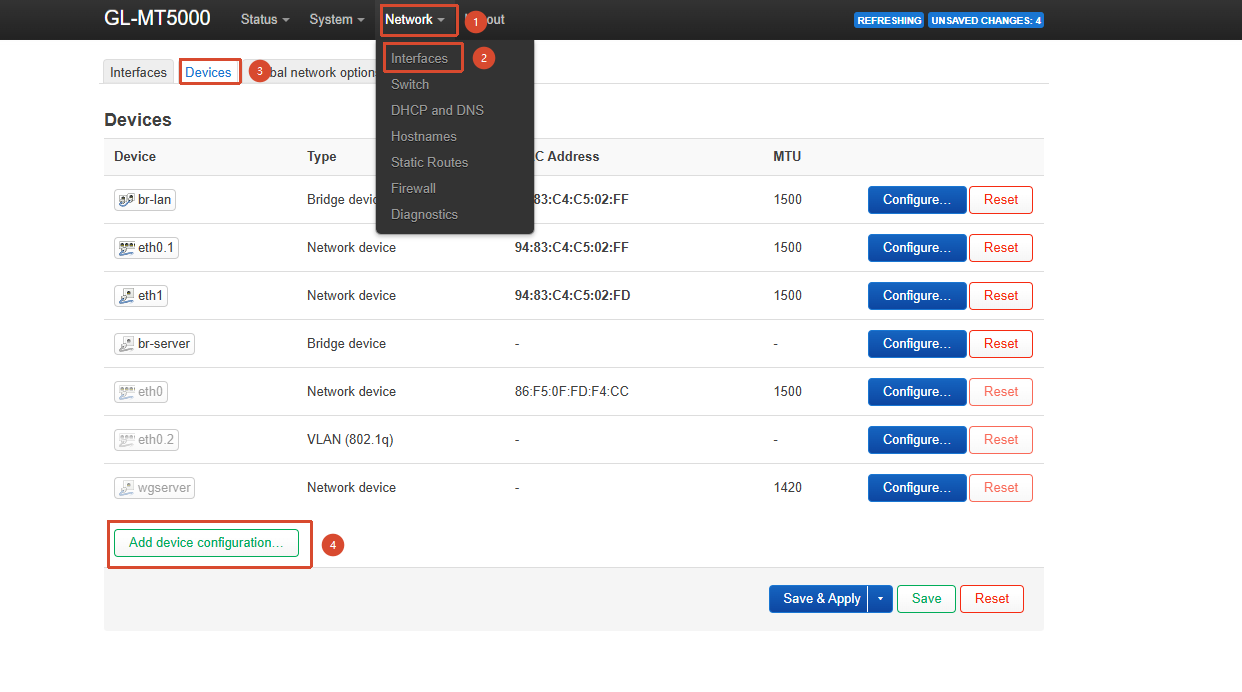
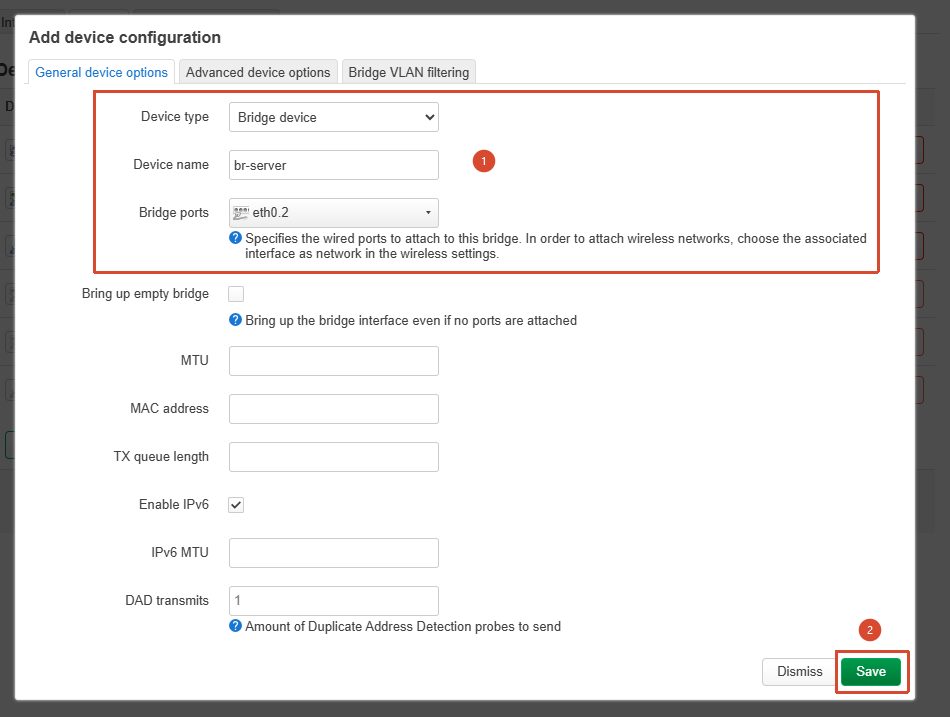
I have recently installed a Brume 3 GL-MT5000 on my home network and it works great. I have my internet provider in WAN port, a Simpoyo 4G failover in the USB port, and an unmanaged switch with Eero wifi and other devices in LAN port 1 that are assigned IP addresses over DHCP in the 192.168.1.X range.
What I want to do next is plug an unmanaged switch in to LAN port 2 and have any devices connected there isolated from the rest of my network and given addresses in the 192.168.20.X range. They need internet access from the WAN/4G but I do not want them to be able communicate locally with anything connected to LAN port 1.
I am familiar enough with the Gl.inet admin interface, LuCi, and SSH access to carry out whatever work I need to do to make this happen, but I made the mistake of trying to get Claude AI to help me and after hours of trying I didn't ever get there.
I stopped and thought "this must be a pretty common use case, I must be overcomplicating it!" and that is why I find myself here in the forum asking for help
I searched for other posts, but except for one post, I only found some references to the OpenWRT VLAN documentation and trying to follow that confused me. I can provide screenshots of my current config in LuCi if needed, although really I would like to start over.
Is somebody able to help me, step by step, get this working please? Any help much appreciated!
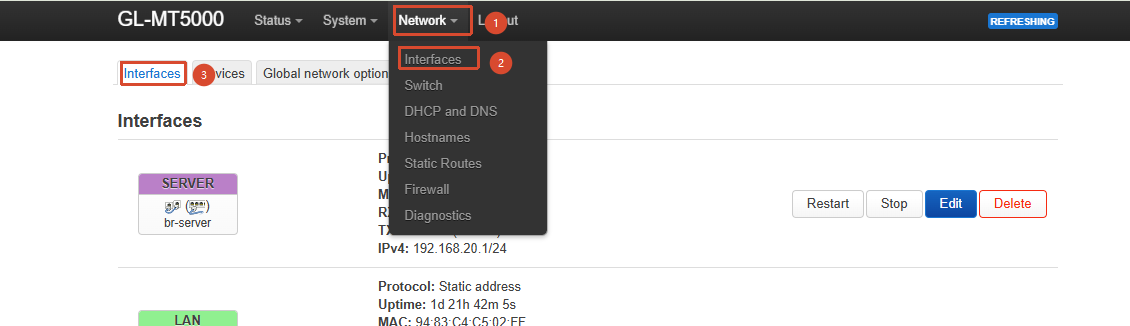
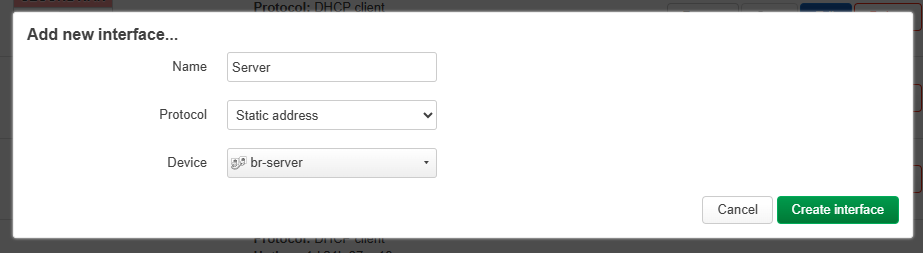
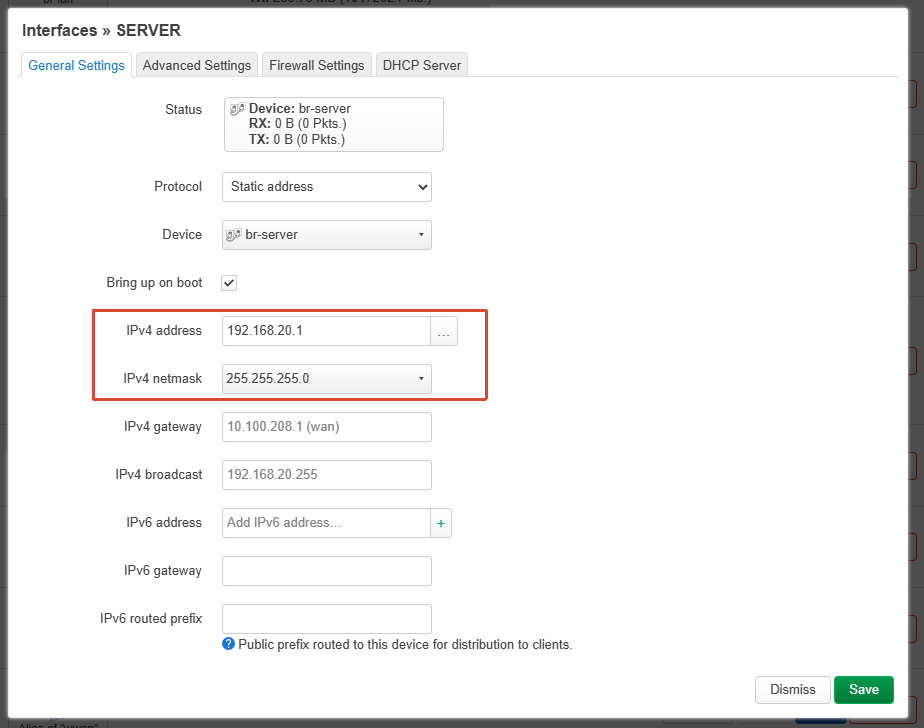
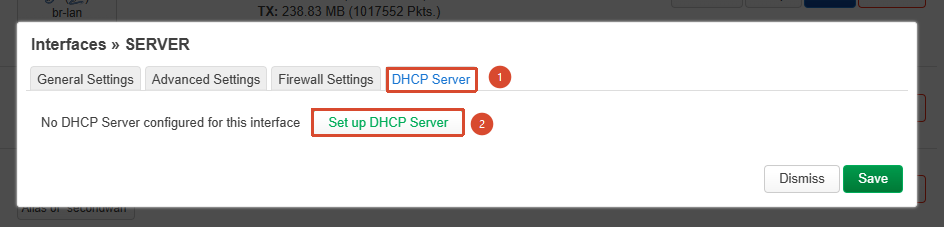
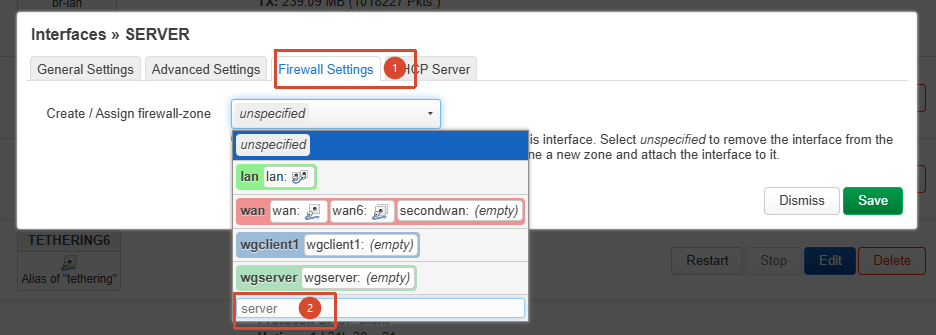
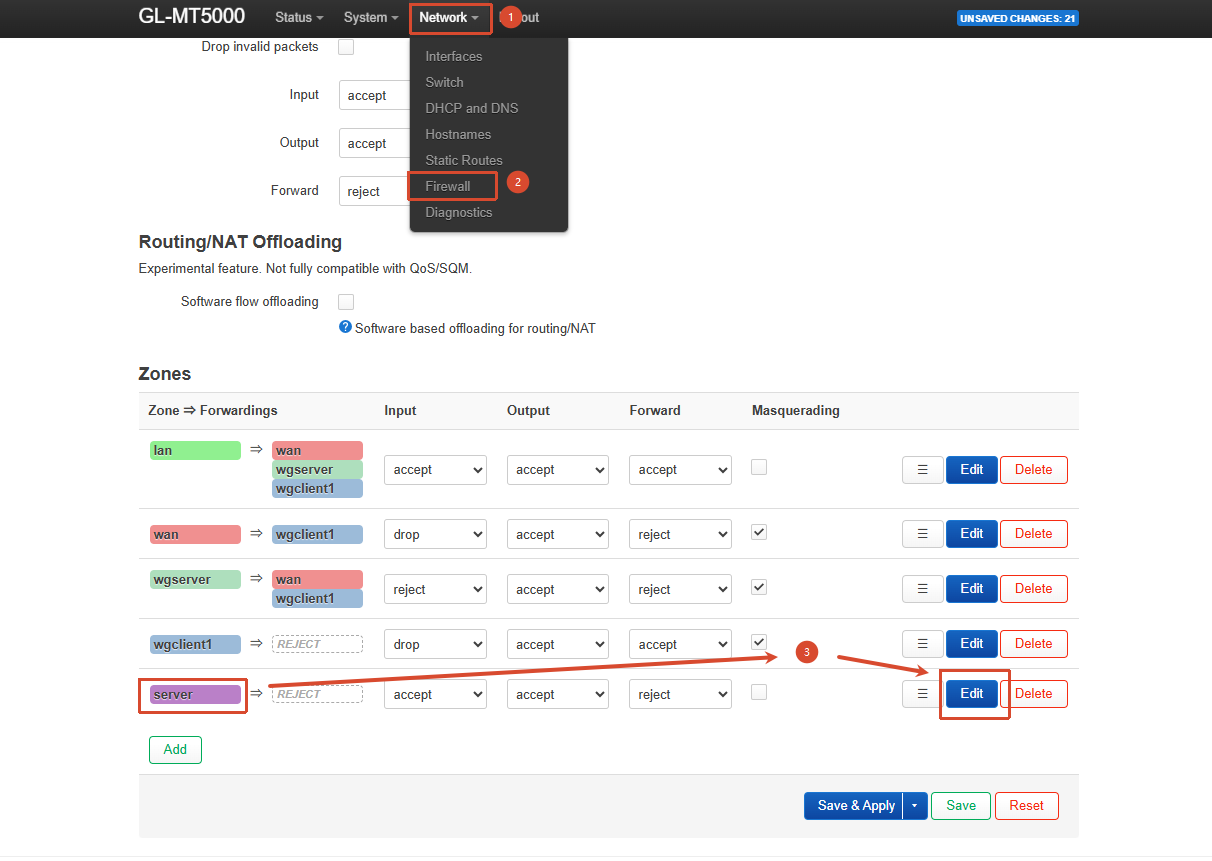
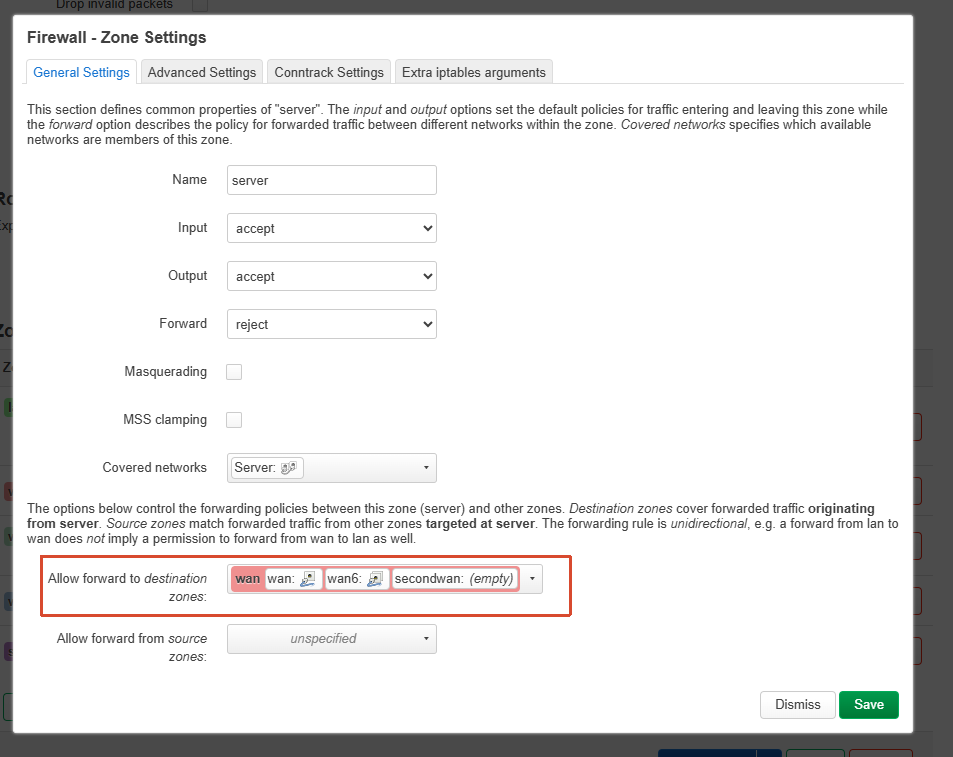
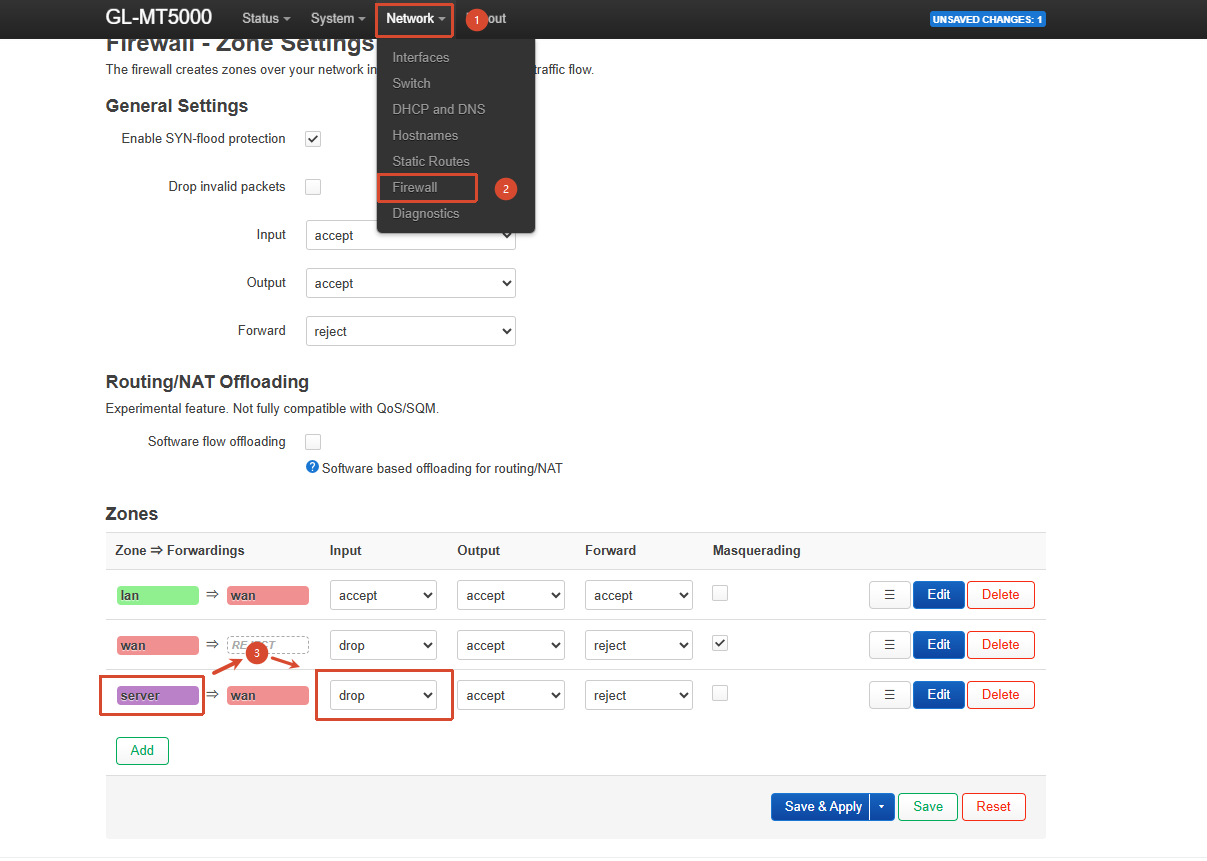
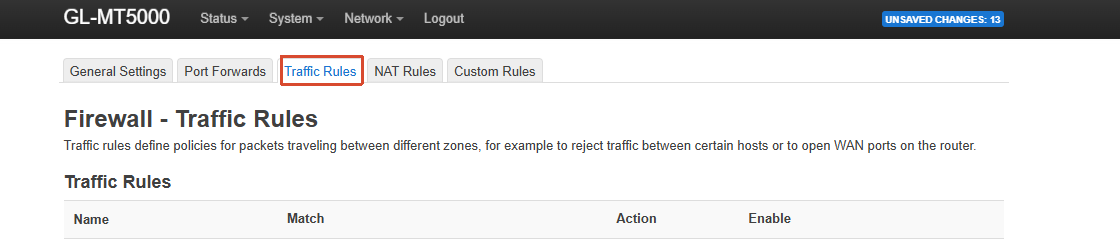
Go to LuCI → Network → Interfaces → Interfaces and configure the new bridge created in the previous step by assigning an IP address, enabling DHCP, and creating a new firewall zone:
Question - I have the same requirements as the OP. Your solution worked, but the problem is that the AP I have on the LAN 2 port is not respecting the Brume 3 VPN tunnel policies. It seems to be bypassing the VPN routing policies entirely and going straight to ISP. The Brume just updated and is now on 4.9.0. How can I correct this behavior?
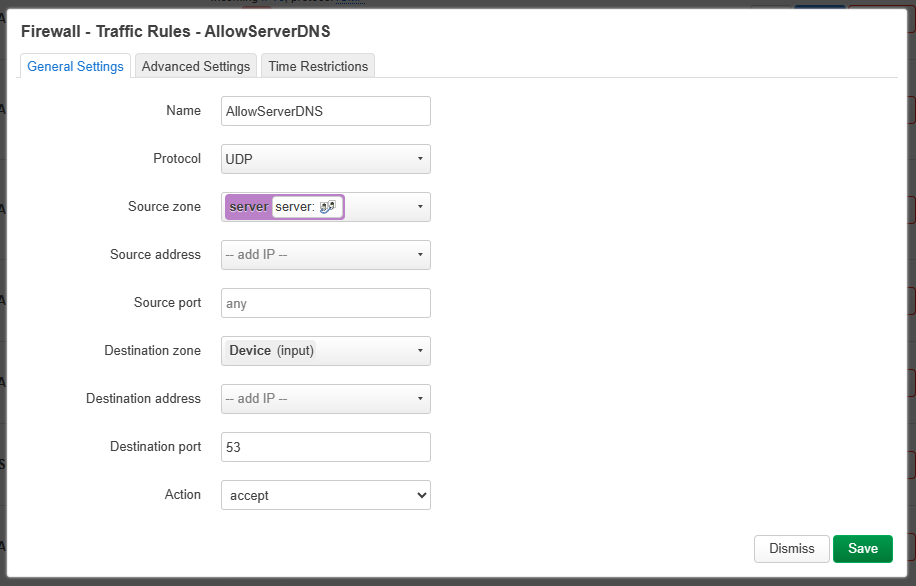
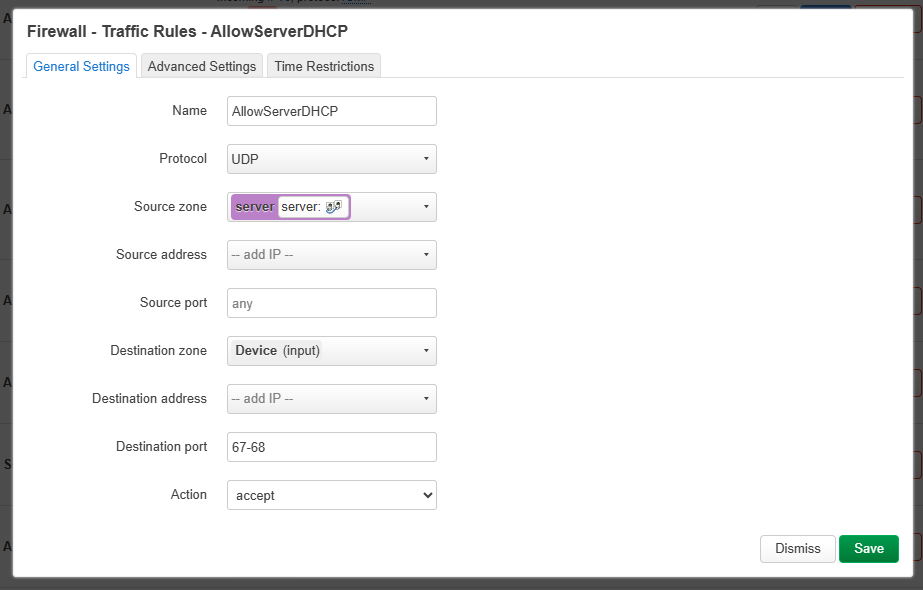
Also, the AP devices connected to the poe switch behind Brume’s port 2 was still able to access the Brume admin panel. I want to isolate from accessing LAN and admin portals for extra security.
Hi @will.qiu ,
I ran the SSH commands and implemented everything precisely as you instructed. However, I was unsuccessful. Topology is as follows:
ISP > Brume 3 >
Port 1 LAN to admin /
Port 2 LAN to “server” unmanaged switch.
The ““server/iot” devices connected to switch behind LAN 2 are still not respecting the Brume 3 VPN tunnel policies and are getting direct ISP connection
The firewall works and I cannot access the brume admin portal from those devices. Oddly, I am still able to ping 192.168.20.1 with success.
The ssh vpn commands did not work and “sever/LAN 2” still circumvents the Brume vpn routing tunnels.
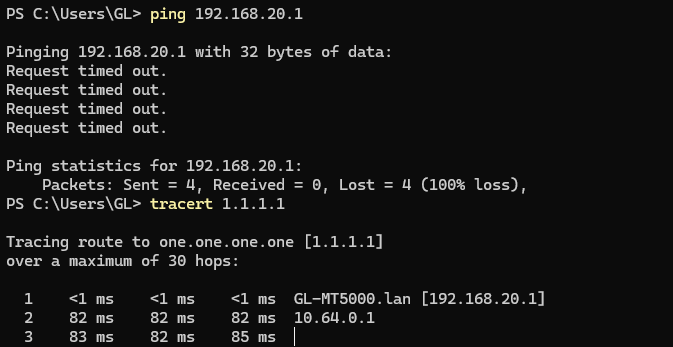
In our previous testing, the device connected to the LAN2 port appeared to be able to forward traffic through the VPN normally without any issues (the tracert result showed 10.64.0.1, which is the tunnel IP address of the WireGuard VPN we used).
Could you please provide a screenshot of Admin Panel → VPN → VPN Dashboard so we can better understand the issue?
(If you have configured any VPN policies, please also provide screenshots of the specific policy settings page.)