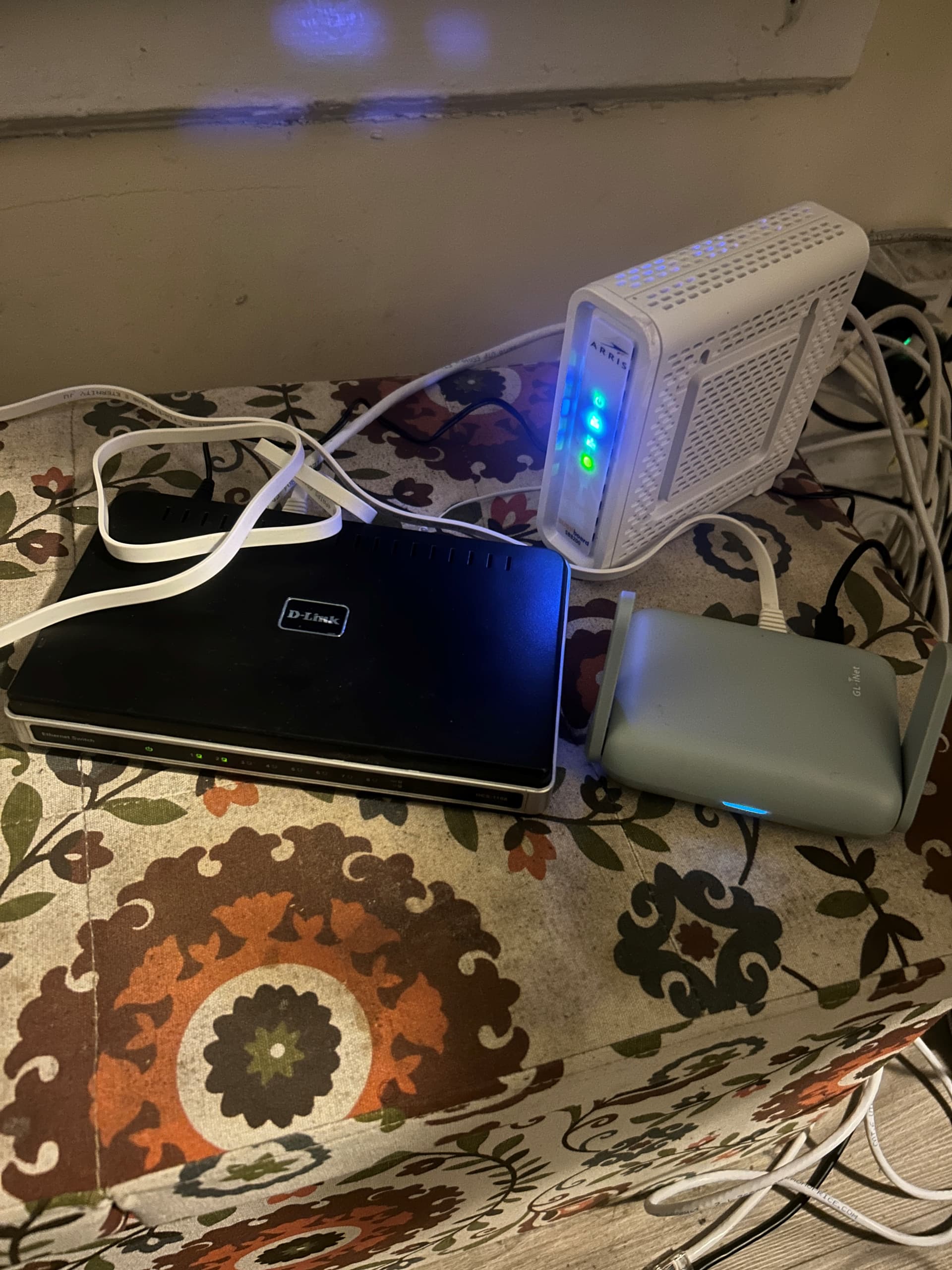
Hello! I'm using the GL-MT3000, firmware v4.8.1 Stable. Router is connected via R45 to my modem (SB8200). My ISP is Optimum in NYC, USA. I don't know which DNS server but I assume it's my ISPs.
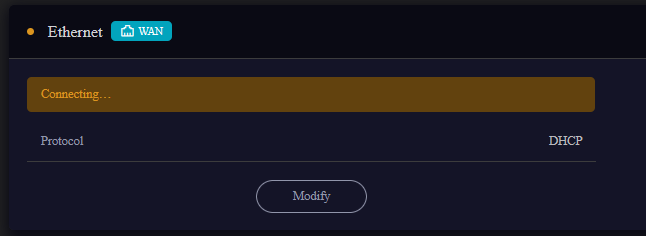
The Issue on the main page, where it says “Ethernet” there's always a yellow “Connecting…” status but it never connects to the internet. Other devices directed connected to the modem (SB8200) can access the internet by being directly connected to the modem, so the issue is with the router.
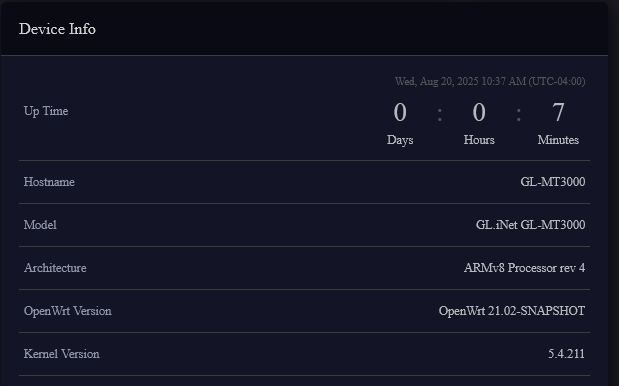
Here is the Device Information
I've Tried:
-
Rebooting the Router
-
Rebooting the Modem
-
Factory Resetting the Router
-
Calling my ISP - They said that there are no issues on their side. They can see connected devices to the router and they're not doing anything to block internet access.
-
Changing Network Mode to Access Point
-
Using the WAN interface detect option (Little book icon on the top right corner of the main screen). Still the same issue.
I've also looked at the following threads that were suggested when I was writing this post, but they are not really similar to this issue
Happy to supply Logs from “System” after a reset from the router. let me know what filters I should apply.
Any assistance here would be appreciated. Thank you!
Hi
It does appear that the WAN interface is failing to obtain an IP via DHCP.
Please try the steps below to further isolate the issue:
-
Replace the Ethernet cable and, if possible, test another port on the ISP modem.
-
Confirm that another device can successfully obtain an IP via DHCP from the same modem port using the same cable.
-
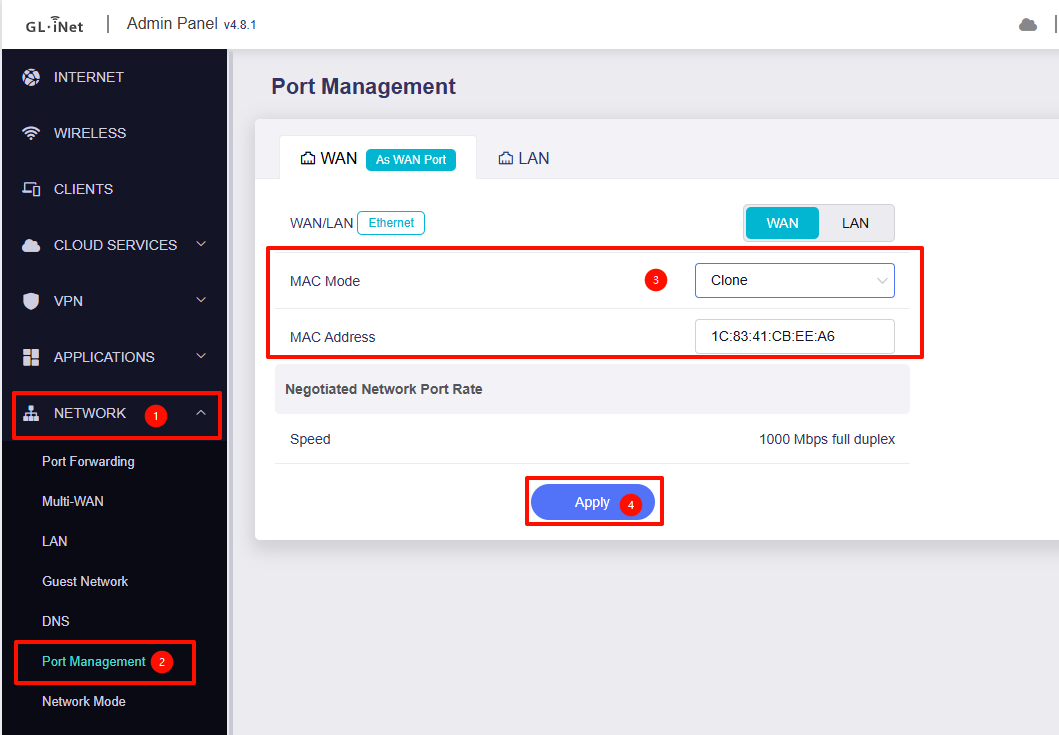
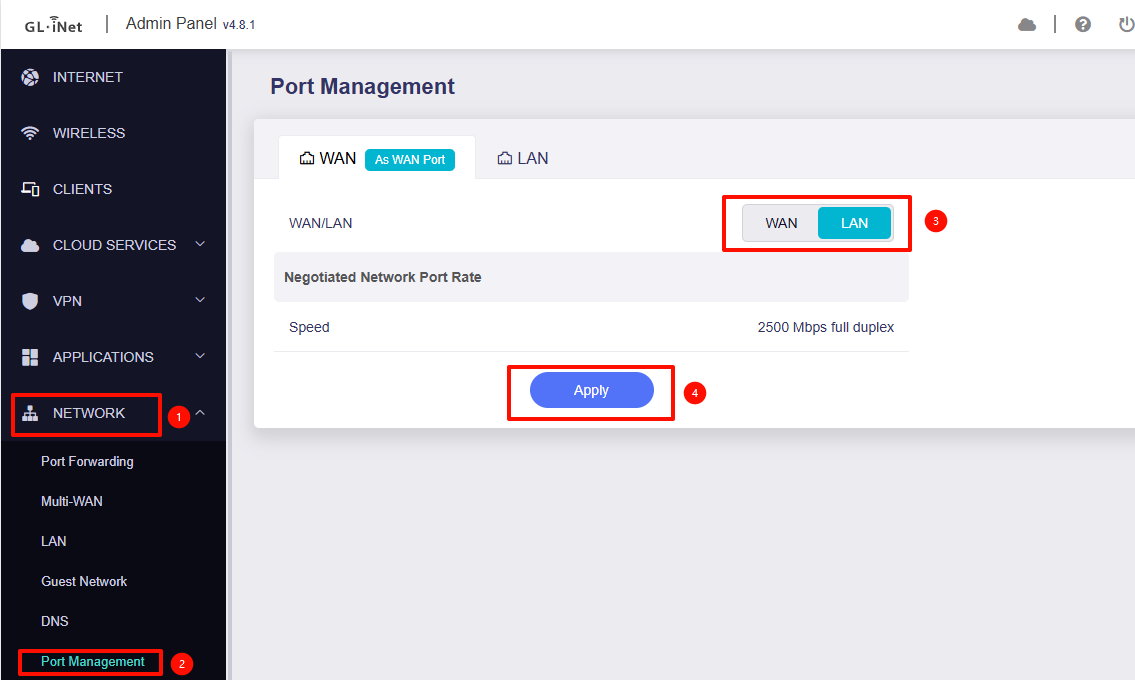
Please try cloning the MAC address of a device that successfully obtains an IP (Admin Panel > Network > Port Management).
-
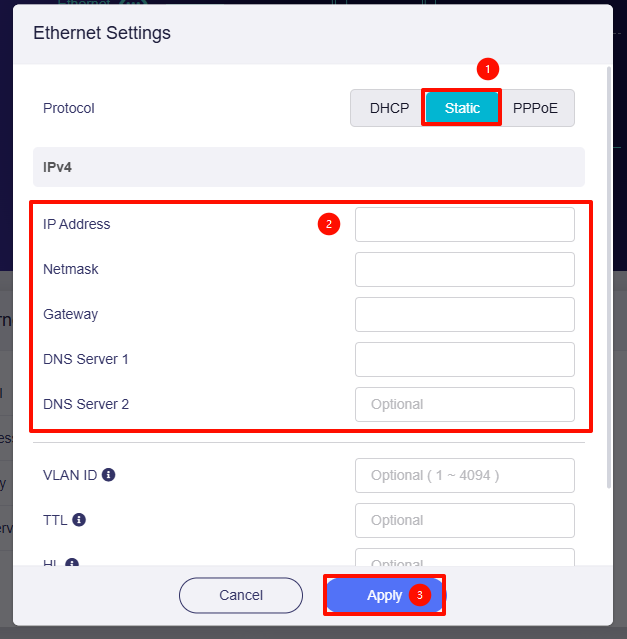
If you manually configure a known working static IP, gateway, and DNS, does the connection work?
Hey! Thanks for responding. So I tried your suggestions:
1 - Switching the Ethernet Cables - This temporarily worked! So a new development here is that it keeps "Getting" the DNS server and then after a while it goes back to "Connecting".
1a - Using a brand new Ethernet Cable - I need to drive to the store to get a new cable so this is pending.
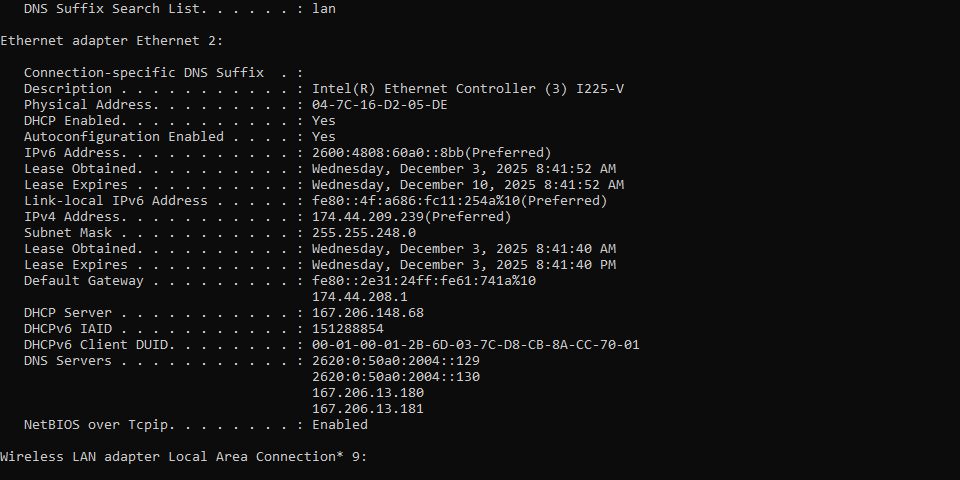
2 - Confirm Alternate Device can obtain DCHP using same port and cable - I connected my PC Directly to the modem and ran ipconfig. Here is the output, using a different cable on the same port:
3 - Cloning - Same situation as above. Worked briefly after resetting the modem, but did not work for long.
4 - Manual Configuration - Same situation as 1 too. It kinda worked…
This also isn’t very stable because I get this “Request Timed Out” message after a bit.
And my devices cannot get internet. For example, my phone (Samsung A52) says "Connected Without Internet".
Thanks for your suggestions Will, eager to get this resolved. I’d post more screenshots but I am a new user and I am hitting the embedded media limit.
Based on the information currently available, the issue appears to be related to the network cable.
Please try using a new one.
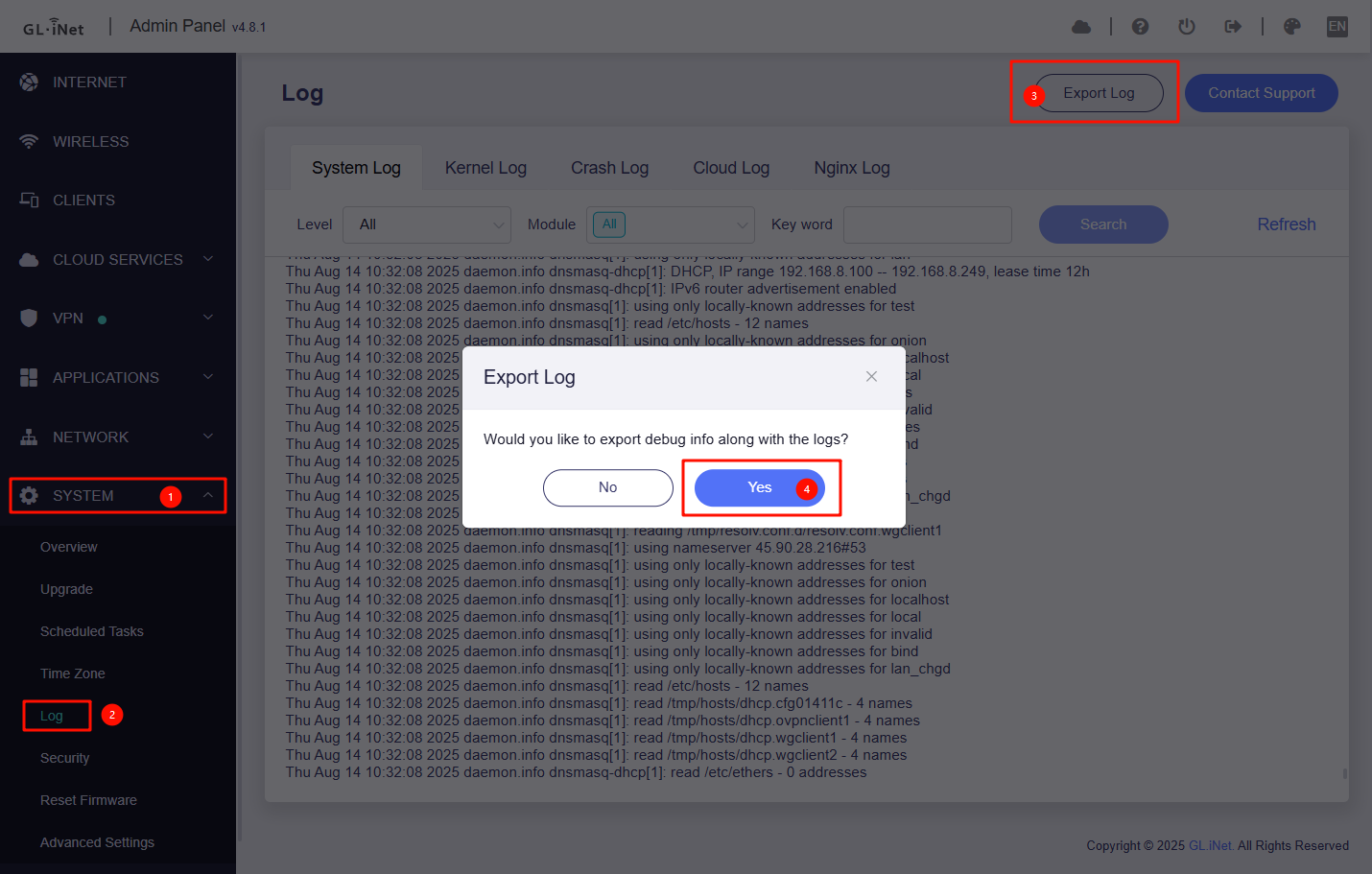
If the issue persists, please export the logs for us to analyse and we will conduct a further investigation.
How to export the logs:
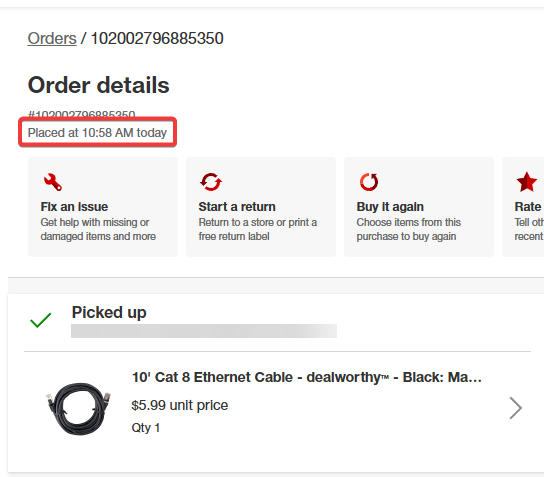
Hey! I tried a new cable (receipt below) but the issue still persists:
Attaching the logs to this response. Thank you for looking into this.
logread.tar (212.5 KB)
Based on the logs, the WAN interface is repeatedly cycling up and down.
This may be caused by the network cable or, in some cases, by poor contact at the WAN port or a compatibility issue.
Please try the following steps:
Hi Will,
Thanks for responding. Can you recommend and link me a specific cable to use? I’d like to avoid using many cables to diagnose this issue, especially since I tried a brand new one. Plus, I might potentially also need to carry a dumb network switch while I travel with this? That’s more than a little unreasonable considering this is a travel router and I need to travel light. I’m beginning to think this issue with the router itself to be quite honest.
I believe I already tried swapping the WAN/LAN ports but I’ll try that again.
There is no need to purchase additional network cables.
Please try a few cables that are already known to work reliably with other devices in your home.
If you still have the cable that came with the MT3000, please test with that as well.
The dumb switch test is only to verify whether the issue is related to a compatibility problem with the WAN port of this specific device. It is not a requirement for normal use, nor a long-term workaround.
If possible, try switching the WAN port to LAN under Admin Panel > Network > Port Management, and then connect your PC to that port to confirm whether it operates normally.
Hey Will,
Thanks for the response, I will respond to your points in turn:
- I used all the cables I’ve got (and the one I purchased yesterday) and they each work with my PC, but not with the router. I don’t think the issue is with the cable.
- I used the dumb switch and my PC can get internet between it and the Modem (using the switch to respond to you actually), but the router is still showing the “Connected” status and that’s it.
- I switched the WAN/LAN ports, same issue. Happy to give logs for either step 2 or 3 (or 1…but that’s a lot of logging for you to go through).
Could you confirm whether you have tested the following setup with a dumb switch, and that the MT3000 still remains in the “Connecting…” state?
ISP modem <--> Dumb switch <--> MT3000
In addition, please:
- Verify that the MT3000 is using the original power adapter, or another compatible 5 V / 3 A adapter.
- Switch the WAN port to LAN and check whether a PC connected to this port can work normally.
Please send an email to [email protected] with a link to this thread and a brief description of the situation. Our technical support team will investigate further.
Hey Will,
I chose to return this. Please close this thread